One of the most recurring needs for store managers is the ability to access and bulk edit stock fields for products.
This task is crucial for efficient inventory management and can save significant time and effort.
There are two main methods to accomplish this.
The first method involves using the default WooCommerce bulk edit functionality. Follow these steps to get started:
2 Easy Ways To Bulk Edit Stock Details in WooCommerce (Simple and Variable Products)
Method 1: Bulk Edit Product Stock Fields by Using the WooCommerce Default Editor
The first method to accomplish this task is using WooCommerce default, as outlined in the steps below.
Step 1: Access All Products in WooCommerce
Navigate to the Product > All Products section in WooCommerce from your WordPress dashboard. This section lists all the products available in your store.
To efficiently manage your inventory, you can use the built-in filters to narrow down the products you need to edit.
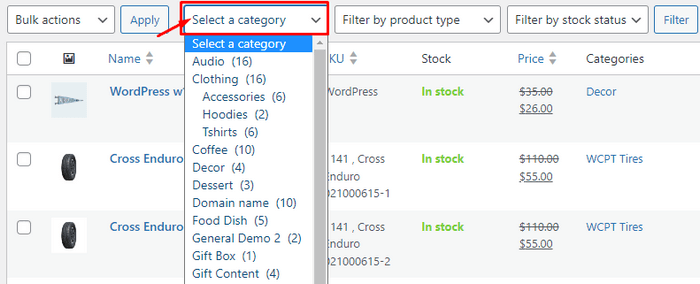
You can filter products based on:
1. Category: Select a specific category to display products within that category.
2. Filter by Product Type: Filter products by their type, such as simple, downloadable, variable, etc.

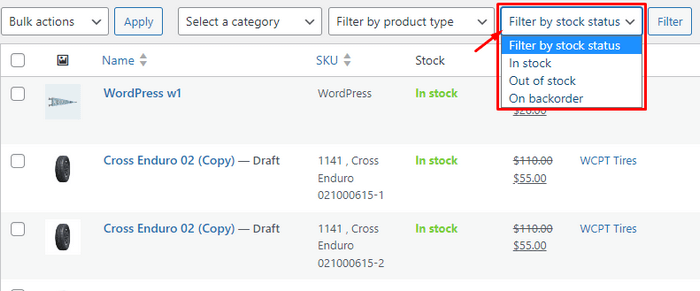
3. Filter by Stock Status: Filter products based on stock status like in stock, out of stock, and on backorder.
Step 2: Select Desired Products for Stock Management
After applying the necessary filters and identifying the products you want to manage, follow these steps to bulk edit the stock details:
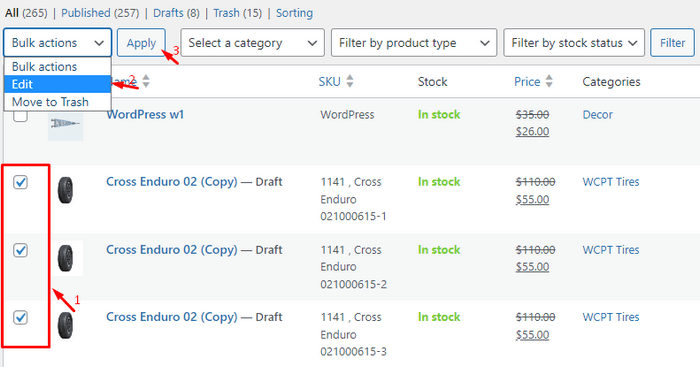
1. Select the Products: Check the boxes next to the products you wish to edit.
2. Click edit from the bulk actions dropdown: Once selected, navigate to the Bulk Actions dropdown, choose Edit, and then, click the Apply button. This will open the bulk edit form where you can change multiple products simultaneously.
3. Bulk edit stock fields: In the bulk edit form, you will see several fields for editing different aspects of the products. For stock management, navigate to the stock field.
Here, you can update various stock-related fields:
- Stock Status: Update the stock status to indicate if the products are in stock, out of stock, or on backorder.
- Manage Stock: Enable or disable stock management at the product level.
- Stock Quantity: Set the new stock quantity for the selected products.

4. At this stage, after making the changes, click the Update button to apply the changes.
Method 2: Bulk Edit Product Inventory Fields by Using the WooCommerce Products Bulk Edit Plugin
The WooCommerce bulk edit plugin is a powerful tool that allows you to efficiently bulk edit stock details for products.
This plugin simplifies the management of your store by providing an easy-to-use interface and a variety of features to handle product inventory updates in bulk.
Using this tool saves time and minimizes errors, ensuring your stock levels are always accurate and up to date.
Stay tuned as we explore this plugin further and learn how to use it effectively to bulk edit product stock fields in WooCommerce.
Step 1: Installing WooCommerce Products Bulk Edit Plugin
To install the plugin in WordPress, follow these steps:
- Save the file you received after purchasing the plugin from the site.
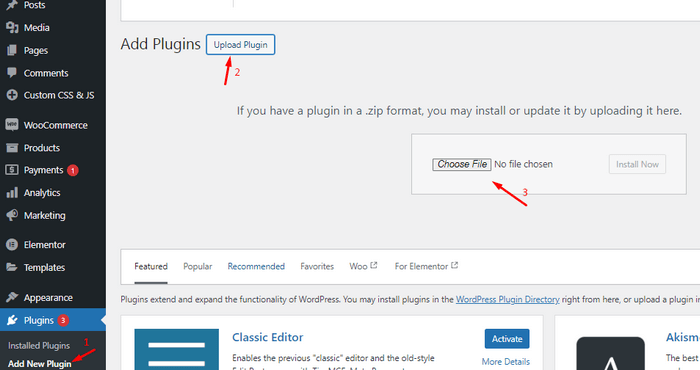
- Go to the WordPress dashboard and navigate to Plugins.
- Click on Add New.
- Click on Upload Plugin and select the plugin file.
- Click Install Now.
- After installation, click Activate Plugin.
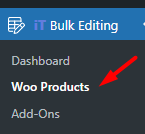
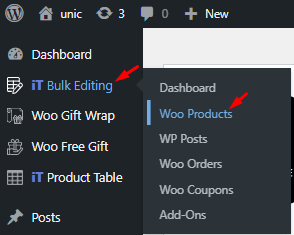
Once installed and activated, you will see the IT Bulk Editing menu in the WordPress dashboard. Go to Woo Products to view the bulk edit table.
Step 2: How To Bulk Edit Stock Fields Using This Tool
With this plugin, you can efficiently manage the inventory of all types of products. In the next section, we guide you through bulk editing stock fields for simple and product variable products.
Bulk Edit Simple Products Stock Fields
To bulk edit stock details of simple products in the WooCommerce products bulk edit plugin, follow these steps:
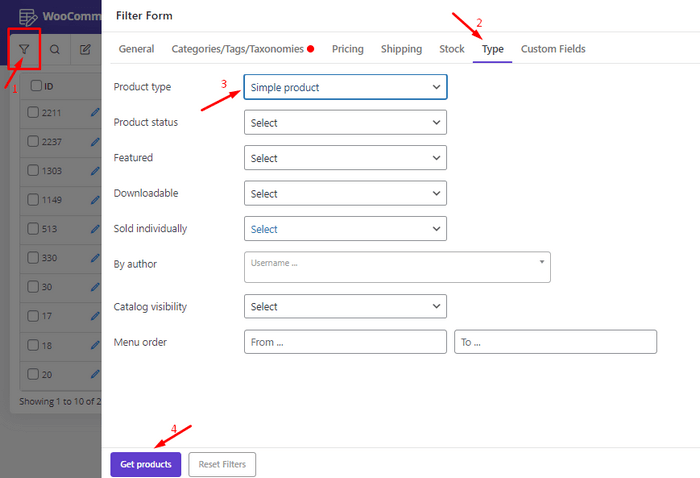
1. Click the Filter tool in the toolbar to display the filter form. This allows you to narrow down the products you want to edit.
2. Go to the Type tab and select the Product Type field. This helps in specifying the type of products you are interested in.
3. Set the the Product Type field to Simple Product.
4. Click the Get Products button to display all the simple products in your shop.
5. Select the products you want to edit by checking the boxes next to them. This step ensures that only the chosen products will be affected by the changes.
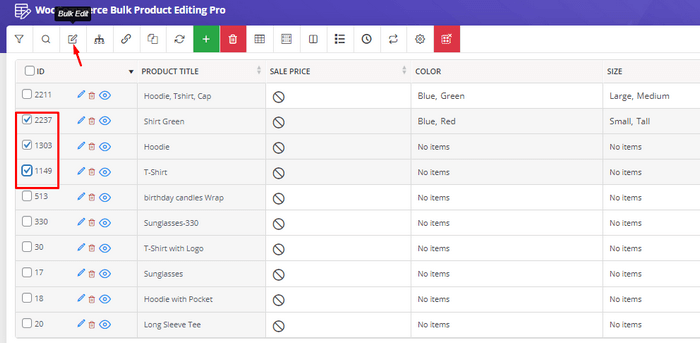
6. After selecting the products, click on Bulk Edit in the toolbar to open the bulk edit form. This form provides all the fields you can edit in bulk.

7. Go to the Stock tab and change any fields you want. You have several options to manage your stock details:
- Manage Stock: To enable/disable the stock management of selected products.
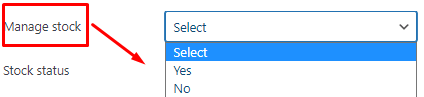
- Stock Status: To set the stock status of selected products.
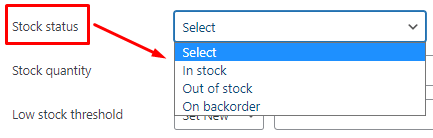
- Stock Quantity: This field allows you to set the product stock quantity of selected products using different methods:
- Clear value: Reset the product stock quantity to a blank value.
- Formula: Apply a formula to adjust the product stock quantity.
- Increase by value: Increase the current product stock quantity by a specific value.
- Decrease by value: Subtract a specific value from the current product stock quantity.
- Increase by %: Increase the product stock quantity by a certain percentage.
- Decrease by %: Decrease the product stock quantity by a certain percentage.
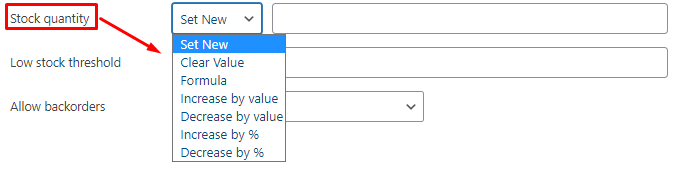
- Low Stock Threshold: Set thresholds for low stock notifications using similar methods as stock quantity.

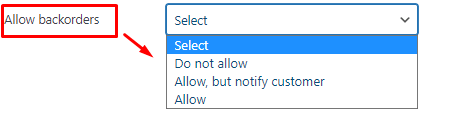
- Allow Backorders: To set the backorder option of selected products.
After selecting the desired fields, click the Do Bulk Edit button to apply the changes. This will update the stock details for all selected products in one go.
Bulk Edit Variable Products Stock Field
Editing variable products in bulk can be challenging, but this plugin makes it easy. Follow these steps:
1. Similar to simple products, click the Filter tool, then go to the Type tab in the filter form and select Variable Product. This will help you filter out the variable products.

2. In the toolbar hover over the Variation tool and click Show Variation. This displays all variations of the filtered products.
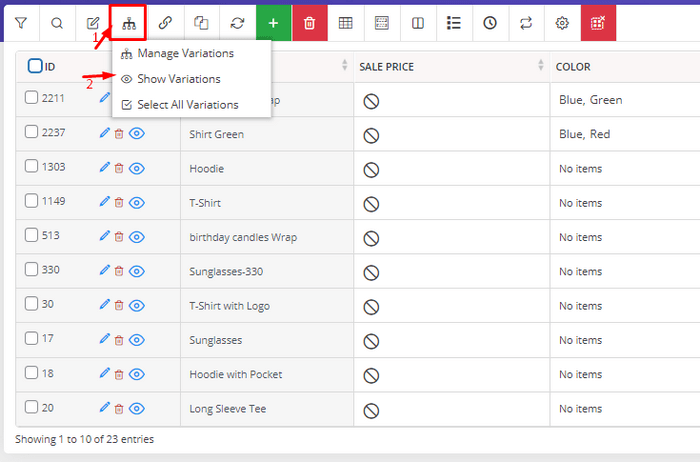
3. Choose the product variations you want to change and click on the Bulk Edit tool.

4. Follow the same steps as simple products to edit the selected variation stock details.
By following these steps, you can easily manage the stock details for your variable products, ensuring that all variations are accurately updated.
Why WooCommerce Bulk Stock Management Is Important?
Efficient WooCommerce bulk stock management allows businesses to swiftly update inventory quantities for multiple products at once.
This capability ensures accurate stock levels, smoother order processing, and improved operational efficiency.
Key Benefits of Using Bulk Edit in Stock Management:
- Improved Efficiency: Streamline your workflow by handling large quantities of stock changes in one action, boosting overall efficiency.
- Time Savings: Make bulk updates to stock quantities quickly, reducing the time spent on inventory management.
- Streamlined Workflow: Simplify your stock management process by handling bulk edits in one go, allowing for better focus on other business tasks.
Final Words
While WooCommerce provides stock management capabilities, handling these tasks in bulk can be time-consuming and prone to errors.
The WooCommerce products bulk edit tool simplifies the process, making it efficient and error-free.
With features like advanced filtering, easy editing, and comprehensive support for all fields, this plugin significantly enhances your inventory management workflow.