When it comes to running a successful WordPress website, image optimization is one of the most forgotten strategies.
Images make a page look nicer, help share information quickly, and can improve the user experience.
However, unoptimized images can make your website load slowly, hurt your SEO rankings, and really annoy visitors.
In this guide, I show you everything you need to know about optimizing images for WordPress.
Furthermore, including why it matters, how to do it effectively, and the best tools and plugins to simplify the process.
Why Image Optimization Matters
Before diving into the “how,” let’s talk about the “why.”
Image optimization is not just a technical task; it plays a vital role in the overall performance and user experience.
Many websites underestimate the impact that images have on loading speed, SEO, and visitor engagement.
High-quality visuals are important, but if they are not properly optimized, they can do more harm than good.
Here are some reasons you should prioritize image optimization on your WordPress website:
Improved Page Load Speed
Large images that are not resized or compressed properly are one of the biggest reasons websites take a long time to load.
When images are too big, they slow down your pages, which can lead to a poor user experience, especially for people using mobile phones or slower internet connections.
In many cases, visitors might not even wait for the page to finish loading.
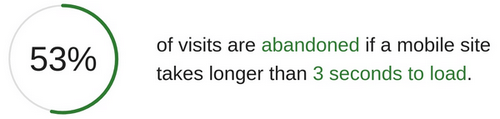
According to Google, 53% of mobile users abandon a site that takes longer than three seconds to load. That’s over half of your potential visitors gone before they even see your content.
Faster websites keep people engaged longer, reduce bounce rates, and lead to higher conversion rates can help with more sign-ups, purchases, or page views.
Image optimization is a simple but powerful way to make your WordPress site faster and more successful.
Better SEO Rankings
Google uses page speed as a ranking factor. A faster website provides a better user experience, and search engines want to show users the best-performing pages.
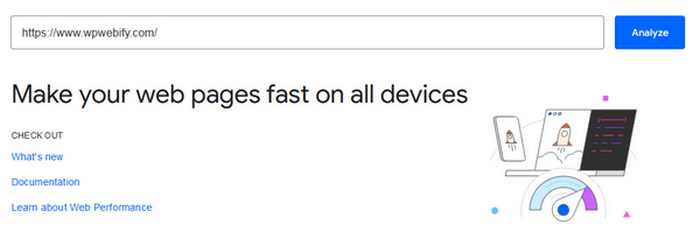
When images are optimized and reduced in size, they load more quickly and help your website score better on Google’s speed and performance tests like PageSpeed Insights and Core Web Vitals.
In addition, fast-loading, well-optimized pages are more likely to be crawled and indexed efficiently by search engine bots.
Over time, this can lead to increased visibility, more organic traffic, and better search engine performance overall.
Enhanced User Experience
When images load quickly and look good on all types of devices like phones, tablets, and computers, they make the website easier to use and more enjoyable for visitors.
Users do not have to wait or deal with broken images, blurry graphics, or layouts that look cluttered on smaller screens.
As a result, visitors are more likely to stay on your site longer, explore more pages, and engage with your content.
This can lead to longer session durations, lower bounce rates, and even higher chances of actions like signing up, making a purchase, or sharing your content.
Reduced Bandwidth and Hosting Costs
When your image files are smaller in size, they use less bandwidth and take up less space on your server.
This is really important if you are using a hosting plan with limited space or if your website has lots of images and videos.
Many shared hosting plans have strict limits, and large, unoptimized images can quickly eat up your available resources.
By optimizing your images, you can reduce the strain on your hosting, improve load times, and avoid unexpected hosting costs, all while keeping your site running smoothly.
Key Strategies: Image Optimization for WordPress
Choose the Right File Format
The image format you use on your website can significantly impact both image quality and file size.
Here’s a quick rundown:
JPEG: Best for photographs or complex images with many colors. JPEG stands for Joint Photographic Experts Group and is one of the most commonly used image formats on the web.
It uses lossy compression, which means it reduces file size by permanently removing some image data. However, if done properly, the visual quality loss is minimal.
Best for:
- Photographs.
- Blog post images.
- Product pictures with lots of colors and gradients.
PNG: PNG is a good choice for images that need transparency or sharp lines, like logos and icons.
PNG stands for Portable Network Graphics. Unlike JPEG, PNG uses lossless compression, which means it keeps all the original image data and quality.
It also supports transparent backgrounds, making it perfect for web graphics.
Best for:
- Logos and icons.
- Graphics with sharp lines and text.
- Images requiring transparency.
WebP: WebP is a modern format that offers superior compression. Supported by most modern browsers and WordPress 5.8+ natively.
WebP is a modern image format developed by Google that offers both lossy and lossless compression. It has much smaller file sizes than JPEG and PNG, often without a noticeable loss in quality.
Best for:
- Any image where performance and speed matter.
- Blog images, product photos, banners, and backgrounds.
SVG: SVG works well for graphics made of shapes, like logos and icons, but WordPress doesn’t support it automatically; you need a plugin to use it.
SVG stands for Scalable Vector Graphics. Unlike the other formats mentioned, SVG is not made up of pixels; it uses XML-based code to describe shapes, which means it can scale to any size without losing quality.
Best for:
- Logos and icons.
- Simple illustrations.
- UI elements like buttons and shapes.
There are more image file formats to choose from; however, the file formats presented above are the most common.
Recommendation: Use WebP wherever possible, fallback to JPEG or PNG when needed.
Resize Images Before Uploading
Uploading high-resolution images straight from a camera or phone is a big no for most web use cases.
You should resize images to the maximum dimensions needed for your layout before uploading them.
For example, if you want to display images at 800 by 600 pixels on your blog or website, do not upload a much bigger image like 4000 by 3000 pixels.

Tools for resizing images:
- Desktop: Photoshop, GIMP, Preview (Mac).
- Online: ImageResizer, Pixlr.
There are plenty of options online for resizing and editing images. Just do a quick search and try some of them to find the best tool for you.
Compress Images Without Losing Quality
Image compression reduces file size while maintaining visual quality, so they load faster without noticeably affecting how they look. This is one of the most effective ways to improve your website’s performance.
There are two main types of image compression:
Lossy Compression: It makes the file smaller by removing some data that people usually can’t see or notice.
This can result in a slight drop in image quality, but the difference is barely noticeable to the human eye, especially when the image is displayed at smaller sizes on a website.
Lossless Compression: Lossless compression reduces the size of an image without removing any image data, meaning there is no quality loss at all.
It works by finding and removing unnecessary metadata or repeating patterns in the image code. The result is a smaller file that looks the same as the original.

Image Compression Tools:
- TinyPNG – Supports both PNG and JPEG with smart lossy compression.
- Squoosh – Offers advanced settings and a preview before saving.
- ImageOptim – Great for Mac users who want batch compression.
Tip: Always back up originals before applying aggressive compression, especially for product images or portfolios.
Use Lazy Loading
Lazy loading is a smart technique for image optimization and means images do not load right away when the page first opens; they only load when the user scrolls down and the images come into view on the screen.
This is very helpful for pages that contain many images and will reduce initial page load time and bandwidth usage.
Instead of loading every single image at once, lazy loading lets the browser focus on loading only the content that the user sees immediately.
It works like this.
+———————————————+
| Initial Page Load |
| |
| [✓] Header Image (visible → loads now) |
| [ ] Blog Image 1 (below fold → not loaded) |
| [ ] Blog Image 2 (below fold → not loaded) |
+———————————————+
User Scrolls ↓
+———————————————+
| Image Enters Viewport |
| |
| [✓] Blog Image 1 (visible → loads now) |
| [ ] Blog Image 2 (still below → not loaded) |
+———————————————+
User Scrolls ↓ Again
+———————————————+
| Next Image Enters Viewport |
| |
| [✓] Blog Image 2 (visible → loads now) |
+———————————————+
Repeat as user scrolls, images only load when needed, saving bandwidth and improving speed!
Does WordPress lazy load by default?
Yes, since WordPress 5.5, lazy loading is built in and automatically adds the loading="lazy" attribute to image tags. This works in most modern browsers
For more control and advanced features, use plugins like:
- WP Rocket: A premium performance plugin with built-in lazy loading.
- a3 Lazy Load: Adds lazy loading to images, iframes, and videos.
- LiteSpeed Cache: Free plugin with advanced performance and lazy load features.
Tip: Lazy loading works best when combined with other image optimization techniques like resizing, compressing, and using modern formats like WebP. Together, they can dramatically improve your website’s performance and user experience.
Enable Browser Caching and CDN
Images are static assets and benefit greatly from caching. Browser caching stores copies of your images locally in the user’s browser, speeding up repeat visits.
You can also use a Content Delivery Network (CDN), which is a network of servers around the world that show your images from a location closer to your visitors, so they load faster.

Recommended CDNs for images:
Cloudflare is one of the most popular CDNs available, offers a free plan, and is easy to set up. It caches your static files, including images, on servers around the world, so they load faster for visitors no matter where they are.
Jetpack, developed by Automattic, includes a free image CDN as part of its performance features. It is great for beginners since the setup is minimal: just install Jetpack, connect it, and enable the feature.
BunnyCDN is a high-performance, affordable content delivery network known for its speed, reliability, and ease of use. Furthermore, it is easy to integrate with WordPress via a plugin and offers features like image optimization, caching, and real-time analytics
KeyCDN is a fast content delivery network designed to improve website speed by serving static content like images, CSS, and JavaScript. KeyCDN is known for its pay-as-you-go pricing, making it a flexible and budget-friendly option for websites of all sizes.
| CDN | Cloudflare | Jetpack | BunnyCDN | KeyCDN |
| Pricing | Free (paid plans available) | Free (requires Jetpack plugin) | Pay-as-you-go (starts at $0.01/GB) | Pay-as-you-go (starts at $4/mo) |
| Ease of Setup | Easy (via DNS or plugin) | Easy (Jetpack plugin) | Easy (plugin or manual setup) | Easy (plugin or manual setup) |
| Image CDN | Yes | Yes | Yes | Yes |
| Supports WebP | Yes | Yes | Yes | Yes |
| Global Edge Network | 285+ locations | 30+ locations | 100+ locations | 60+ locations |
| Extra Features | DDoS protection, caching, firewall | DDoS protection, caching, and firewall | Lazy loading, auto-resizing | Real-time stats, secure tokens |
| Best For | General websites, security | WordPress blogs and beginners | Speed-focused, cost-effective sites | Budget-friendly performance |
Optimize Image Alt Text for SEO
Alt text (short for “alternative text“) is a short description added to an image’s HTML tag that explains what the image displays. It was originally designed to help visually impaired users understand image content through screen readers.
Search engines like Google can not “see” images the way humans do; they rely on alt text to understand what the image is about.
You help search engines index your images properly by providing accurate, keyword-relevant descriptions that can improve your image search visibility.
Best Practices for writing Alt text:
Be Descriptive and Specific: Describe what is in the image clearly and concisely.
Use Relevant Keywords Naturally: Include keywords if they fit, but do not force them in or keyword-stuff.
Avoid Generic Phrases: Do not use unclear phrases like “image” or “picture.”
Keep It Short and Simple: Ideally, alt text should be one sentence or less.
Leave Decorative Images Blank: If the image is purely decorative, you can leave the alt text empty (alt="") so screen readers skip it.
Examples:
- Good: “Golden retriever puppy playing in the grass during sunset”
- Bad: “dog image”
- Worse: “best golden retriever golden retriever cute dog puppy retriever image”
Adding optimized alt text to all your images is a simple yet helpful step in improving your website’s accessibility, search visibility, and overall SEO performance.
WordPress and media upload tools make it easy to enter alt text when adding or editing images.
Use Responsive Images
Responsive images are important for creating an optimized experience across different screen sizes and devices.
With so many people browsing websites from smartphones, tablets, laptops, and desktops, it’s important that your images look great and load efficiently no matter the device.
WordPress automatically generates multiple versions of each image you upload, in different dimensions and file sizes.
It also uses the HTML srcset attribute, which tells browsers to choose the best version of the image based on the user’s screen size and resolution.
Why responsive images matter:
Faster Load Times on Mobile: Smaller image sizes mean faster downloads and lower data use for mobile visitors.
Improved User Experience: Images look sharp and load correctly on all devices, preventing layout issues or blurry visuals.
Better SEO and Core Web Vitals Scores: Efficient image loading helps improve page speed, which can affect your rankings.
Bandwidth Efficiency: Only the necessary image size is served, saving server resources and reducing bounce rates.
By using responsive images and ensuring your theme supports them, you deliver the best possible viewing experience to all users while keeping your site fast and efficient.
Consider Image Sprites or CSS Icons for UI Elements
When it comes to small visual elements on your website, like icons, buttons, arrows, or social media symbols, it is best to avoid using multiple individual image files.
Loading separate images for each of these small items can quickly add up and negatively affect your page load time due to extra HTTP requests.

Consider using image sprites, SVGs, or CSS icon fonts like Font Awesome.
With these methods, you can combine or replace many small graphics into a single, efficient format that loads faster and scales better across different devices and screen sizes.
What are image sprites?
An image sprite is a single image file that contains multiple icons or graphics. With the help of CSS, only the required part of the sprite is shown for each element.
This reduces the number of image requests made to the server, which improves loading speed.
Pros:
- Fewer HTTP requests.
- Easy to manage multiple icons in one file.
- Supported by all browsers.
Cons:
- Not as flexible for scaling or color changes.
- Harder to maintain than SVGs or icon fonts.
When to Use What:
| Use Case | Recommended Format |
| Interface icons (menu, close, search) | SVG or icon font |
| Social media icons | SVG or icon font |
| Multiple small graphics | Image sprite |
| Scalable, animated visuals | SVG |
Best WordPress Plugins for Image Optimization
There are several plugins designed to automate the process, compressing images, converting formats, and improving load times with minimal effort.
Below are some of the best WordPress plugins for image optimization that can help speed up your website while keeping your images sharp and SEO-friendly.
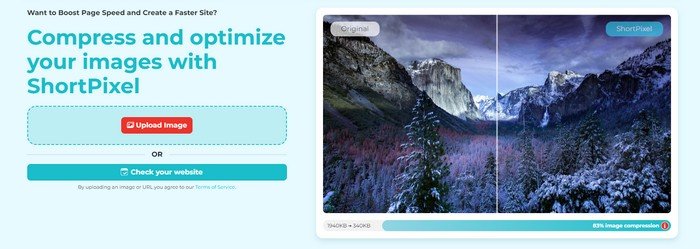
ShortPixel: Offers both lossy and lossless compression. It also offers automatic WebP conversion, helping your site load faster. With ShortPixel, you can also bulk optimize your entire media library. This plugin is a flexible choice for both small and large sites.
Imagify: Is a user-friendly image optimization plugin, and you can choose between three levels of compression: Normal, Aggressive, and Ultra, depending on how much you want to reduce the file size. It also supports automatic WebP conversion and can optimize existing images in bulk.
Optimole: Is an image optimization plugin that is perfect for users who want automation and speed without manual configuration. It compresses images using machine learning, dynamically resizing and converting images to modern formats like WebP and AVIF for up to 80% reduction in file size.
Smush: Is a popular image optimization plugin for WordPress. It automatically compresses, resizes, and lazy-loads images without compromising quality. It’s easy to set up, making it perfect for users who want a simple, hassle-free way to speed up their websites.
EWWW Image Optimizer: Supports both lossy and lossless compression, WebP conversion, and automatic resizing. Furthermore, it comes with many customization options for image optimization, and you can also optimize images from outside the media library.
Bonus Tips
Image optimization is not a one-time task; it is an ongoing process that can greatly improve your website’s performance, SEO, and user experience.
Here are a few extra tips to help you go the extra mile when managing images on your WordPress site:
Use a Staging Site: A staging site is a safe, private copy of your website where you can experiment with plugins, compression settings, and layout changes without risking your live site.
Many hosts like SiteGround, WP Engine, and Kinsta offer 1-click staging environments.
Bulk Optimize Existing Images: If your site already has hundreds (or thousands) of images in the media library, you do not have to optimize them one by one.
Most image optimization plugins like Smush, ShortPixel, EWWW Image Optimizer, and Imagify include a “Bulk Optimize” option.
Audit Image Performance: To keep your site fast and efficient, make regular use of performance testing tools that can highlight images that are slowing your site down or being served inefficiently.
Here are a few more tools you can use for image optimization:
Google PageSpeed Insights – Offers suggestions on reducing image size, converting to next-gen formats (like WebP), and lazy loading.
GTmetrix – Provides a detailed waterfall chart and flags unoptimized images that affect load time.
WebPageTest – Great for testing how your site performs across different locations, devices, and connection speeds.
These tools not only help you identify problems but also provide helpful tips to fix them, such as resizing images, using different formats, or serving images through a CDN.
Final Thoughts
Speed matters.
Image optimization for your WordPress website is not just about shrinking file sizes; it is about providing a faster, more accessible, and user-friendly experience that performs well across all devices.
Choosing the right file formats like JPEG, PNG, WebP, or SVG, to using responsive images and alt text for better SEO, helps you create a more efficient website.
Whether it is lazy loading images, using a CDN like BunnyCDN or Cloudflare, or compressing your media library in bulk, these techniques can help you reduce load times, improve Core Web Vitals scores, and boost your rankings in search engines.
With tools like Google PageSpeed Insights and GTmetrix, you can monitor and fine-tune your performance for the best results.
Do not forget to use a staging site for testing, enabling responsive images, and adding descriptive alt text.
In short, image optimization is one of the easiest and most effective ways to improve your WordPress site’s speed, SEO, and user experience.
With the right tools, strategies, and a little maintenance, your visuals can boost your website’s performance and success.
Disclosure: We sometimes use affiliate links in our content. Some of the links in this post are “affiliate links.” It means if you click on the link and purchase the item, we will receive an affiliate commission. It helps our website keep running and allows us to offset our writing team’s costs. Thanks for your support.