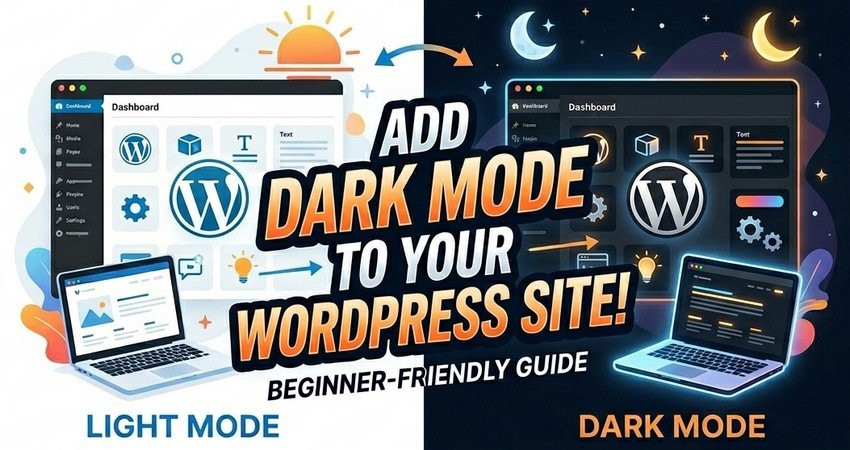
Dark mode WordPress setup is one of the simplest ways to instantly upgrade your website’s user experience, reduce eye strain, and give your design a modern, premium feel.
If you’ve browsed any major app or website recently, you’ve probably noticed one thing: dark mode is no longer a “nice-to-have.” It’s expected.
Users want control over how they view content, especially during late-night browsing or long reading sessions. And if your WordPress site doesn’t offer that flexibility, you’re quietly losing engagement.
So what exactly is dark mode? In simple terms, it switches your website’s light background to a darker color palette, improving readability in low-light environments and creating a smoother visual experience.
For content-heavy sites, blogs, magazines, and SaaS platforms, this small change can make a surprisingly big difference.
The good news? You don’t need to be a developer to add it.
You can enable dark mode WordPress functionality in minutes using a plugin like the Darkify WordPress dark mode plugin, or go the manual route if you want deeper control over styling and behavior.
In this beginner-friendly guide, we’ll walk you through both methods step by step so you can add dark mode, improve accessibility, and give your website the kind of polished experience users now expect.
What Is Dark Mode WordPress and Why Does It Matter?
Dark mode WordPress refers to a feature that allows your website to switch from a traditional light background (white or bright colors) to a darker color scheme, typically using shades of black, gray, or deep tones.
Instead of bright screens that strain the eyes, dark mode creates a softer, more comfortable viewing experience, especially in low-light environments.
At its core, dark mode simply flips the visual hierarchy of your site. Backgrounds become dark, while text and key elements turn lighter—maintaining contrast but reducing glare. The result? A smoother, more relaxed browsing experience that feels easier on the eyes during long sessions.
And this isn’t just about aesthetics.
Dark mode improves usability by giving users control over how they interact with your content.
Whether someone is reading a blog late at night, browsing a product page on mobile, or working through documentation, a darker interface can significantly reduce eye fatigue and improve focus.
That’s exactly why dark mode WordPress features have become increasingly popular across:
- blogs and online magazines
- business websites
- SaaS platforms and dashboards
- documentation and knowledge bases
In short, dark mode isn’t a trend anymore; it’s a user expectation. And adding it to your WordPress site is one of the simplest ways to make your design feel modern, accessible, and user-first.
Benefits of Adding Dark Mode to Your WordPress Website
Adding dark mode WordPress functionality isn’t just a design tweak—it’s a user-first upgrade that quietly improves how people experience your site.
First, it elevates the overall user experience. Visitors can choose how they want to view your content, which creates a sense of control and personalization. That alone can make your website feel more thoughtful and modern.
Then there’s eye comfort. Bright screens can be harsh, especially at night. Dark mode reduces glare and helps users browse longer without discomfort—something your readers will appreciate even if they don’t consciously notice it.
From a design perspective, dark mode instantly gives your site a sleek, premium look. It’s the difference between a standard interface and one that feels current, intentional, and aligned with modern UI trends.
It also plays a role in accessibility. While dark mode isn’t a universal solution for all users, it provides an alternative viewing option that can benefit people sensitive to bright light or those who prefer lower contrast environments.
And finally, it can quietly boost engagement. When users are more comfortable, they stay longer. Whether they’re reading blog posts, exploring products, or navigating documentation, dark mode can extend session time without you changing a single word of content.
Benefits of Dark Mode WordPress
| Benefit | Why It Matters |
| Better user comfort | Helps visitors browse comfortably in low-light settings |
| Improved UX | Gives users more control over how they view your site |
| Modern design appeal | Makes the website feel more current and polished |
| Longer reading sessions | Can make text-heavy pages easier to consume at night |
| Accessibility support | Offers an alternative viewing mode for different preferences |
| Higher engagement potential | Visitors may stay longer when the experience feels better |
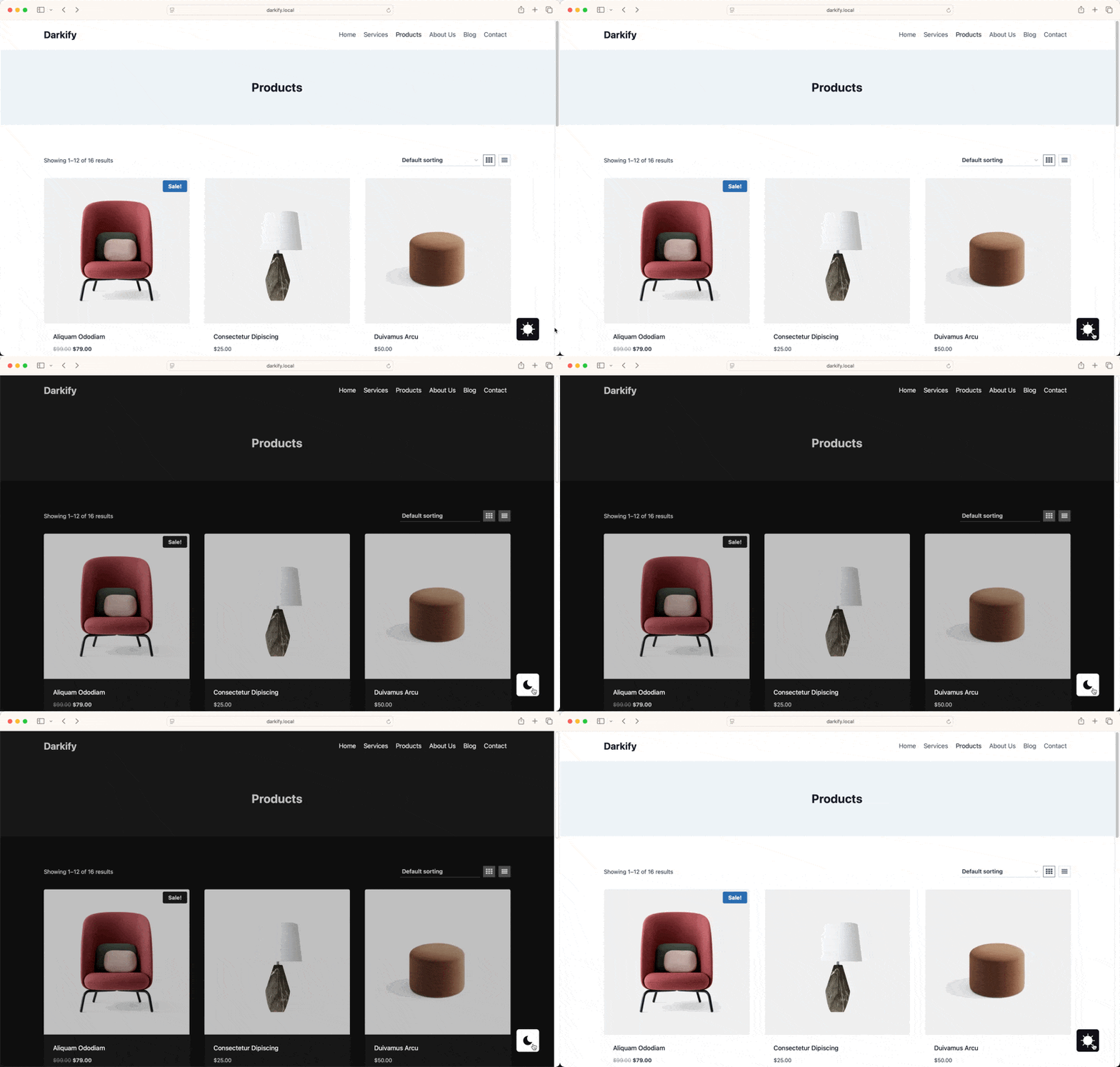
Best Ways to Add Dark Mode WordPress
When it comes to enabling dark mode WordPress, there are two main paths you can take—one built for speed and simplicity, the other for precision and control.
1. Using a Plugin (Beginner-Friendly)
For most users, this is the fastest and most practical option.
With a plugin, you can add dark mode to your site in just a few clicks—no coding, no risk of breaking your theme, no technical headaches.
Tools like the Darkify WordPress dark mode plugin make the process almost effortless, offering features like toggle switches, automatic dark mode detection, and customization options right out of the box.
This approach is ideal if you:
- want a quick setup
- don’t have coding experience
- Use page builders like Elementor or Gutenberg
- prefer a visual configuration interface
In short, it’s the plug-and-play solution most site owners are looking for.
2. Adding Dark Mode Manually (Advanced)
If you’re comfortable working with code, you can implement dark mode manually using custom CSS and JavaScript.
This method gives you full control over:
- color schemes
- toggle behavior
- animations and transitions
- integration with your theme’s design system
But that control comes at a cost—time, complexity, and the risk of conflicts with your theme or plugins.
Manual implementation is best if you:
- are a developer or an advanced user
- need highly customized styling
- We are building a fully custom WordPress experience
Which Method Should You Choose?
If you’re just getting started, the answer is simple: 👉 Go with a plugin.
It’s faster, safer, and delivers everything you need without unnecessary friction.
Manual setup is powerful—but for most websites, it’s overkill when a well-built plugin can do the job in minutes.
Dark Mode WordPress Plugin vs Manual Method
Choosing how to implement dark mode WordPress comes down to one simple trade-off: speed vs control.
If you want something that works right away with minimal effort, plugins are the clear winner. If you’re aiming for pixel-perfect control and custom behavior, manual coding gives you that freedom—but with added complexity.
Here’s a quick side-by-side comparison to help you decide:
| Method | Best For | Difficulty | Customization | Speed |
| Plugin | Beginners | Easy | Medium | Fast |
| Manual code | Developers | Advanced | High | Slower |
Plugin approach: This is the go-to for most WordPress users. With tools like the Darkify plugin, you can enable dark mode, add a toggle switch, and customize the experience—all without touching code. It’s fast, reliable, and designed to work across themes and page builders.
Manual approach: This route is all about flexibility. You can define your own color schemes, control how elements behave in dark mode, and integrate it deeply into your theme. But it requires solid knowledge of CSS, JavaScript, and WordPress structure—and more time to get right.
How to Add Dark Mode WordPress Using a Plugin
Step 1 – Choose a Dark Mode Plugin
The first and most important step in setting up dark mode WordPress is choosing the right plugin. This decision shapes everything that comes after: ease of setup, design flexibility, and overall user experience.
For beginners, the goal is simple: pick a plugin that just works.
Here’s what to look for:
- Beginner-friendly interface → You should be able to enable dark mode without touching code
- Regular updates → Ensures compatibility with the latest WordPress versions
- High compatibility → Works smoothly with themes, page builders (Elementor, Gutenberg), and WooCommerce
- Customization options → Control colors, toggle styles, and behavior
- Performance-focused → Lightweight plugins won’t slow down your site
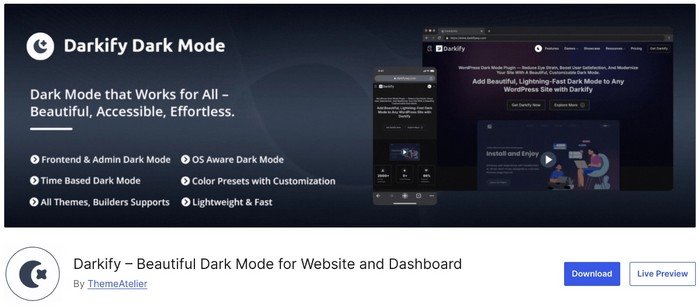
A solid example is the Darkify WordPress dark mode plugin, which is designed specifically for ease of use while still offering advanced control.
It lets you enable dark mode on both the frontend and admin dashboard, add toggle switches, and customize the experience—all without modifying your theme files.
What makes tools like Darkify especially beginner-friendly is how they work behind the scenes: instead of changing your theme code, they apply configurable styling rules that can be adjusted anytime from a central settings panel.
Translation: you get full functionality without the risk of breaking your site.
At this stage, don’t overthink it.
Pick a reliable plugin, install it, and move forward.
Because once the right tool is in place, the rest of the setup becomes almost effortless.
Step 2 – Install the Plugin
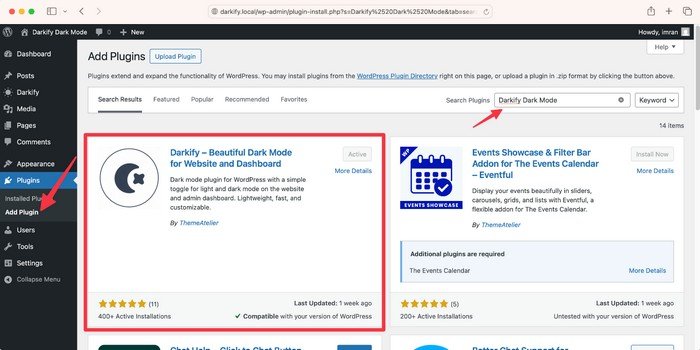
Now that you’ve chosen your plugin, it’s time to install it. This part of the dark mode WordPress setup takes less than a minute and requires zero technical skills.
Here’s exactly what to do:
- Go to your WordPress dashboard – Log in to your site and land on the admin panel.
- Navigate to Plugins → Add New – From the left sidebar, click Plugins, then select Add New.
- Search for your plugin – In the search bar, type “Darkify” (or your chosen dark mode plugin).
- Click “Install Now” – Once you find the plugin, hit the Install Now button.
- Click “Activate” – After installation, click Activate to enable it on your website.
That’s it—your plugin is now live.
Step 3 – Open the Plugin Settings
Once your plugin is activated, the next step in your dark mode WordPress setup is accessing its settings panel. This is where all the magic happens.
Most plugins place their options in one of these locations:
- Sidebar menu (a dedicated menu item like “Darkify” or “Dark Mode”)
- Settings → Plugin Name
- Appearance → Customize (for theme-integrated options)
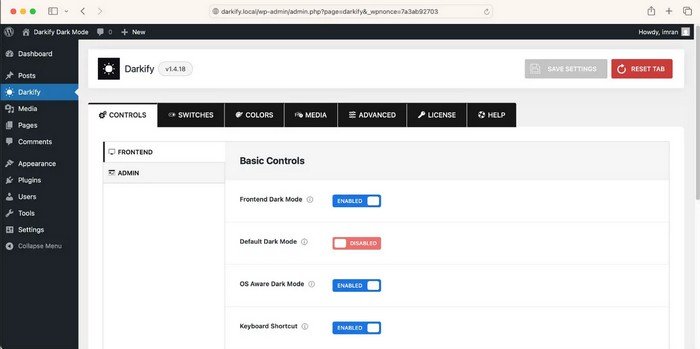
If you’re using the Darkify WordPress dark mode plugin, you’ll typically find a dedicated menu called ‘Darkify’ in your dashboard sidebar, making it easy to jump straight into configuration.
Inside the settings panel, you’ll be able to control:
- how dark mode looks (colors, contrast, styles)
- how it behaves (auto-enable, toggle-based, scheduled)
- where it appears (entire site, specific pages, or elements)
Think of this as your control center. Everything from design to user interaction starts here.
Step 4 – Enable Front-End Dark Mode
Now it’s time to actually turn on dark mode for your visitors. Inside your plugin settings, look for an option like:
- Enable Frontend Dark Mode
- Turn On Dark Mode for Visitors
- Activate Dark Mode on Website
Once enabled, your site will start applying the dark theme on the front end.
How visibility typically works:
- Default Light Mode + Toggle → Users can switch manually (most common)
- Auto Detect Mode → Matches the user’s device or OS preference
- Always Dark Mode → Forces dark mode for all visitors
For most websites, the best approach is: Default to light mode with a visible toggle button
This gives users control without forcing a design choice on them.
After enabling this option, visit your website in a new tab and confirm that dark mode is active or that the toggle is visible.
You’re now officially running dark mode WordPress on your site—next, we’ll make it look and feel exactly how you want.
Got it — no more links. Let’s keep it clean, product-led, and visual-driven based on your UI.
Step 5 – Add a Dark Mode Toggle Button
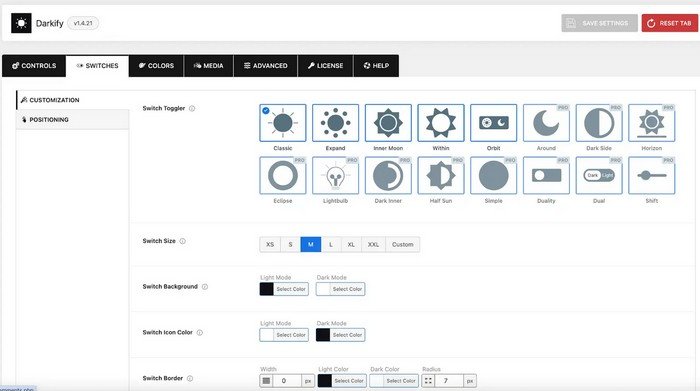
Now that dark mode is enabled, the next step in your dark mode WordPress setup is giving users a way to switch between light and dark views. This is done through a toggle button—a small UI element that lets users control their experience instantly.
With plugins like Darkify, you can easily add and customize this toggle.
Where to place the toggle:
- Header → Highly visible and easy to access
- Footer → Subtle but still available
- Floating corner button → Always accessible (most popular choice)
- Navigation menu → Blends naturally with your site layout
Best practice:
👉 Keep it visible but not intrusive
A floating toggle in the bottom corner or a clean icon in the header usually gives the best balance between usability and design.
Step 6 – Customize Colors and Style
Now that your toggle is in place, it’s time to refine how your dark mode WordPress experience actually looks.
This is where most sites either feel premium… or completely off.
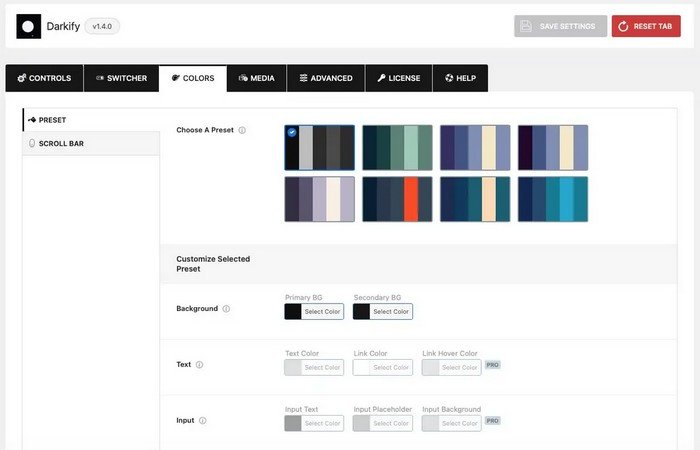
From your settings panel (like in your screenshot), you’ll see a dedicated Colors tab with preset palettes and detailed controls.
1. Choose a Preset (Quick Start)
You can instantly apply a ready-made dark theme using preset color palettes.
These presets control:
- background tones
- text contrast
- accent colors
Best approach: Start with a preset that’s closest to your brand, then fine-tune it.
2. Customize Background Colors
You’ll see options like:
- Primary Background
- Secondary Background
These define the base of your dark mode.
Best practices:
- Use dark gray instead of pure black
- Keep a subtle contrast between sections
- Avoid overly flat designs
This creates depth and improves readability.
3. Adjust Text and Link Colors
This is critical for usability. You can control:
- Text color
- Link color
- Link hover color
What to aim for:
- High contrast between text and background
- Links that are clearly visible (not muted)
- Hover states that feel interactive
If users can’t read easily, dark mode fails—no matter how good it looks.
4. Style Input Fields
Dark mode often breaks here if ignored.
You can customize:
- Input text
- Placeholder text
- Input background
Why this matters: Forms, search bars, and login fields should remain fully usable—not faded or hard to read.
5. Keep It Consistent Across the Site
Don’t just design for one page.
Check:
- blog posts
- navigation menus
- buttons and CTAs
- forms and widgets
Dark mode should feel like a native part of your design, not an overlay.
Pro Insight (This is where most people get it wrong)
They:
- Pick a random dark preset
- Don’t adjust text contrast
- Ignore links and forms
Result? A dark mode that looks cool for 2 seconds… then becomes hard to use.
What “Good” Looks Like
A well-designed dark mode WordPress setup should feel:
- smooth on the eyes
- consistent across pages
- aligned with your brand
- invisible in effort, noticeable in comfort
Step 7 – Test on Desktop and Mobile
You’ve set everything up—now it’s time to make sure your dark mode WordPress experience actually works in the real world.
This step is where good setups become great user experiences.
What to check:
- Pages and posts
Open different types of content—homepages, blog posts, landing pages—and confirm dark mode applies consistently. - Menus and navigation
Make sure headers, dropdowns, and mobile menus remain readable and properly styled. - Buttons and CTAs
Check contrast and visibility. CTA Buttons should still stand out and feel clickable. - Forms and inputs
Test contact forms, search bars, and login fields. Text and backgrounds should be clearly visible.
Test for layout and contrast issues
Dark mode can sometimes reveal problems that aren’t visible in light mode.
Look out for:
- text blending into the background
- invisible icons or images
- broken spacing or alignment
- elements that didn’t inherit dark styles
👉 If something looks off, go back to your customization settings and adjust colors or contrast.
Verify toggle behavior
Your toggle button should feel instant and reliable.
Check:
- Does it switch smoothly between modes?
- Does it remember user preferences?
- Does it work across all pages?
- Is it easy to tap on a mobile?
A laggy or inconsistent toggle can ruin the experience—even if everything else looks perfect.
Test across devices
Don’t stop at the desktop.
Check your site on:
- mobile phones
- tablets
- different browsers (Chrome, Safari, etc.)
Dark mode should feel seamless everywhere.
Final check
A properly tested dark mode WordPress setup should:
- feel smooth and natural
- maintain readability everywhere
- work consistently across devices
- give users effortless control
If everything passes? You’re done—and your site just leveled up without changing a single piece of content.
How to Add Dark Mode WordPress Manually
If you want complete control over how your dark mode WordPress setup looks and behaves, you can implement it manually using custom CSS and JavaScript.
Instead of relying on a plugin, this approach lets you define exactly how each element—backgrounds, text, buttons, and layouts—changes when dark mode is active.
How it works (in simple terms)
- Use CSS to create a dark color scheme
- Use JavaScript to toggle between light and dark modes
- Apply classes (like .dark-mode) to control styling dynamically
This gives you full flexibility to:
- match your exact brand colors
- control transitions and animations
- fine-tune every element on the page
What to keep in mind
Manual implementation often requires:
- editing your theme files
- adding custom CSS rules
- writing JavaScript for toggle functionality
- testing across different pages and devices
👉 In other words, it’s powerful—but not plug-and-play.
When should you use this method?
Manual setup is best if you:
- are a developer or comfortable with code
- are building a fully custom WordPress theme
- need highly specific design control
- want to avoid relying on third-party plugins
Important Note
For most users, especially beginners:
Using a plugin is the better choice.
It’s faster, safer, and avoids the risk of breaking your site.
Manual dark mode is great for custom builds—but for everyday WordPress sites, it’s usually more effort than necessary for the same result.
Design Tips for a Better Dark Mode WordPress Experience
Turning on dark mode WordPress is easy. Making it feel right? That’s where design matters.
A poorly designed dark mode can hurt readability and usability. A well-designed one feels smooth, intentional, and almost invisible in effort.
Here’s how to get it right.
1. Avoid Pure Black Backgrounds
It’s tempting to go full black—but don’t.
Pure black (#000000) creates harsh contrast and strains the eyes over time. Instead, use dark gray tones to create a softer, more comfortable experience.
Think depth, not darkness.
2. Maintain Strong Text Contrast
Dark backgrounds only work if your text remains easy to read.
- Use light gray or off-white text (not pure white)
- Ensure headings stand out clearly
- Keep paragraph text comfortable for long reading
If users have to squint, your dark mode is broken.
3. Keep Brand Colors Readable
Your brand colors don’t automatically translate well to dark mode.
- Bright colors may feel too intense
- Dark colors may disappear completely
Adjust them so they:
- remain visible
- don’t overpower the design
- stay consistent with your brand identity
4. Test Buttons, Links, and Forms
Interactive elements are where most dark modes fail.
Check:
- button visibility and contrast
- link color clarity
- hover states
- form inputs and labels
Every clickable element should still feel obvious and usable.
5. Optimize for Mobile Devices
Dark mode often looks different on smaller screens.
- Make sure text remains readable
- Ensure toggle buttons are easy to tap
- Avoid overlapping UI elements
Mobile experience is not optional—it’s where most users are.
6. Make Sure Images Still Look Good
Images don’t automatically adapt to dark mode.
- Bright images may feel too intense
- Transparent PNGs may look odd
- Icons may disappear against dark backgrounds
Test key visuals and adjust if needed.
Quick Optimization Checklist
- Use dark gray instead of absolute black
- Keep link colors clearly visible
- Avoid overly saturated accents
- Test with real content—not just demo pages
Pro Insight
The best dark mode WordPress designs don’t scream “dark mode.”
They feel:
- balanced
- readable
- consistent
- effortless
When users don’t notice it—but stay longer—you’ve done it right.
Common Mistakes to Avoid
Adding dark mode WordPress is straightforward—but doing it wrong is surprisingly easy.
These are the mistakes that quietly ruin user experience, even when everything looks fine at first glance.
1. Poor Contrast Between Text and Background
This is the biggest one.
- Text blends into the background
- Headings don’t stand out
- Links become hard to see
If users have to strain to read, they’ll leave—fast.
2. Hiding the Toggle in Hard-to-Find Areas
You added dark mode… but no one can find it.
- buried in the footer
- hidden inside menus
- placed where users don’t look
If it’s not visible, it might as well not exist.
3. Not Testing on Mobile
Desktop looks great. Mobile? Broken.
- toggle overlaps content
- text becomes too small or faded
- layout shifts in dark mode
Most users are on mobile—this is non-negotiable.
4. Breaking Page Builders or Widgets
Dark mode can conflict with:
- Elementor layouts
- Gutenberg blocks
- Third-party widgets
Result?
- Inconsistent styling
- Unreadable sections
- Design glitches
Always test your actual pages—not just the homepage.
5. Ignoring Images and Icons
Dark mode doesn’t automatically fix visuals.
- Icons disappear
- Transparent images look odd
- Bright images feel too harsh
Every visual element should be checked in dark mode.
6. Forcing Dark Mode Without User Choice
This is a subtle but critical mistake.
Some sites:
- Force dark mode on all users
- Don’t provide a toggle
- Ignore user preferences
Good UX = giving users control.
Why This Section Matters
These mistakes aren’t just design issues—they’re SEO and engagement killers.
- Poor readability → higher bounce rate
- Broken layouts → lower trust
- Bad UX → shorter sessions
Fixing these ensures your dark mode WordPress setup doesn’t just work—it performs.
Bottom Line
Dark mode should feel like an upgrade—not a compromise.
Avoid these pitfalls, and your site will feel:
- cleaner
- smoother
- easier to use
And that’s what keeps users coming back.
Best Practices for Dark Mode WordPress SEO and UX
Let’s clear this up first: dark mode WordPress does not directly improve your search rankings.
Google doesn’t rank you higher just because your site has a dark interface.
But here’s where it does matter: It improves user experience signals—and those do influence SEO.
When your site is easier to read, more comfortable to browse, and visually appealing, users stay longer, interact more, and bounce less. That’s the kind of behavior search engines pay attention to.
What to focus on
1. Keep Performance Fast
Dark mode should not slow your site down.
- Avoid heavy scripts
- Use optimized, lightweight solutions
- Test page speed after enabling dark mode
If your site gets slower, you lose more than you gain.
2. Don’t Overload with Effects
It’s tempting to add transitions, animations, and dynamic styling.
But too much:
- Increases load time
- Creates visual clutter
- Can break layouts
Keep it clean and efficient.
3. Prioritize Accessibility
Dark mode is about comfort—not just aesthetics.
Make sure:
- The text is easy to read
- Contrast meets accessibility standards
- Important elements stand out clearly
If users struggle to read, dark mode fails its purpose.
4. Focus on Readability First
Everything comes back to this.
- proper font color
- clear spacing
- visible links and buttons
A beautiful design means nothing if it’s hard to use.
5. Support User Preference
Let users decide.
- Provide a visible toggle
- Remember their selection
- Optionally match system settings
Control = better user experience.
The goal of dark mode WordPress isn’t to impress—it’s to disappear. When done right, users don’t think about it. They just stay longer, read more, and enjoy the experience. And that’s exactly what both users and search engines want.
Who Should Use Dark Mode on a WordPress Website?
Short answer? Almost everyone. But let’s be more precise—because dark mode WordPress isn’t just a design trend. It’s especially valuable for websites where people spend time reading, exploring, or interacting.
1. Bloggers
If your site is content-heavy, dark mode is a no-brainer.
- improves long reading sessions
- reduces eye strain at night
- keeps readers engaged longer
Perfect for personal blogs, niche blogs, and authority sites.
2. News & Magazine Sites
These sites publish high volumes of content, and users often browse for extended periods.
- better readability in low-light conditions
- smoother scrolling experience
- more comfortable late-night consumption
Think of it as a reader retention tool.
3. Portfolio Websites
Design matters here—a lot.
Dark mode can:
- make visuals stand out
- create a premium, modern feel
- highlight images, videos, and projects
Especially useful for designers, photographers, and creatives.
4. SaaS & Web Applications
User experience is everything in SaaS.
- reduces eye fatigue during long sessions
- aligns with modern UI expectations
- improves usability for dashboards and tools
Many users now expect dark mode as a standard feature.
5. Documentation & Knowledge Bases
These are often used for deep reading and problem-solving.
- easier on the eyes during long sessions
- helps maintain focus
- improves overall usability
Ideal for developer docs, product guides, and help centers.
6. Educational Websites
From tutorials to online courses, learning platforms benefit heavily.
- supports extended reading and study sessions
- improves comfort for students
- enhances accessibility
Especially useful for text-heavy learning environments.
If your website involves:
- reading
- browsing
- interaction over time
Then dark mode WordPress isn’t optional—it’s an upgrade your users will feel immediately. And the best part? You don’t need to redesign your site, just enhance how people experience it.
FAQ About Dark Mode WordPress
How do I add dark mode to WordPress?
You can add dark mode WordPress functionality in two ways:
- Using a plugin → the easiest method, requiring no coding
- Manually → using custom CSS and JavaScript for full control
For most users, a plugin is the fastest and safest option.
Is there a dark mode plugin for WordPress?
Yes, several plugins allow you to enable dark mode without writing any code. These tools typically include features like toggle buttons, automatic detection, and design customization.
Does dark mode improve SEO?
Not directly. Dark mode itself is not a ranking factor. However, it can improve user experience, which may lead to:
- longer session durations
- lower bounce rates
- better engagement
These signals can indirectly support SEO performance.
Can I add a dark mode toggle without coding?
Yes. Most dark mode plugins let you add a toggle button visually through settings. You can place it in the header, footer, menu, or as a floating switch—no coding required.
Is dark mode better for user experience?
For many users, yes. Dark mode can:
- reduce eye strain in low-light environments
- make long reading sessions more comfortable
- provide a more modern interface
It’s especially useful for content-heavy websites.
Will dark mode work with all WordPress themes?
In most cases, yes. However, results can vary depending on:
- your theme
- page builder (Elementor, Gutenberg, etc.)
- plugin compatibility
It’s always best to test your site after enabling dark mode to ensure everything displays correctly.
Final Thoughts
Dark mode WordPress functionality isn’t just a trend anymore—it’s a practical upgrade that improves how people experience your website.
Users expect flexibility. They want control over how they view content, especially during long sessions or in low-light environments. Adding dark mode meets that expectation while quietly improving comfort, readability, and overall engagement.
The best part? You don’t need to overcomplicate it.
Beginners can set up dark mode in minutes using a plugin, while advanced users can fine-tune every detail if needed. Either way, the impact is immediate—your site feels more modern, more polished, and more user-focused. And that’s really the goal.
👉 Not just to add a feature…
…but to create an experience that feels smoother, cleaner, and easier to use.
If done right, dark mode doesn’t stand out—it blends in seamlessly, making your website feel better without users even thinking about why. That’s when you know it’s working.