To delete a YouTube channel, open YouTube Studio, go to Settings, choose Channel, open Advanced settings, and select Remove YouTube content. Then pick I want to permanently delete my content, tick the boxes, and confirm. This removes the channel’s videos and other channel data. It does not delete your whole Google account.
TLDR: Deleting a YouTube channel is permanent, so download your videos first. For example, if your channel has 48 videos and 1,200 subscribers, those uploads and subscribers will be gone after deletion. Expect the process to take about 5 to 10 minutes, though YouTube may take longer to remove everything from search. If you only need a break, hide the channel instead of deleting it.
Before You Delete: Do This First
Deleting a YouTube channel feels simple. Almost too simple. A few clicks, a few checkboxes, and boom. Years of uploads can vanish like your phone charger in a hotel room.
So pause for a minute. Make a quick safety plan.
- Download your videos. Use YouTube Studio or Google Takeout.
- Save thumbnails. You may want them later.
- Export titles and descriptions. Copy them into a document.
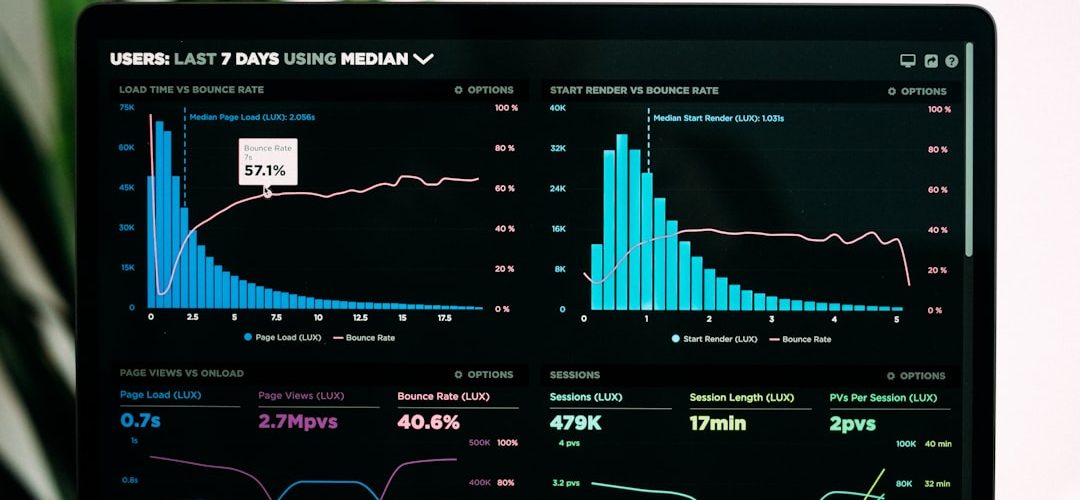
- Take screenshots of analytics. Save views, watch time, revenue, and audience data.
- Check monetization info. Make sure payments and tax details are handled.
- Tell your audience. If you care about them, give them a goodbye post.
Honestly, it feels like YouTube should make the backup step louder. It does warn you, yes. But when you are tired, annoyed, or rebranding at 1:00 a.m., warnings can look like furniture.
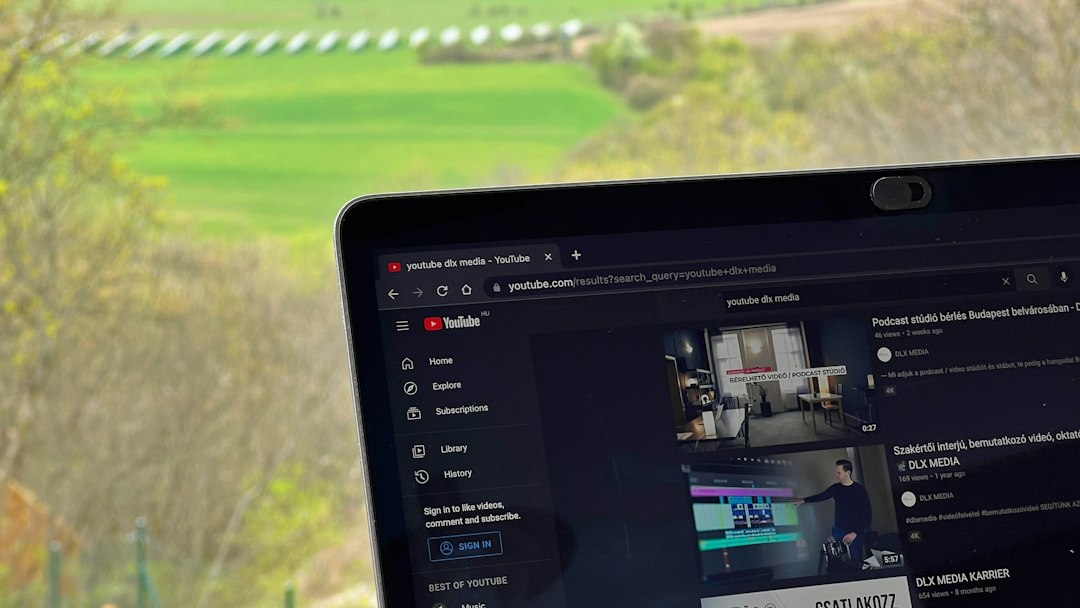
Step-by-Step: How to Delete a YouTube Channel
Use a desktop browser if you can. The mobile app is not the best place for this job. Expect to waste a little time if you are signed into the wrong account. That tiny profile icon can cause chaos.
-
Go to YouTube.
Open youtube.com in your browser. Sign in with the Google account linked to the channel you want to delete.
-
Open YouTube Studio.
Click your profile picture in the top right. Select YouTube Studio.
-
Open Settings.
Look at the left menu. Click Settings. It is near the bottom.
-
Choose Channel.
In the settings box, click Channel.
-
Open Advanced settings.
Click the Advanced settings tab. Scroll down until you see Remove YouTube content.
-
Click Remove YouTube content.
YouTube may ask you to sign in again. This is normal. Annoying, but normal.
-
Pick permanent deletion.
You should see two choices. One hides your channel. The other deletes it. Choose I want to permanently delete my content.
-
Read the checkboxes.
YouTube will show what gets deleted. Tick the boxes only if you are sure.
-
Confirm deletion.
Click Delete my content. You may need to type your email address or channel name to confirm.
That is the main process. The button names may change a little over time. YouTube enjoys moving things around like a bored raccoon. Still, the path usually stays close to this: YouTube Studio > Settings > Channel > Advanced settings > Remove YouTube content.
What Happens When You Delete a YouTube Channel?
Here is the part you should read twice. Deleting a channel is not the same as making videos private. It is not a cleanup. It is a wipeout.
When you permanently delete your channel, YouTube may remove:
- Your uploaded videos
- Your Shorts
- Your comments
- Your replies
- Your playlists
- Your channel page
- Your subscribers
- Your public channel identity
Your videos will no longer be watchable. Viewers will not be able to visit your channel page. Search results may still show old traces for a while, but they should fade as YouTube updates its systems.
Your Google account stays alive. Gmail stays. Google Drive stays. Google Photos stays. You are deleting YouTube channel content, not burning down the whole Google house.
Can You Recover a Deleted YouTube Channel?
Usually, no. Treat deletion as final.
YouTube may keep some data for a short time for legal, security, or system reasons. That does not mean you can get your channel back with one polite email and a sad face emoji.
If recovery matters, do not delete. Hide the channel instead. Or make videos private. Those choices are boring, but boring can save you.
Delete vs Hide: Which Button Should You Pick?
This choice matters. Pick based on your real goal.
| Goal | Best Choice |
|---|---|
| You want a break | Hide the channel |
| You want videos off public view | Make videos private |
| You are rebranding | Rename the channel |
| You want everything gone | Delete the channel |
Hiding a channel can remove public access while keeping some content tied to your account. Private videos are even safer. They stay on your channel, but the public cannot watch them.
Deletion is for the “I am fully done” moment. Not the “I had a bad comment section today” moment.
How to Hide a YouTube Channel Instead
If you are unsure, use the softer option.
- Open YouTube Studio.
- Go to Settings.
- Click Channel.
- Open Advanced settings.
- Click Remove YouTube content.
- Choose I want to hide my content.
- Confirm the boxes.
This is a safer parking spot. You can return later. Future you may send present you a thank-you snack.
What About Brand Accounts?
Some YouTube channels are connected to a Brand Account. This happens often with business channels, team channels, or older accounts.
If your channel uses a Brand Account, double-check that you are deleting the correct channel. You may own more than one. Click your profile picture and use Switch account to check.
Be careful with Brand Account settings. Deleting the Brand Account itself can affect other Google services tied to it. If all you want is to remove YouTube videos and the channel page, use the YouTube content removal path first.
Image not found in postmetaWhat Happens to Monetization and Revenue?
If your channel is monetized, deletion ends that channel’s YouTube Partner Program activity. Ads stop. Memberships stop. Channel features tied to that channel stop too.
Money already earned may still follow normal AdSense payment rules. For example, if you earned $86 and your payment threshold is $100, you may not get paid yet. If you earned $143, it may be paid during the normal cycle, if your account is in good standing.
Save revenue reports before deletion. After the channel is gone, getting old numbers can be a pain.
Checklist: Are You Really Ready?
Before you click the final button, ask these quick questions:
- Did I download every video I care about?
- Did I save analytics or revenue reports?
- Did I copy descriptions, links, and pinned comments?
- Did I warn viewers, clients, or team members?
- Did I check that I am in the correct account?
- Would hiding the channel solve my problem?
If you answered “no” to any of these, slow down. There is no prize for deleting faster.
Common Problems and Quick Fixes
-
I cannot find Remove YouTube content.
Use a desktop browser. Open YouTube Studio, not the regular YouTube settings page.
-
YouTube asks me to sign in again.
That is a security check. Sign in and continue.
-
I deleted the wrong channel.
Contact YouTube support fast if you have access. Still, recovery is not promised.
-
My videos still appear in search.
Give it time. Search indexes can lag behind deletion.
Final Reminder
Deleting a YouTube channel is easy. Living with a rushed deletion is not. Back up your content, check the account, read every checkbox, and only then press delete. If your gut says “maybe,” choose hide or private instead.