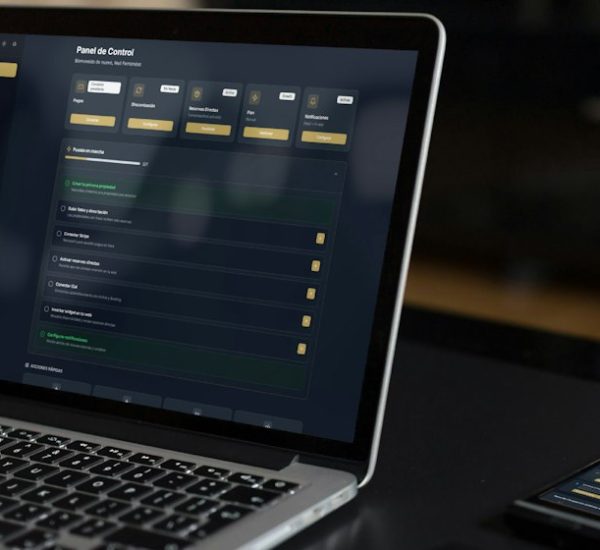
For most everyday transactions, Comerica Mobile Banking is the better choice, while Comerica Web Banking is better for review-heavy tasks, setup work, and anything that needs a larger screen. Comerica offers both online and mobile banking tools for checking balances, paying bills, moving money, and managing accounts, with mobile features such as check deposit available through its app [source: Comerica].
TLDR: Use the Comerica mobile app for quick daily actions like balance checks, transfers, alerts, and depositing a check. Use Web Banking when you need to review statements, add payees, compare transactions, or handle a task that benefits from a full keyboard. For example, a customer who completes 25 banking actions in a month may handle about 18 to 20 of them faster on mobile, while the remaining 5 to 7 are usually cleaner on desktop. If your main goal is speed, mobile wins; if your goal is careful account review, web wins.
Best platform for everyday transactions
Comerica Mobile Banking is usually the practical winner for routine banking. It sits on your phone, supports quick sign-in, and fits the way most people check money now: in short bursts. You can look at balances before a purchase, move money between accounts, or confirm whether a payment cleared while standing in line.
Web Banking still matters. It gives you more room to read, sort, and compare. That matters when you are checking multiple transactions, downloading statements, or setting up bill payments. A laptop screen reduces mistakes. A full keyboard helps too.
The short version is simple: mobile is best for speed, web is best for control.
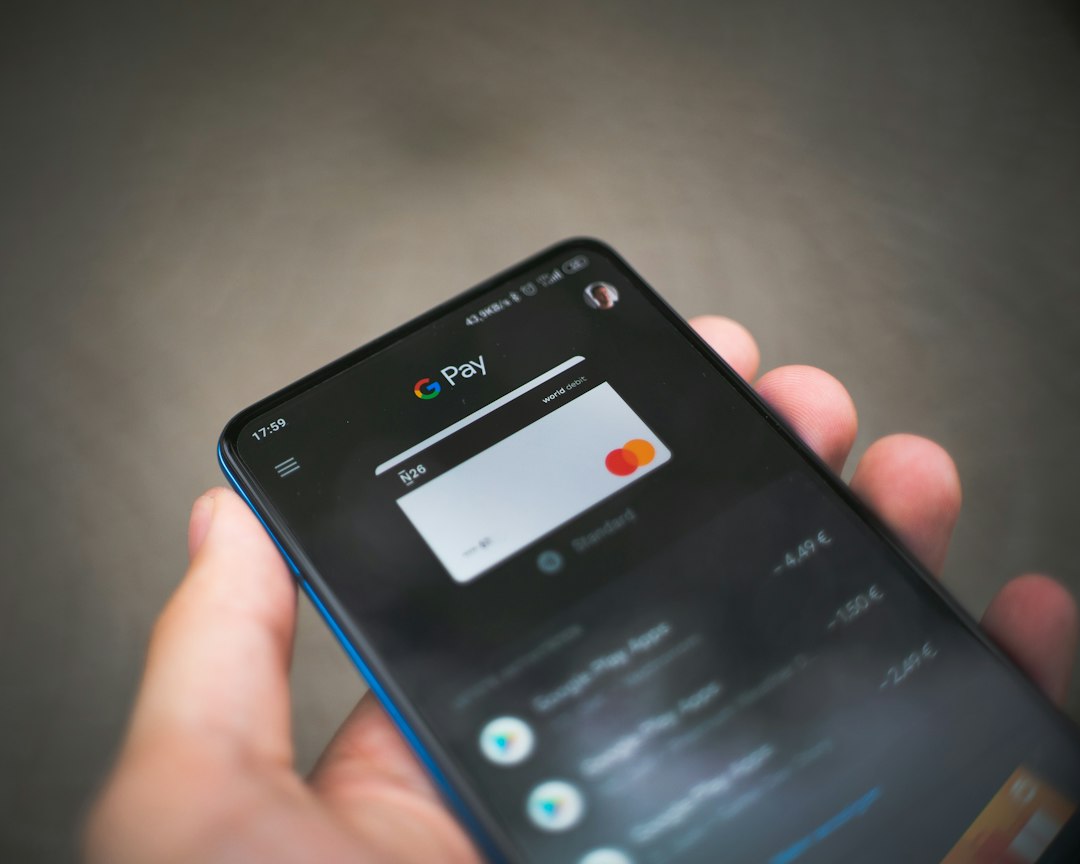
Where Comerica Mobile Banking works better
The mobile app is strongest when the task is short and repeatable. These are the jobs most people do several times per week.
- Checking balances: The app is ideal for a fast account glance. You do not need to open a laptop just to see whether payroll arrived.
- Recent transaction checks: Mobile is useful when you want to confirm a debit card charge, ATM withdrawal, or direct deposit.
- Transfers between Comerica accounts: Moving money from checking to savings is usually easier on a phone.
- Mobile check deposit: This is one of the clearest mobile advantages. You can deposit a check without visiting a branch or ATM.
- Alerts and notifications: A phone is better for low-balance warnings, card activity alerts, and real-time account awareness.
For daily banking, those small wins add up. Saving 30 seconds per task may not sound like much. But across 20 routine actions per month, that is 10 minutes saved. More importantly, it reduces friction. You are more likely to check your account when the process takes seconds.
The catch is that mobile screens can feel cramped when a task has too many steps. Reviewing a full month of charges on a small screen gets old fast. It is easy to tap the wrong item, especially when moving between screens.
Where Comerica Web Banking works better
Comerica Web Banking is better when the transaction is not urgent and accuracy matters more than speed. A desktop or laptop gives you a wider view of your accounts. That makes it easier to compare, confirm, and document what you are doing.
Web Banking is the better platform for:
- Bill pay setup: Adding a new payee is usually easier with a keyboard and larger screen.
- Statement review: Monthly statements, tax records, and older transaction history are easier to read on desktop.
- Budget checks: If you are comparing categories, dates, and balances, web access is less tiring.
- Printing or downloading records: Desktop browsers are often smoother for PDFs, spreadsheets, and saved files.
- Complex account management: If you have multiple accounts, loans, or business-related activity, web banking feels more organized.
Honestly, it feels like some banking tasks were never meant for a phone screen. Editing bill details, checking payment timing, or reviewing long transaction lists can take several extra taps. On a desktop, the same task often feels calmer and less error-prone.

Security comparison: which feels safer?
Both platforms can be secure when used correctly. The real risk often comes from user behavior, not the platform itself. Weak passwords, public Wi Fi, phishing emails, and lost devices cause more problems than choosing web over mobile.
Mobile Banking has a few practical security strengths. Phones may use fingerprint or face sign-in. They also receive alerts quickly. If a strange transaction appears, you may see it right away.
Web Banking has its own strengths. It may be safer for careful review because you can see more information at once. You are less likely to miss details hidden behind small menus.
For either option, basic rules matter:
- Use a strong, unique password.
- Turn on available account alerts.
- Avoid banking on public Wi Fi.
- Do not click banking links from suspicious emails or texts.
- Keep your phone, browser, and operating system updated.
The Federal Trade Commission also warns consumers to protect personal data and watch for fraud attempts tied to online accounts [source: FTC].
Speed and convenience
Mobile wins this category. It is not close. For a balance check, payment confirmation, or quick transfer, the app usually takes fewer steps. That makes it the better everyday tool.
Web Banking asks for more effort. You need a computer or tablet, a browser, and a more formal sign-in flow. That is fine when you are sitting at a desk. It is not useful when you are in a grocery store and need to see whether a debit card charge posted.
Still, speed is not always the goal. If you are paying a large bill or scheduling a transfer for a future date, slower can be good. A larger screen gives you time to verify the amount, date, and destination.
Reliability and ease of use
Mobile reliability depends on your phone, app version, and network connection. If the app needs an update or your signal is weak, expect to waste time on a task that should have taken 20 seconds. That is annoying, especially when you only need one small piece of information.
Web Banking depends more on browser performance and internet access. It often feels steadier for longer sessions. If you are reviewing accounts for 15 minutes, web is usually more comfortable.
Ease of use also depends on age, eyesight, and banking habits. Some customers prefer the app because it is simple. Others prefer desktop because buttons, account names, and statements are larger. Neither choice is wrong. The better option is the one that reduces mistakes.

Which should you use for specific tasks?
| Task | Better platform | Reason |
|---|---|---|
| Check balance | Mobile | Fast and available anywhere. |
| Deposit a check | Mobile | Camera deposit is built for phones. |
| Review monthly statement | Web | Larger screen improves readability. |
| Set up a new bill payee | Web | Typing and verification are easier. |
| Transfer between accounts | Mobile | Quick for routine transfers. |
| Download tax records | Web | Better file handling and printing. |
Final recommendation
Use Comerica Mobile Banking as your default for everyday transactions. It is faster, more convenient, and better suited to the small tasks most customers repeat often. Balance checks, alerts, transfers, and check deposits are exactly the kind of actions that belong on a phone.
Use Comerica Web Banking as your backup and review tool. It is better for statements, bill setup, records, and careful account checks. Treat it like the place where you slow down and verify details.
The best answer is not web or mobile alone. Use both, but with clear roles. Mobile should handle the quick work. Web should handle the careful work. That mix gives you speed without giving up control.