Google’s 2015 logo change was not cosmetic. It moved the brand from a serif wordmark with print-era character to a cleaner geometric sans serif system built for screens, small icons, and product consistency. Google announced the update as part of a broader identity refresh for many devices and input types [source: Google].
TLDR: The old Google logo felt more literary and quirky, while the new logo is simpler, flatter, and easier to scale across apps. In a practical design audit, a team could test both logos at 16 px, 32 px, and 64 px; the newer version will usually hold shape and color separation better at the smallest sizes. For example, a startup redesigning its wordmark in Figma might compare stroke clarity and letter spacing on mobile, then rebuild the chosen direction in Illustrator for final vector control. Penpot is a strong option when an open-source workflow matters, though polish and export checks still need care.
What changed between the old and new Google logo?
The old Google logo used a serif typeface style with varied stroke widths. It had personality. It also had quirks. The angled “e,” the shadows in earlier versions, and the classic serif forms made it feel established and academic.
The new Google logo removed most of that visual noise. The letters became rounder. The strokes became more even. The logo kept the familiar blue, red, yellow, and green order, but the type changed the tone. It became friendlier and more digital.
This was a smart move. Small screens punish detail. Serifs can blur. Thin curves can break. A clean sans serif wordmark is easier to read on phones, browser tabs, app headers, and loading screens.
Image not found in postmetaBrand identity impact
The old logo said heritage. It looked like a search company that grew out of the early web. It felt smart, odd, and slightly informal. That matched Google’s early identity well.
The new logo says system. It fits inside a family of products. Search, Maps, Gmail, Drive, Android, and Workspace all need to feel related. A simpler logo makes that easier.
- Readability: The new logo performs better at small sizes.
- Consistency: The cleaner shapes fit app icons and UI patterns.
- Recognition: The color sequence keeps the logo familiar.
- Flexibility: The new mark works better in motion, loading states, and compact spaces.
The main risk is softness. The new logo looks more neutral. Some of the old charm is gone. Honestly, it feels like a fair trade. A global product suite needs order more than nostalgia.
Comparing the logos in Figma
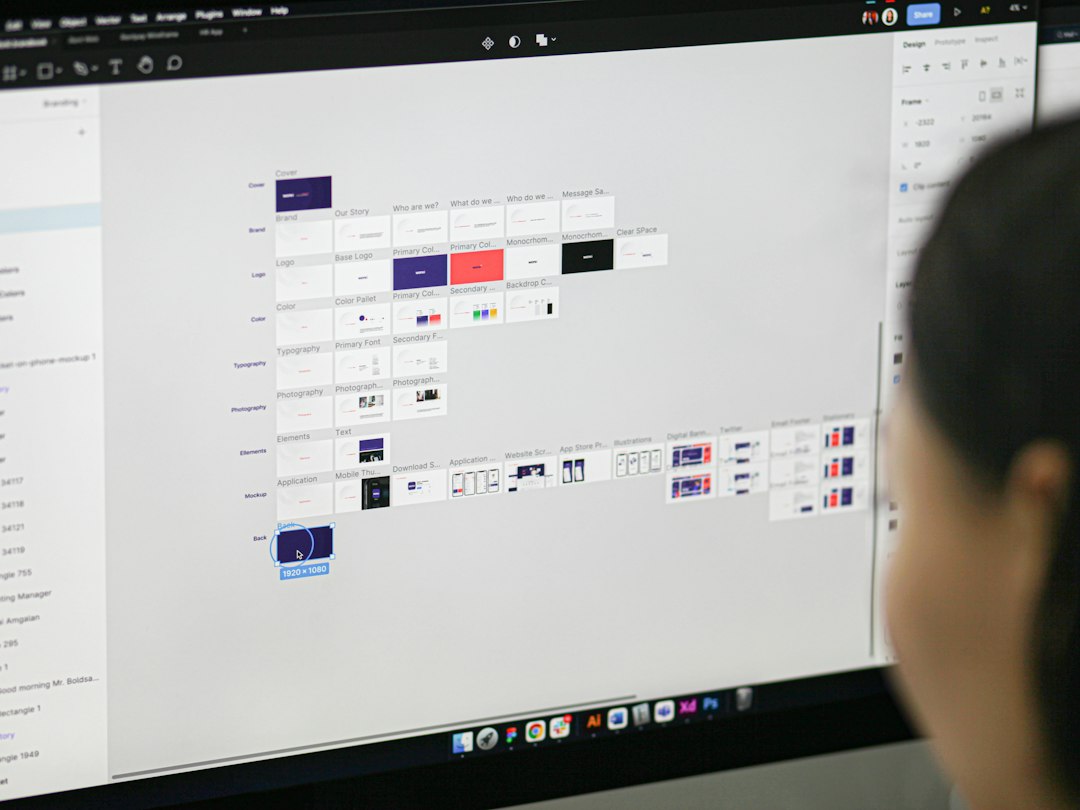
Figma is the fastest place to review the identity change. You can place the old and new logos side by side, create frames at mobile and desktop sizes, and test them in real interface layouts.
For a serious comparison, build a simple test board:
- Logo at 16 px, 24 px, 48 px, and 120 px.
- Light mode and dark mode backgrounds.
- Desktop search header mockup.
- Mobile app splash screen.
- Monochrome version for edge cases.
Figma’s strength is speed. Teams can comment directly on spacing, color, and visibility. The catch is that vector editing can feel shallow when you need exact curve repair. You can do it, but Illustrator still feels better for final letterform work.
Comparing the logos in Penpot
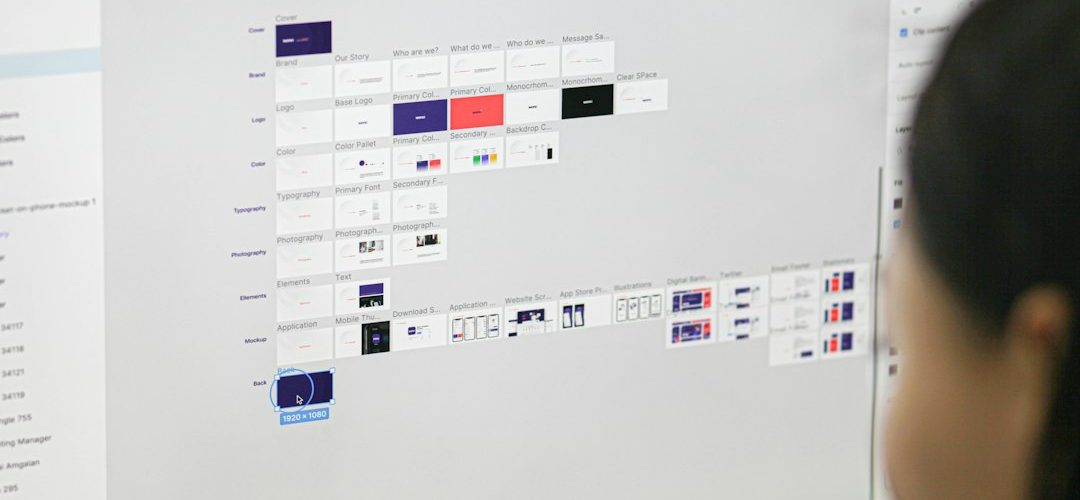
Penpot is useful when the team wants an open-source design workflow. It handles layout review, components, and SVG-based design work well. For logo comparison, that matters. SVG is the natural home for clean logo geometry.
Penpot also makes sense for teams that do not want vendor lock-in. Designers and developers can inspect assets, test exports, and keep the file format closer to web standards.
Still, expect some friction. It drives me crazy that small import differences can cost extra minutes when checking curves or spacing. A logo review should not turn into a hunt for tiny rendering issues. For basic brand comparison, Penpot is solid. For final brand production, double-check every exported file.
Comparing the logos in Adobe Illustrator
Adobe Illustrator remains the best tool for final vector judgment. If the job is to inspect curves, anchors, optical spacing, and color separations, Illustrator gives more control.
This matters when comparing the old Google logo with the new one. The differences are not only about fonts. They are about geometry. The new logo relies on smooth circles, clear counters, and even stroke weight. Illustrator makes it easier to inspect those details with precision.
Use Illustrator for:
- Anchor point cleanup.
- Optical spacing checks.
- Color value review.
- Print-ready exports.
- Master logo file creation.
The downside is collaboration. Illustrator is not as smooth as Figma for team review. Comments, quick mockups, and shared design systems feel heavier. So the best workflow is often mixed.
Best workflow for a serious logo comparison
A practical workflow is simple. Start in Figma for context. Test the logo in real screens. Move to Penpot if open-source review or SVG handoff is required. Finish in Illustrator when the final vector file needs hard inspection.
- Figma: Compare recognition, scale, and UI fit.
- Penpot: Review SVG behavior and shared access needs.
- Illustrator: finalize curves, spacing, and export masters.
This order keeps the work grounded. A logo does not live on a blank canvas. It lives in headers, icons, ads, emails, and tiny loading screens.
What designers can learn from Google’s change
The Google redesign shows a clear lesson. A brand can change without losing memory. The colors stayed. The name stayed. The playful tone stayed. The structure changed because the product world changed.
For most brands, that is the safest path. Keep the strongest recognition cues. Remove what slows the mark down. Test it at real sizes. Then make the final vector file clean enough to survive years of use.
The old Google logo had more personality. The new Google logo has more range. For a modern identity system, range usually wins.