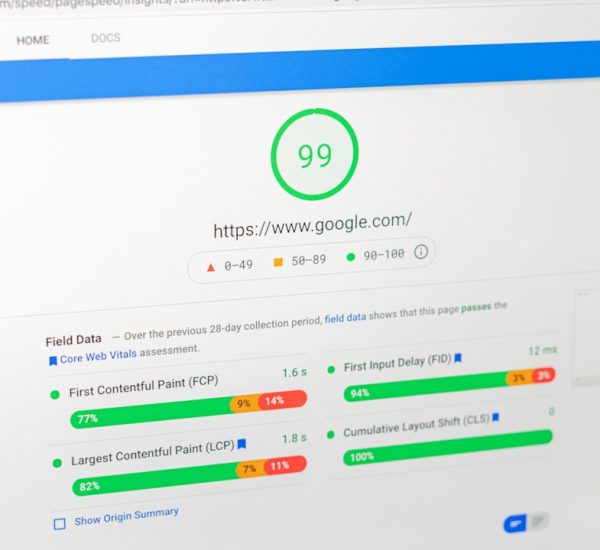
A WordPress site should show a clear maintenance page before migration work starts, not after visitors begin seeing errors. During a move to a new hosting provider, even a short DNS delay or database mismatch can create blank pages, broken checkout buttons, or login loops. Google has reported that the chance of a mobile visitor leaving rises by 32% when load time moves from 1 second to 3 seconds [source: Think with Google]. A simple maintenance page keeps trust intact while the site owner moves files, tests the database, and points the domain to the new server.
TLDR: A site owner should install the Maintenance plugin, turn on maintenance mode, and add a short message with a return time before migration begins. For example, an online store expecting 1,200 daily visits could prevent hundreds of confused clicks by showing “Back at 3 PM UTC” instead of a timeout error. The page should include contact details, a short reason for the outage, and a plain status update. The PRO version at wpmaintenancemode.com can help when the brand needs a more polished page.
Why a Maintenance Page Matters During Hosting Migration
Moving a WordPress site to a new host sounds simple. Copy files. Move the database. Update DNS. Test the result. Done.
Honestly, it feels like DNS always waits until everyone is watching. Some visitors may reach the old server. Others may hit the new one. A few may see cached pages. That messy window is where a maintenance page helps most.
A good page tells visitors three things:
- The site is not broken. Work is planned.
- The team knows about it. No need to report the same issue.
- There is a next step. Visitors can return later or make contact.
Set Up the Maintenance Plugin Before the Move
The site owner should install the plugin while the old host is still working. Waiting until files are half moved is asking for trouble.
- In the WordPress dashboard, the site owner goes to Plugins and selects Add New.
- They search for Maintenance.
- They install and activate the plugin from WordPress.org.
- They open the plugin settings and switch maintenance mode on.
- They add a clear headline, short text, logo, and background.
The message should be boring in the best way. No vague promises. No jokes that age badly. A visitor needs facts.
Example: “The website is moving to a new hosting provider. It should be back by 3 PM UTC. For urgent requests, email support@example.com.”
What the Page Should Include
A maintenance page does not need much. It needs the right details.
- A short headline: “Scheduled Website Maintenance” works well.
- A plain reason: “The site is being moved to a new hosting provider.”
- An expected return time: Even an estimate is better than silence.
- Contact information: Add an email address or support form link if available.
- Brand elements: Use the logo, colors, and tone visitors already know.
Expect to waste time on tiny visual issues if this is left until migration day. A logo that looks fine on desktop may sit awkwardly on mobile. A background image may load too slowly. A button may be hard to read. These are small problems, but they are annoying when a domain switch is already in progress.
Keep Admin Access Open
The maintenance page should block public visitors, not the site owner. Before enabling it, the person handling the move should confirm they can still log in as an administrator.
This matters because migration checks often happen inside WordPress. The admin may need to update permalinks, review plugin errors, check media files, or test forms. If the maintenance page blocks the wrong person, the job gets slower for no good reason.
The site owner should also keep a second browser open in private mode. That view shows what regular visitors see. It is a quick sanity check and saves embarrassment.
Use a Staging or Temporary URL When Possible
Many hosts offer a temporary URL or staging area. The site owner can upload the migrated WordPress site there first, then test it before changing DNS. The maintenance page stays active on the live domain while the new copy is checked in private.
The tester should review:
- Homepage and main landing pages
- Contact forms
- Checkout or booking flows
- Login and account pages
- Images and downloadable files
- Permalinks and redirects
After that, DNS can be updated. Once the new host serves the site correctly, the maintenance page can be turned off.
When the PRO Version Makes Sense
The free plugin can handle a simple migration notice. The PRO version may make sense for businesses that want a better branded page, more layout control, or extra features for a longer migration window.
For example, a membership site moving 80,000 user records may need more than a one-hour notice. A cleaner layout, countdown, and email capture can reduce support tickets. Visitors feel less ignored when the page looks planned.

After the Migration
Once the new hosting provider is live, the site owner should not switch off maintenance mode too quickly. First, they should test the live domain from a normal browser and mobile device. They should also clear caches, check SSL, and make sure redirects work.
Only then should the maintenance page come down. The final step is simple: return to the plugin settings and disable maintenance mode. Then the site is open again.
FAQ
Should a WordPress site always use a maintenance page during migration?
Yes, if visitors may reach the site during the move. It prevents confusion and gives the owner time to test the new host.
Can search engines still understand what is happening?
A proper maintenance setup can signal temporary downtime instead of a permanent failure. That is better than showing broken pages.
What should the maintenance message say?
It should say the site is moving hosts, give an expected return time, and offer a contact option for urgent needs.
Should the page include a countdown?
A countdown is useful if the return time is realistic. If timing is uncertain, a simple status message is safer.
When should maintenance mode be turned off?
It should be turned off only after the live domain, SSL, forms, images, and key pages have been tested on the new host.