The best beginner video editing software is the one that lets you finish real projects quickly, without hiding basic tools behind confusing menus. For most new creators, that means starting with CapCut, iMovie, Clipchamp, Adobe Premiere Elements, or DaVinci Resolve, depending on your device, budget, and goals. Pick for your next three videos, not for some dream studio setup you may never need.
TLDR: Beginners should choose video editing software with an easy timeline, ready-made templates, clean export settings, and enough room to grow. For example, a small business owner making 8 short social videos per month may save 3 to 5 hours by using CapCut templates instead of learning a complex editor from scratch. If you want serious color tools and long-term growth, DaVinci Resolve is a strong free choice. If you just want family videos, YouTube shorts, or quick promos, simpler tools are usually better.
What Makes Video Editing Software Good for Beginners?
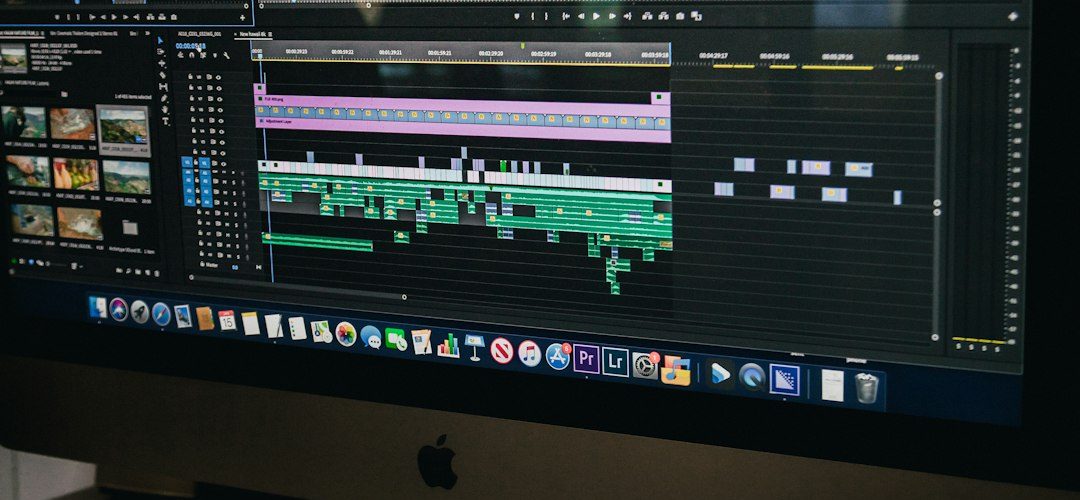
A beginner editor should help you cut, arrange, add music, place text, and export without making every step feel like a tech exam. The interface matters more than the feature list at first. A tool with 500 effects is useless if you cannot find the trim button.
Look for these basics:
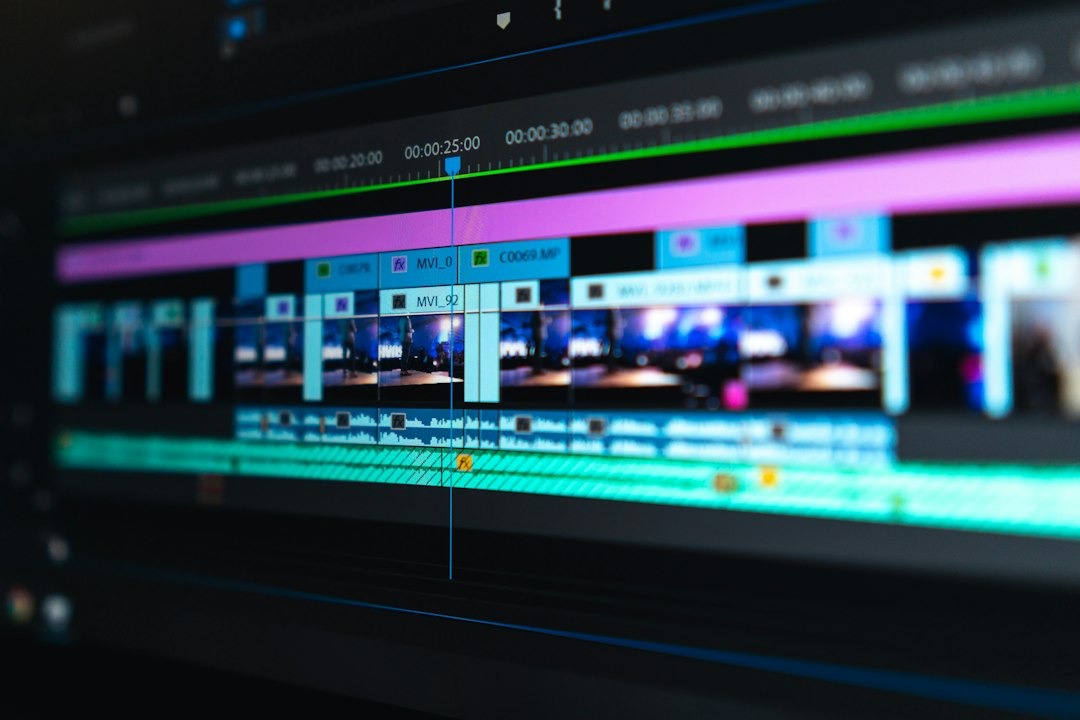
- Simple timeline editing: Drag clips, cut mistakes, move scenes, and adjust audio fast.
- Templates: Great for intros, captions, social posts, and product videos.
- Auto captions: A huge time saver for TikTok, Reels, Shorts, and training videos.
- Easy exports: Presets for YouTube, Instagram, Facebook, and 1080p or 4K video.
- Stable performance: Crashes are not “part of learning.” They are just annoying.
- Room to grow: You should not outgrow the software after two weekends.
Best Beginner Video Editing Software by Use Case
1. CapCut: Best for Social Media Beginners
CapCut is one of the easiest choices for short-form content. It works well for TikTok, Instagram Reels, YouTube Shorts, and quick promo videos. The built-in templates, captions, effects, and music tools feel made for people who need a polished result fast.
Best for: creators, coaches, small shops, students, and anyone posting vertical videos.
Pros: Free plan, auto captions, fast templates, mobile and desktop versions.
Cons: Some effects feel overused. Also, project organization can get messy if you make lots of videos every week.
2. iMovie: Best Free Choice for Mac and iPhone Users
iMovie is simple, clean, and already installed on many Apple devices. It is ideal for family videos, school projects, basic YouTube videos, and quick edits from iPhone footage. You can cut clips, add titles, use transitions, and export without much setup.
Best for: Apple users who want no-cost editing with almost no learning curve.
Pros: Free, stable, friendly interface, smooth with iPhone videos.
Cons: Limited advanced tools. It drives me crazy that some customization options are so basic, especially for titles and audio control.
3. Clipchamp: Best Simple Editor for Windows Users
Clipchamp is Microsoft’s beginner-friendly editor and works well in a browser or on Windows. It includes templates, stock assets, screen recording, and social media formats. If you use Windows and want something less intimidating than professional software, it is a practical start.
Best for: presentations, social posts, simple tutorials, and basic marketing videos.
Pros: Easy timeline, templates, screen recording, cloud-friendly workflow.
Cons: Some features require a paid plan. Large projects can also feel slower than desktop-first editors.
4. Adobe Premiere Elements: Best Guided Editor
Adobe Premiere Elements is designed for people who want help while learning. Its guided edits walk you through tasks like trimming, adding motion, fixing color, and creating effects. It is not as powerful as Adobe Premiere Pro, but that is the point.
Best for: hobbyists, families, beginners who like step-by-step help, and casual YouTube creators.
Pros: Guided edits, one-time purchase option, friendly tools.
Cons: Less suited for fast social media workflows. Some screens feel dated compared with newer apps.
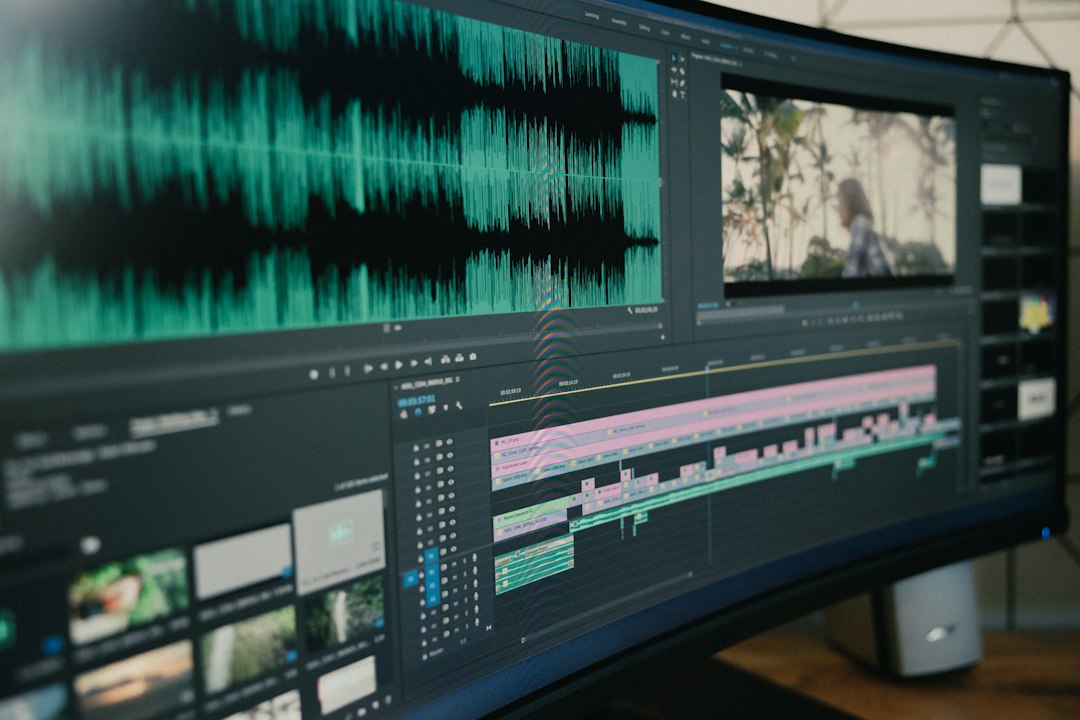
5. DaVinci Resolve: Best Free Software for Beginners Who Want to Grow
DaVinci Resolve is powerful, professional, and surprisingly generous in its free version. It includes advanced editing, color correction, audio tools, effects, and export settings. Beginners can start with basic cuts and slowly learn more serious features.
Best for: YouTube creators, filmmakers, editors who want long-term skills, and anyone interested in color grading.
Pros: Excellent free version, strong color tools, professional workflow.
Cons: The first hour can feel rough. Expect to waste time on panels you do not need yet unless you stick to the Cut page or Edit page.
Free vs Paid: Which Should a Beginner Choose?
Start free unless you already know exactly why you need to pay. Many beginners buy software too early, then use only 10% of it. Free tools like CapCut, iMovie, Clipchamp, and DaVinci Resolve can handle most starter projects.
Pay when you need one of these:
- No watermarks on exports.
- Better stock music and licensed assets.
- More cloud storage for projects.
- Team tools for comments, approvals, and shared assets.
- Advanced effects or brand kits.
If you are editing one or two videos a month, free software is often enough. If video supports your income, paid tools can be worth it. A real estate agent posting 12 property clips per month may gain more from templates and faster captions than from advanced color wheels.
Features Beginners Should Care About First
Ignore flashy features at the start. Focus on work you will do every time you edit.
- Trimming: Cut dead air, mistakes, and awkward pauses.
- Audio cleanup: Adjust voice, music, and background noise.
- Text and captions: Make videos easier to watch without sound.
- Transitions: Use sparingly. Simple cuts often look better.
- Aspect ratios: Switch between 16:9, 9:16, and 1:1 formats.
- Export presets: Avoid guessing bitrate, resolution, and file type.
A good beginner app should make these tasks feel obvious. If cutting a clip takes six clicks and a search tutorial, that software may be slowing you down.
How to Choose Based on Your Project Type
For TikTok, Reels, and Shorts: Choose CapCut or Clipchamp. Auto captions and templates matter most.
For YouTube videos: Try DaVinci Resolve if you want growth, or iMovie if you own a Mac and want speed.
For school projects: iMovie, Clipchamp, or CapCut are enough for most assignments.
For business promos: CapCut and Clipchamp are strong because templates save time.
For filmmaking: Start with DaVinci Resolve. You can learn editing, color, audio, and delivery in one place.
Learning Curve: How Much Time Should You Expect?
Most beginners can make a basic edit in 30 to 90 minutes with CapCut, iMovie, or Clipchamp. DaVinci Resolve may take a weekend to feel comfortable, but the payoff is bigger if you keep editing.
Use a simple learning plan:
- Edit a 30-second video with three clips.
- Add music and lower its volume under speech.
- Add text or captions.
- Export for one platform.
- Repeat with a new project.
Do not start by watching a four-hour tutorial. Make something short first. You will remember more when the lesson solves a real problem.
Final Recommendation
If you want the safest starter pick, choose CapCut for social media, iMovie for Apple simplicity, Clipchamp for Windows basics, and DaVinci Resolve for serious growth. The “best” beginner video editing software is not the one with the longest feature list. It is the one that helps you finish, share, and improve with each project.
Start with one tool. Edit three small videos. Then decide if you need more power, better templates, or faster exports. That beats switching apps every week and never finishing the video you actually wanted to make.