Clean cutouts used to require careful masking, steady hands, and expensive editing software. Today, AI background removers can isolate people, products, pets, cars, and graphics in seconds, often directly in a browser. For photographers, ecommerce sellers, social media managers, and portrait editors, the best free tools make it easier to create polished visuals without starting from scratch.
TLDR: The best free AI background removers are fast, simple, and accurate enough for everyday product photos, portraits, and social content. Tools such as Adobe Express, remove.bg, Canva, PhotoRoom, Pixlr, Fotor, and Erase.bg each offer useful free options, though some limit resolution, downloads, or batch processing. For professional results, users should choose a tool based on image type, edge detail, export quality, and whether they need extra editing features after the background is removed.
Why AI Background Removers Are So Useful
An AI background remover identifies the main subject of an image and separates it from everything behind it. Instead of manually tracing around hair, clothing, packaging, or reflective objects, the software uses machine learning to detect edges and create a transparent or replacement background.
This is especially useful for product photography, where clean white or branded backgrounds can improve consistency across online stores. It also helps with portraits, profile photos, ID-style images, resumes, marketing graphics, thumbnails, and digital ads. For casual users, it can turn a busy photo into something cleaner and more shareable within seconds.
However, not every free AI tool performs the same. Some are better at hair and fur, while others excel at hard-edged product packaging. Some provide a transparent PNG for free, while others require an account, limit image size, or add restrictions to high-resolution exports.

What Makes a Good Free AI Background Remover?
The best free background removers usually share a few important qualities. They are not just quick; they also provide clean edges and flexible export options.
- Accuracy: The tool should detect the subject properly, including fine details like hair, fabric, glass, and shadows.
- Ease of use: A strong tool should require only an upload and a click, with minimal manual editing.
- Transparent PNG export: Users often need a transparent background for design, ecommerce, and marketing work.
- Resolution quality: Free tools may reduce image size, so export quality matters.
- Editing controls: Brush tools, background colors, shadows, and crop options can improve the final result.
- No unnecessary watermark: A free tool is more useful when it allows clean downloads without a visible watermark.
1. Adobe Express Background Remover
Adobe Express offers one of the most accessible free AI background removers for general image editing. It works well for portraits, product photos, and quick marketing graphics. Users can upload an image, remove the background, and continue editing the design with text, color blocks, templates, and resizing tools.
Its biggest advantage is the surrounding design ecosystem. After the background has been removed, the cutout can be placed into flyers, social posts, banners, presentations, or profile images. The results are usually clean, especially for clear subjects with good contrast against the original background.
Best for: social media graphics, portraits, simple product images, and branded content.
Free limitation: Some advanced design features and premium assets may require a paid plan, but the basic background removal feature is useful for many common tasks.
2. remove.bg
remove.bg is one of the most recognized AI background removal tools. It is known for speed and simplicity: users upload a photo, and the tool automatically creates a cutout. It is particularly effective for portraits and subjects with clear outlines.
The platform handles hair, people, pets, and simple product images well. It also includes options to replace the background with colors or images. For many users, the free preview download is enough for web use, profile photos, or small graphics.
Best for: portraits, profile pictures, quick cutouts, and images with people.
Free limitation: High-resolution downloads may require credits or a paid option, so it may not be ideal for large print files on the free tier.
3. Canva Background Remover
Canva is widely used for social content, presentations, posters, and marketing materials. Its background remover is especially valuable because it connects directly with the platform’s design editor. A cutout can be placed on templates, resized for different platforms, and combined with graphics, text, and brand colors.
For users who already create designs in Canva, this tool is convenient. It performs well on portraits, lifestyle photos, and many product images. The editor also allows users to add shadows, outlines, frames, and replacement backgrounds.
Best for: content creators, small businesses, marketing designs, thumbnails, and presentations.
Free limitation: Background removal is often associated with paid Canva features, though availability may vary by trial, plan, region, or educational access. Users looking strictly for free long-term access should check current feature rules.

4. PhotoRoom
PhotoRoom is especially strong for ecommerce and product visuals. It does more than remove backgrounds; it can create polished product images with studio-style backgrounds, shadows, and marketplace-friendly layouts. Sellers can quickly turn ordinary phone photos into cleaner catalog images.
PhotoRoom is useful for clothing, cosmetics, accessories, electronics, handmade crafts, and secondhand marketplace listings. Its AI usually understands product shapes well and can create attractive replacement backgrounds without complicated editing.
Best for: ecommerce sellers, marketplace listings, product catalogs, and promotional images.
Free limitation: Free exports may include restrictions, and some premium backgrounds, batch tools, or high-quality downloads may require a paid plan.
5. Pixlr Remove BG
Pixlr provides a free online background remover along with a broader photo editing suite. It is useful for users who want both automatic cutouts and more traditional editing tools in the same place. After removing the background, users can continue adjusting color, retouching, cropping, and adding design elements.
Pixlr is a good choice for people who want more control than a one-click remover provides. It can be used for portraits, products, posters, and creative edits. The interface is browser-based, so there is no need to install heavy desktop software.
Best for: users who want background removal plus extra photo editing tools.
Free limitation: The free version may include ads, usage limits, or restrictions on premium features.
6. Fotor Background Remover
Fotor combines AI background removal with a practical photo editor. It is suitable for portraits, ecommerce images, social media posts, and casual design projects. The tool can remove the background and then apply new colors, designs, or effects.
One of Fotor’s strengths is its balance between simplicity and editing options. It is not only for technical users; beginners can achieve usable results quickly. For portraits, it can help create cleaner profile images, professional headshots, or promotional visuals.
Best for: portraits, profile images, simple ads, and general online editing.
Free limitation: Some high-resolution exports, advanced tools, or premium assets may require an upgrade.
7. Erase.bg
Erase.bg is another simple AI tool designed to remove backgrounds from images quickly. It works in the browser and is often used for product photos, portraits, logos, and object cutouts. The tool is straightforward, which makes it appealing for users who do not need a full design editor.
It can be particularly helpful when someone needs a transparent PNG for a website, small product listing, or visual mockup. Its simplicity is the main benefit: upload, process, and download.
Best for: quick transparent PNGs, product cutouts, and simple object removal.
Free limitation: Free usage may have image size, download, or daily processing limits depending on current policies.
Best Tools by Use Case
Different images create different challenges. A portrait with curly hair needs different AI precision than a product photo with a straight box edge. Choosing the right tool by use case saves time and improves results.
- Best for portraits: remove.bg, Adobe Express, Fotor
- Best for product photos: PhotoRoom, Erase.bg, Adobe Express
- Best for social media designs: Adobe Express, Canva, Pixlr
- Best for ecommerce sellers: PhotoRoom, Erase.bg, Fotor
- Best for quick one-click cutouts: remove.bg, Erase.bg, Pixlr Remove BG
- Best for further editing: Pixlr, Adobe Express, Canva
Tips for Getting Better Background Removal Results
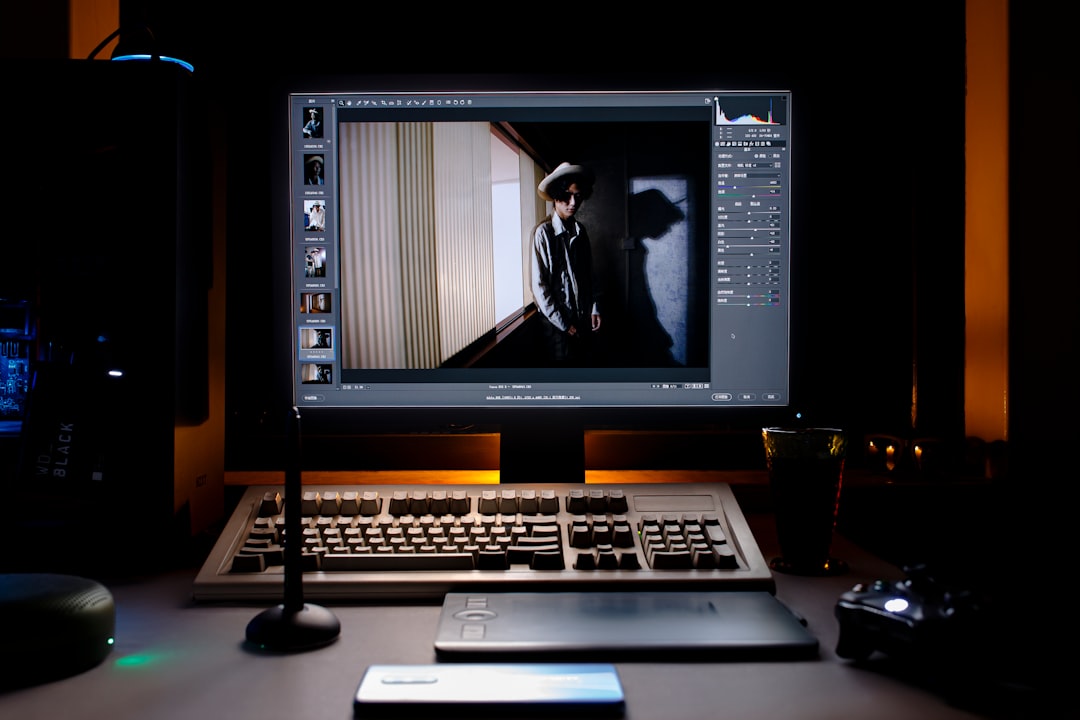
Even the best AI background remover performs better when the original photo is clear. A few simple photography habits can make the final cutout look more professional.
- Use good lighting: Bright, even lighting helps AI detect the subject’s edges.
- Avoid cluttered backgrounds: Busy backgrounds can confuse the tool, especially around hair or transparent objects.
- Create contrast: A dark subject on a dark background is harder to separate than a subject with clear contrast.
- Use high-resolution images: Better source files usually create cleaner cutouts.
- Check the edges: Users should zoom in and inspect hair, hands, product corners, and shadows.
- Add realistic shadows: For product images, a subtle shadow can prevent the subject from looking pasted onto the background.
Free vs Paid: When Is Upgrading Worth It?
Free AI background removers are excellent for occasional edits, small web images, social graphics, and testing different designs. They are also helpful for small businesses that need to improve visuals without immediately paying for professional software.
However, paid plans may be worth considering when users need high-resolution exports, batch processing, commercial workflows, or consistent ecommerce output. A seller with hundreds of product images may save hours with batch background removal, while a designer may need full-resolution transparent PNG files for print projects.
For most casual uses, the free options are more than enough. For professional catalogs, advertising campaigns, or print-ready portraits, paid features can provide better efficiency and fewer limitations.
Final Thoughts
The best free AI background remover depends on the image and the goal. remove.bg is excellent for quick portrait cutouts, PhotoRoom stands out for product and ecommerce images, and Adobe Express is a strong all-around option for users who want background removal plus design tools. Pixlr, Fotor, and Erase.bg are also useful choices for fast edits and flexible online workflows.
AI background removal is not perfect, but it has become impressively reliable. With a clear photo, good lighting, and the right tool, users can create clean product images, professional portraits, and polished marketing visuals in minutes.
FAQ
What is the best free AI background remover?
The best option depends on the use case. remove.bg is strong for portraits, PhotoRoom is excellent for product photos, and Adobe Express is a good all-around choice for design projects.
Can free AI background removers export transparent PNG files?
Yes, many free tools allow transparent PNG downloads. However, some may limit the resolution or require an account for certain export options.
Which background remover is best for product photography?
PhotoRoom is one of the best choices for product photography because it offers background removal, studio-style backgrounds, shadows, and ecommerce-friendly layouts.
Which tool is best for portraits and hair detail?
remove.bg, Adobe Express, and Fotor usually perform well on portraits, including hair and facial outlines, especially when the original image has good lighting.
Are AI background removers accurate enough for professional work?
They can be, especially for web images and ecommerce listings. For high-end print, fashion, or complex commercial photography, manual refinement may still be necessary.
Do free background removers add watermarks?
Some tools may add watermarks or limit download quality on free plans. Users should check the export preview and terms before using images commercially.
How can users improve AI background removal results?
They should start with a sharp, well-lit image, avoid cluttered backgrounds, create strong contrast between subject and background, and inspect edges after processing.