Removing a background used to require careful tracing, masking, and photo-editing experience. Today, many browser-based and mobile tools can isolate a person, product, logo, animal, or object in seconds. The best free background removers are not all equal, however: some are excellent for ecommerce product photos, while others are better for portraits, social media graphics, or quick transparent PNG exports.
TLDR: If you need a fast, clean cutout, tools such as remove.bg, Adobe Express, Canva, PhotoRoom, and Clipdrop are among the most reliable free options. Most free plans include limits on image size, daily usage, watermarks, or export resolution, so check the terms before using them for commercial work. For the cleanest results, start with a sharp image, good lighting, and clear contrast between the subject and background.
What makes a background remover worth using?
A serious background remover should do more than simply delete the largest area behind a subject. It should preserve edges, handle hair and transparent objects reasonably well, and export files in practical formats such as PNG with transparency. Speed matters, but so do privacy, image quality, and the ability to refine the mask manually when the automatic result is not perfect.
Below are 21 free background remover tools that can deliver clean cutouts quickly. Some are fully free for limited use, while others offer free credits, free low-resolution downloads, or free access with account registration.
21 free background remover tools to try
- remove.bg is one of the best-known options for instant background removal. It is particularly strong with portraits, people, clothing, and common product shots. The free version generally supports preview-quality downloads, while higher-resolution exports may require credits. For quick transparent PNGs, it remains one of the most dependable choices.
- Adobe Express removes backgrounds using Adobe Firefly’s fast and free online background remover under the hood, benefiting from Adobe’s long experience with imaging tools. It works well for profile photos, marketing visuals, and simple product images. Users can continue editing the image inside Adobe Express, adding layouts, text, colors, or branded templates.
- Canva Background Remover is a convenient option for users already creating social media posts, presentations, or marketing assets in Canva. Availability may depend on plan features, but Canva often provides free editing tools and trials. Its biggest advantage is workflow: you can remove background and immediately place the subject into a finished design.
- PhotoRoom is highly practical for ecommerce, marketplace listings, and catalog-style images. It can remove backgrounds, replace them with clean studio-style settings, and create consistent product visuals. Its free version is useful for testing and quick edits, though some exports and advanced features may carry restrictions.
- Pixlr Remove BG provides fast browser-based background removal with additional editing options inside Pixlr. It is a good choice for users who want more control than a one-click tool provides. After removing the background, you can retouch, crop, resize, or continue editing the image in a lightweight online editor.
- Fotor Background Remover is suitable for portraits, product images, and promotional graphics. It combines automatic background removal with broader design and editing features. The interface is straightforward, making it useful for small business owners and content creators who need fast results without complex software.
- Clipdrop Remove Background is built for speed and simplicity. Upload an image, let the system detect the subject, and download the cutout. Clipdrop is especially useful when you need multiple AI-powered visual tools in one place, including cleanup, relighting, and image enhancement features.
- Erase.bg is a clean, focused background remover that supports common image types and produces transparent cutouts quickly. It is often used for product images, portraits, and digital marketplace assets. Free access may include limits, but the tool is efficient and easy to understand.
- Icons8 Background Remover offers simple automatic cutouts and is useful for designers who also use icons, illustrations, and stock visuals. It can handle portraits and objects with reasonable accuracy. The free version may include limitations, so review export options if you need high-resolution results.
- PhotoScissors has been around for years and remains a useful option for users who want more manual control. Instead of relying only on AI, it allows foreground and background marking, which helps when automatic tools fail. It is especially helpful for images with confusing colors or partially blended backgrounds.

- Cutout.pro provides AI background removal for people, products, animals, cars, and other objects. It also offers related tools for ID photos, video background removal, and image enhancement. The free tier is useful for testing quality, though credits and resolution limits may apply.
- Picsart Background Remover is a strong option for social media creators. It combines background removal with stickers, filters, text tools, and design effects. For serious business use, check export settings carefully, but for fast creator-focused cutouts, it is convenient and widely used.
- Kapwing Background Remover is helpful when your cutout is part of a video, meme, short-form post, or collaborative project. Kapwing provides a web-based editing workspace, so background removal can be combined with resizing, subtitles, overlays, and templates. Free exports may include restrictions depending on the current plan.
- VistaCreate includes design features that make background removal useful for ads, flyers, banners, and social posts. It is best considered a design platform with background removal as one valuable feature. If your goal is to move quickly from cutout to finished promotional graphic, it is worth testing.
- inPixio Remove Background provides a browser-based way to delete backgrounds from product shots, portraits, and general images. It is simple enough for non-designers and can be effective when the subject is well lit. For difficult edges, you may need to use additional correction tools.
- Slazzer is designed for automatic background removal at scale, including products, cars, people, and real estate-style visuals. It offers a fast online tool and is useful for users comparing several AI cutout engines. The free level is usually best for evaluation or occasional small tasks.
- Media.io Background Remover is part of a broader online media toolkit. It can remove backgrounds from images and then support additional edits such as resizing or converting. This makes it practical for users who need a general-purpose online editing environment rather than a single-purpose app.
- VanceAI Background Remover uses AI to isolate subjects and create transparent backgrounds. It is often used for ecommerce, portraits, and marketing visuals. Free credits may be limited, but the output quality is competitive when the source image has clear subject separation.
- Wondershare PixCut is another AI-based option for removing backgrounds from portraits, objects, and product photos. It is designed to be simple and fast, with minimal setup. As with many free tools, check whether the download resolution meets your needs before committing to it for a full project.
- Removal.ai provides automated background removal with options for individuals, ecommerce teams, and designers. It can produce clean cutouts quickly, especially when the subject is distinct from the background. The free option is useful for testing, while paid plans are generally aimed at higher-volume workflows.
How to get cleaner cutouts from free tools
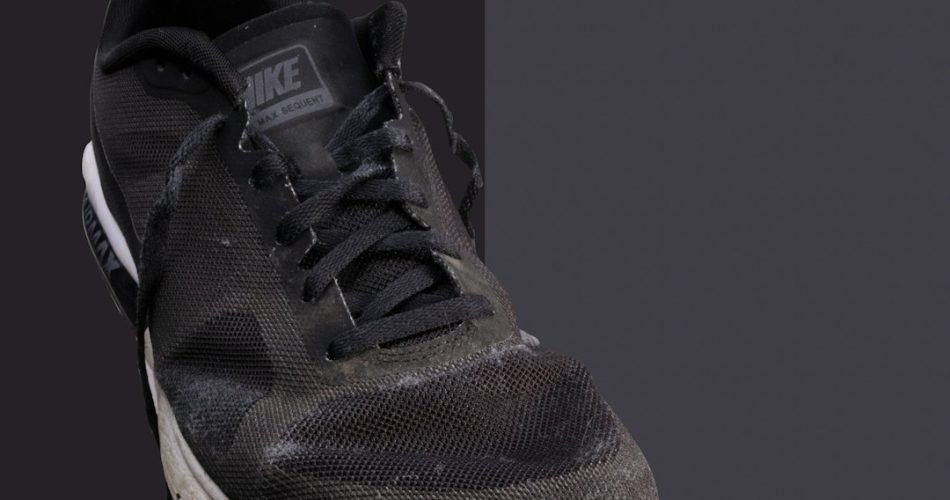
Even the best AI tool performs better when the original image is prepared well. Use a photo with sharp focus, avoid heavy motion blur, and choose images where the subject does not blend into the background. If you are photographing products, place them against a plain wall or neutral surface. If you are editing portraits, make sure hair and clothing are not lost in shadows.
- Use high contrast: A dark product on a dark table is harder to separate than a dark product on a light background.
- Avoid busy backgrounds: Trees, crowds, shelves, and patterned fabric can confuse automatic detection.
- Check edges at 100% zoom: Look for halos, missing hair, jagged outlines, or leftover background fragments.
- Export as PNG: PNG preserves transparency and is usually the safest format for cutouts.
- Keep the original file: If one tool performs poorly, another may produce a better mask from the same image.

Important limitations to consider
Free background removers are convenient, but they are not always suitable for every professional job. Some free plans reduce resolution, add watermarks, limit daily downloads, or restrict commercial use. If you are preparing images for a paid advertising campaign, a product catalog, or client deliverables, read the licensing and privacy terms before uploading sensitive files.
Privacy is particularly important for identification photos, confidential product prototypes, medical images, or internal company materials. A reputable tool should clearly explain how uploaded files are processed and stored. When in doubt, avoid uploading sensitive images to any third-party service and use trusted desktop software instead.
Which tool should you choose?
If you want the fastest general-purpose result, start with remove.bg, Adobe Express, or Clipdrop. If your work is focused on ecommerce, test PhotoRoom, Erase.bg, Cutout.pro, and Slazzer. If you need to create a finished graphic after removing the background, platforms such as Canva, Pixlr, Fotor, Picsart, Kapwing, and VistaCreate may save time because they combine cutouts with design tools.
The most reliable approach is to keep two or three tools available. AI background removal engines produce different results depending on the image, so a difficult portrait or product shot may look better in one tool than another. For serious work, compare outputs, inspect the edges, and choose the version that requires the least manual correction.
Final thoughts
Free background remover tools have become fast, accessible, and surprisingly capable. They can support online stores, social media teams, freelancers, students, and small businesses that need polished visuals without hiring a specialist for every image. The key is to treat them as practical production aids rather than magic buttons: begin with a good source photo, verify the cutout carefully, and understand the limits of the free plan. With the right tool and a disciplined review process, clean transparent cutouts can be created in seconds instead of hours.