Adobe Acrobat Pro is the best all-round PDF editor for business teams, but PDF Expert feels nicer on Mac, and Nitro PDF is great for offices that live inside Microsoft Word and Excel. Adobe lists Acrobat Pro for individuals at $19.99 per month when billed annually, which makes it powerful but not cheap [source: Adobe].
TLDR: Pick Adobe Acrobat Pro if your team needs signing, editing, forms, redaction, and admin controls in one place. Pick PDF Expert if you use Mac or iPad and want fast markup without drama. Pick Nitro PDF if your team converts a lot of Word, Excel, and PowerPoint files. Example: a 12-person sales team sending 80 contracts a month may save hours with Adobe Sign tools, while a solo consultant may be happier with PDF Expert and a lower learning curve.
Quick winner list
- Best overall: Adobe Acrobat Pro
- Best for Mac and iPad: PDF Expert
- Best for Office-style workflows: Nitro PDF
- Best Acrobat alternative for teams: Foxit PDF Editor
- Best value for Windows power users: PDF-XChange Editor
- Best simple online option: Smallpdf
1. Adobe Acrobat Pro: the big boss
Adobe Acrobat Pro is the tool most people think of first. That makes sense. It handles almost everything.
You can edit text. You can add images. You can build forms. You can redact private info. You can request e-signatures. You can compare two versions of a contract. It is a full business toolbox.
The catch is that Acrobat can feel heavy. On older laptops, opening a large PDF may take a few extra seconds. Not awful. Still annoying when you just need to sign page 4 and move on.
Best for: legal teams, HR teams, finance teams, agencies, and companies that need strict document control.
2. PDF Expert: smooth and friendly
PDF Expert is the cleanest pick for Apple users. It feels quick. It looks simple. It is great for reading, marking up, and signing PDFs.
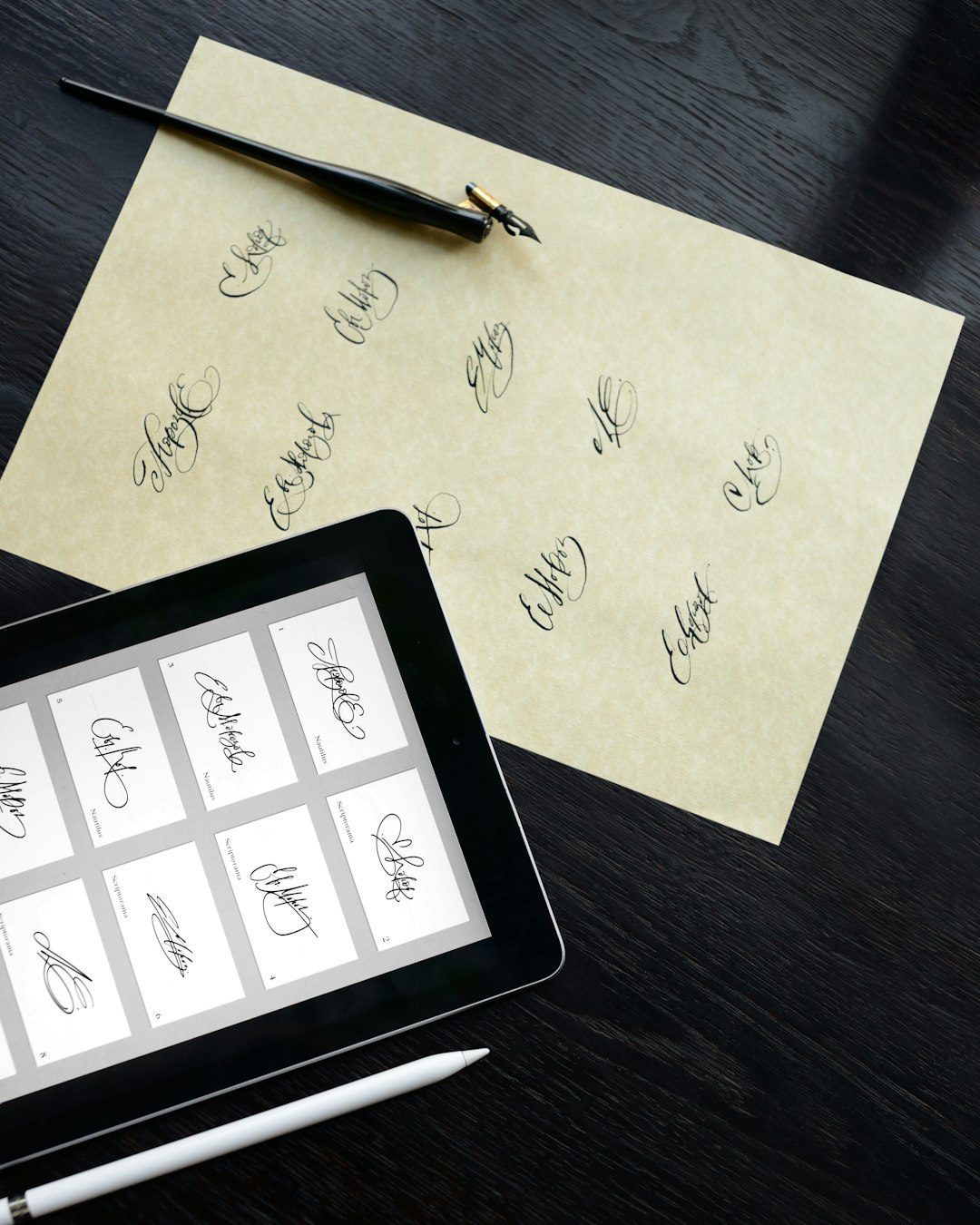
It shines on iPad. You can use an Apple Pencil to write notes, circle text, or sign a form. If your work is more about markup than deep file repair, it is lovely.
Honestly, it feels like PDF Expert respects your time. The buttons are where you expect them. You do not need a training session to highlight a paragraph.
Best for: consultants, teachers, students, designers, and Mac users who hate clutter.
If document markup is your main need, you may also like this guide to PDF markup and handwritten notes.
3. Nitro PDF: built for office work
Nitro PDF feels familiar if you use Microsoft Office all day. The menus look like Word. That helps a lot.
It is strong at converting files. Word to PDF. PDF to Word. Excel to PDF. PowerPoint to PDF. It suits teams that send quotes, invoices, reports, and forms every week.
It also has e-signature tools through Nitro Sign. That is useful for sales teams and admin teams. You can send files for approval without printing anything.
Best for: small and mid-sized businesses that want a business PDF tool without the Adobe feel.

4. Foxit PDF Editor: the serious Adobe rival
Foxit PDF Editor is a strong choice for teams. It offers editing, forms, signing, OCR, file protection, and collaboration tools.
It is often easier to roll out across a company than people expect. IT teams may like its admin options. Normal users may like that it opens fast and keeps the layout simple.
Foxit is not as famous as Adobe. That can make buy-in harder. Someone in the meeting will still ask, “Why not just use Acrobat?” Expect that question.
Best for: companies that want strong PDF tools but want to compare cost and team features.
5. PDF-XChange Editor: small price, big toolbox
PDF-XChange Editor is not the prettiest app. Let’s be honest. It looks a bit old-school.
But wow, it can do a lot. It has OCR, comments, stamps, measurements, forms, and detailed editing tools. Windows users who enjoy control may love it.
The interface can feel crowded. Expect to waste time on the toolbar the first day. After that, it gets easier.
Best for: Windows users, technical workers, engineers, and anyone who wants strong features at a fair price.
6. Smallpdf: quick jobs in the browser
Smallpdf is best when you do not want to install anything. Open the site. Drop in a file. Compress, merge, convert, sign, or split it.
It is not the best choice for private legal files or heavy business workflows. But for quick tasks, it is handy.
Need to combine several files into one clean packet? This guide on merging PDF files with Acrobat and Smallpdf is a useful next read.
Best for: quick edits, one-off file tasks, and users who do not need a full desktop app.
Signing documents: who wins?
- Adobe Acrobat Pro: best for formal signing flows and business approvals.
- Nitro PDF: strong for sales and office teams.
- PDF Expert: great for simple personal signatures.
- Foxit: good for team review and approval workflows.
- PDF-XChange: fine for basic signatures and annotations.
- Smallpdf: easy for quick browser-based signing.

Editing PDFs: the real pain test
PDF editing sounds simple. It often is not. A PDF is not a Word file. Move one sentence, and the spacing may act weird.
Adobe Acrobat Pro gives you the most control. Nitro is good with Office files. PDF Expert is better for light edits, notes, and signatures. PDF-XChange gives power users lots of tools, but the screen can feel busy.
If you often add links to reports, menus, or resource pages, read this simple guide on how to embed a hyperlink in a PDF.
My simple pick
Choose Adobe Acrobat Pro if PDF work is part of your business process. It is pricey, but it is the safest bet.
Choose PDF Expert if you want a fast, friendly PDF app on Mac or iPad.
Choose Nitro PDF if your team works with Office files all day and needs clean conversions.
For budget picks, try PDF-XChange Editor. For browser jobs, use Smallpdf. For a strong team option, test Foxit PDF Editor.
The best PDF editor is the one that saves clicks, not the one with the longest feature list.