Press Alt+0167 on Windows, Option+6 on Mac, or type 00A7 then Alt+X in Microsoft Word to make §. The section symbol, also called the section sign, is Unicode character U+00A7 [source: Unicode]. It is common in legal writing, contracts, academic citations, policy manuals, and technical documentation.
TLDR: The fastest Windows method is Alt+0167, but it usually requires the numeric keypad. On a Mac, the shortcut is Option+6, which is much easier. In Microsoft Word, 00A7 + Alt+X works well, so a phrase like see § 12.4 takes only a few keystrokes. For a paralegal preparing 40 contract references in an hour, using the right shortcut can save several minutes and prevent copy-paste mistakes.
What the Section Symbol Means
The section symbol § marks a numbered section in legal, academic, and formal documents. It often appears before section numbers, such as § 5, § 12.4, or §§ 10–12. A doubled symbol, §§, usually means multiple sections.
Writers see it most often in statutes, regulations, bylaws, contracts, codes, and court filings. For example, 17 U.S.C. § 107 refers to a specific section of the United States Code. The symbol saves space and looks cleaner than writing the word section again and again.
How to Type the Section Symbol on Windows
The most common Windows shortcut is:
- Alt+0167
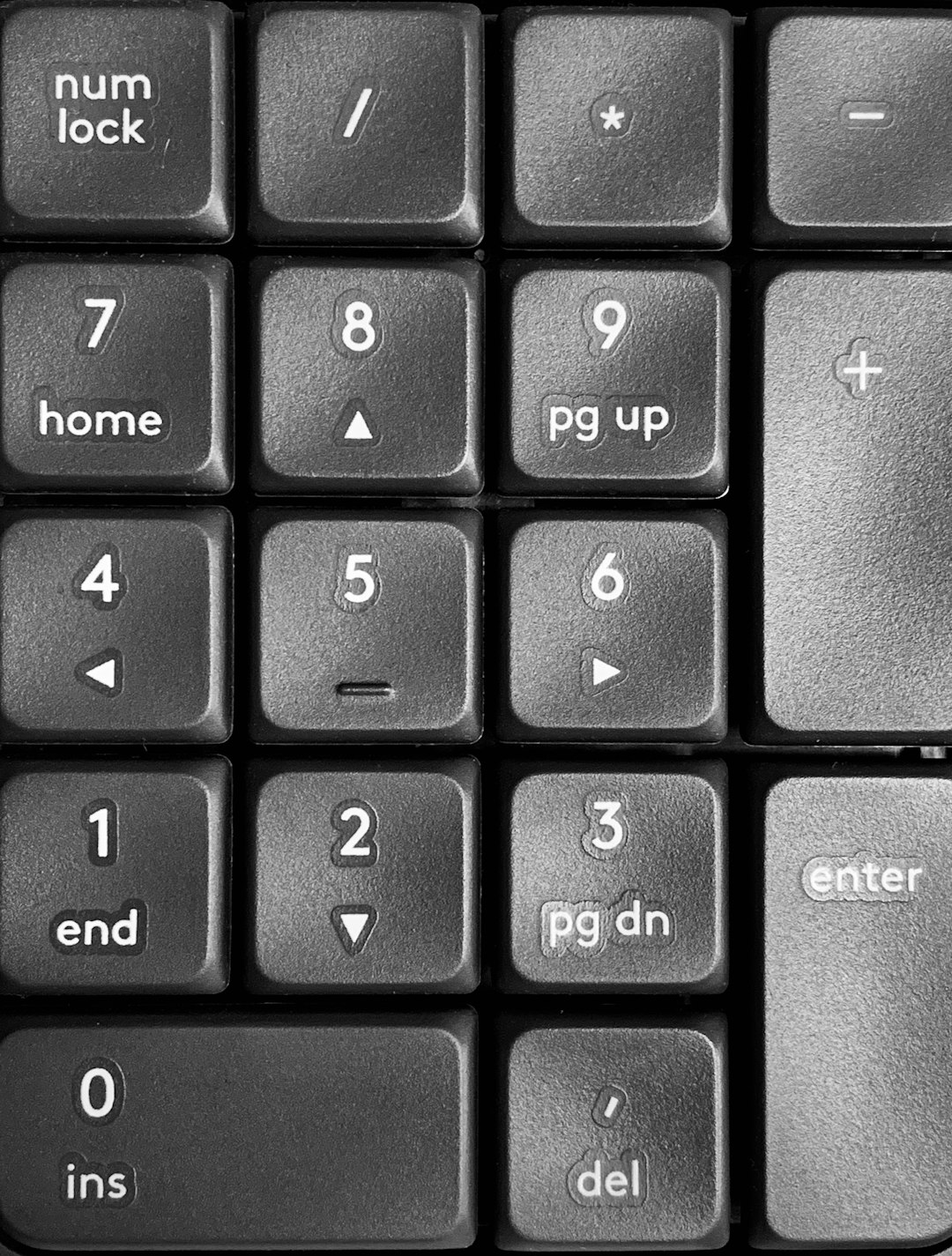
To use it, the typist should hold down Alt, type 0167 on the numeric keypad, and then release Alt. The result should be §.
The catch is that the number row above the letters often does not work for this shortcut. It drives people a little mad because the shortcut looks simple, then fails for no obvious reason. On many laptops, the user may need to turn on Num Lock or use a hidden numeric keypad.
Windows Method 1: Alt Code
- Place the cursor where the symbol should appear.
- Hold the Alt key.
- Type 0167 on the numeric keypad.
- Release Alt.
If the system is set up correctly, § appears at once. This is the best method for desktop keyboards with a separate keypad.
Windows Method 2: Character Map
Windows also includes Character Map, which helps when the keyboard shortcut fails.
- Open the Start menu.
- Search for Character Map.
- Choose a common font, such as Arial or Times New Roman.
- Find and select §.
- Click Select, then Copy.
- Paste it into the document.
This method is slower, but reliable. Expect to waste 15 to 30 seconds the first time, especially if the symbol is hidden among hundreds of characters.
Windows Method 3: Copy and Paste
For a one-time use, copying this symbol may be fastest:
§
Copying works fine for a single citation. It is less ideal for legal drafting or repeated references, since pasted symbols can sometimes carry odd formatting.
How to Type the Section Symbol on Mac
On most Mac keyboards, the shortcut is wonderfully short:
- Option+6
The user holds Option and presses 6. That produces §. This works in Pages, Microsoft Word for Mac, Google Docs, Notes, email apps, browsers, and most text fields.
Mac Method 1: Option+6
- Click where the section symbol should go.
- Hold Option.
- Press 6.
- Release both keys.
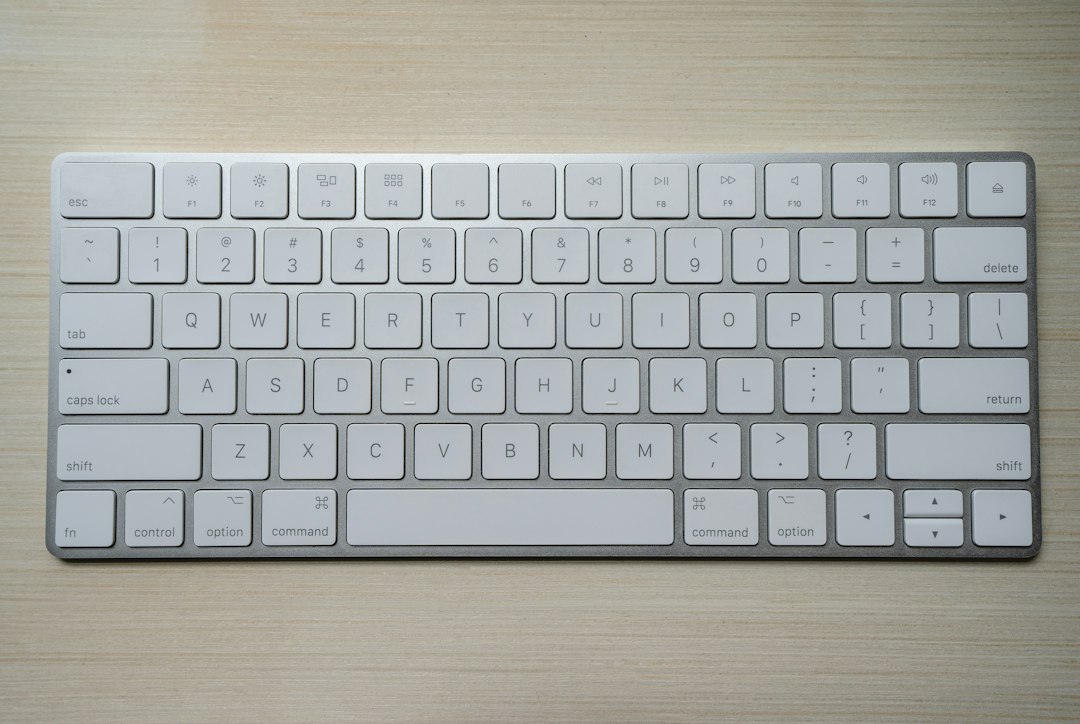
This is usually the best Mac method. It is quick and easy to remember because the symbol is often printed near the 6 key on some keyboard layouts.
Mac Method 2: Character Viewer
If the shortcut does not work, the Mac Character Viewer can insert the symbol.
- Press Control+Command+Space.
- Search for section.
- Click § to insert it.
This tool is helpful for rare symbols. Still, for daily drafting, Option+6 is far faster.
How to Type the Section Symbol in Microsoft Word
Microsoft Word gives several ways to insert §. The best one depends on the keyboard and the user’s memory for shortcuts.
Word Method 1: Type 00A7 Then Press Alt+X
In Word for Windows, this method is clean and dependable:
- Type 00A7.
- Press Alt+X.
Word changes 00A7 into §. This works because 00A7 is the Unicode value for the section sign. It is useful when a laptop has no numeric keypad.
Word Method 2: Use Insert Symbol
Word also has a menu-based method:
- Click the Insert tab.
- Choose Symbol.
- Click More Symbols.
- Find §.
- Click Insert.
This is easy to understand but slow. After the first use, Word may show the section sign in the recent symbols list, which makes later use quicker.
Word Method 3: Create an AutoCorrect Shortcut
Frequent users can create a custom replacement. For example, Word can replace ssym with §.
- Go to File, then Options.
- Select Proofing.
- Click AutoCorrect Options.
- Enter a short trigger, such as ssym.
- Set the replacement to §.
- Click OK.
This is handy for law offices, compliance teams, and students who cite statutes often. A custom shortcut also avoids the numeric keypad problem.
Which Method Is Best?
The best method depends on the device:
- Windows desktop: Use Alt+0167.
- Windows laptop: Use 00A7 + Alt+X in Word, or Character Map elsewhere.
- Mac: Use Option+6.
- Microsoft Word power user: Create an AutoCorrect shortcut.
For people who type legal citations all day, the AutoCorrect method may be the most practical. For casual use, a keyboard shortcut is enough.
Common Problems and Fixes
- Alt+0167 does nothing: The numbers may have been typed on the top row instead of the numeric keypad.
- A laptop has no numeric keypad: Word users can try 00A7 + Alt+X.
- The wrong character appears: The keyboard layout or app may not support the same shortcut.
- The symbol looks strange: Change the font to Arial, Times New Roman, Calibri, or another standard font.
- Formatting changes after pasting: Paste as plain text, or use a built-in shortcut instead.

Quick Reference Table
| Platform | Shortcut or Method |
|---|---|
| Windows | Alt+0167 on the numeric keypad |
| Mac | Option+6 |
| Microsoft Word | 00A7, then Alt+X |
| Any app | Copy and paste § |
FAQ
What is the section symbol?
The section symbol is §. It marks a specific section in legal, academic, or formal writing.
How does a Windows user type §?
The standard method is Alt+0167, typed on the numeric keypad while holding Alt.
How does a Mac user type §?
On most Macs, the shortcut is Option+6.
How is § typed in Microsoft Word?
In Word for Windows, the user can type 00A7 and press Alt+X. Word converts it to §.
What does §§ mean?
§§ usually means more than one section. For example, §§ 3–5 means sections 3 through 5.
Why does Alt+0167 not work?
It often fails when the top number row is used. Many Windows Alt codes need the numeric keypad.
Can the section symbol be copied and pasted?
Yes. The symbol § can be copied and pasted into most documents, forms, and emails.