Open the Find My app, pick your iPhone, and check the map. That is the fastest way to find a missing iPhone if Find My was turned on before it vanished. Apple says Find My can help locate your device, play a sound, mark it as lost, or erase it if needed [source: Apple]. Start there before you tear apart the sofa like a raccoon.
TLDR: Use the Find My app on another Apple device, or go to iCloud.com/find in a browser. Tap or select your iPhone to see its location on a map. For example, if your phone is 20 feet away under a car seat, Play Sound may solve the case in under 30 seconds. If it is not nearby, use Lost Mode to lock it and show a contact message.
What You Need First
Find My is brilliant when it works. Honestly, it feels like magic when the map dot appears. But yes, there is one annoying bit.
Find My must already be turned on. You cannot switch it on after the iPhone is lost. That part drives me crazy, but it makes sense for privacy.
You will need one of these:
- Another iPhone, iPad, or Mac with the Find My app.
- A web browser and your Apple Account login.
- Your Apple Account password.
- Two factor code access, if Apple asks for it.
If you share locations with family, ask someone in your Family Sharing group to check too. Their device may show your iPhone faster than yours.
Method 1: Use the Find My App
This is the easiest method if you have another Apple device nearby.
- Open the Find My app.
- Tap the Devices tab.
- Choose your missing iPhone.
- Look at the map.
- Tap Play Sound if it is close.
- Tap Directions if it is somewhere else.
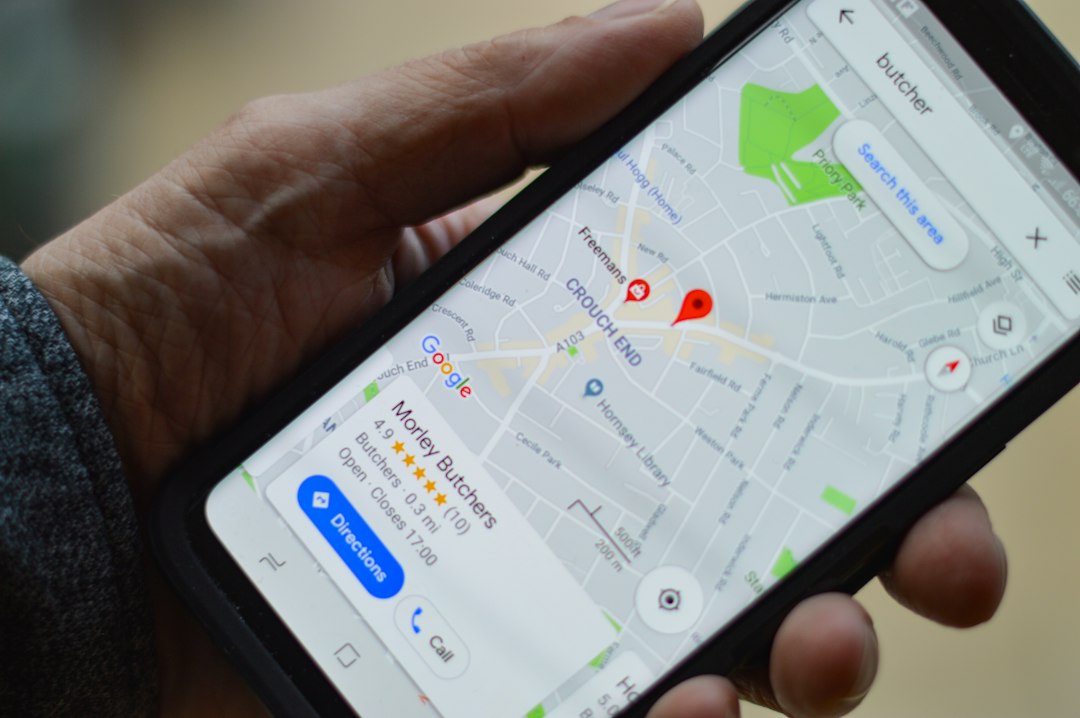
If the iPhone is online, you should see its current location. If it is offline, you may see the last known location. That can still be useful. A “last seen 12 minutes ago” clue is way better than nothing.
Method 2: Use iCloud.com/find
No spare Apple device? No problem. Borrow a laptop. Use a tablet. Use a trusted friend’s phone. Just do not save your password on their device.
- Go to iCloud.com/find.
- Sign in with your Apple Account.
- Select your missing iPhone from the device list.
- Check the map.
- Use Play Sound, Lost Mode, or Erase.
Expect to waste time on sign in if you forgot your password. It always seems to happen at the worst moment. Take a breath. Reset it if needed.
What the Buttons Do
Find My gives you a few tools. Each one has a job.
- Play Sound: Makes your iPhone ring loudly. Great for couch cushions, laundry piles, and car seats.
- Directions: Opens a route to the phone’s location.
- Lost Mode: Locks the iPhone and lets you show a message on the screen.
- Erase This Device: Deletes your data. Use this only if you think the phone is gone for good.
Tip: Try Play Sound first if the phone is in the same building. It can ring even if the phone is on silent. That little feature has saved many pockets from panic.
Use Lost Mode If the Phone Is Not Nearby
If the map shows your iPhone at a store, café, office, or random parking lot, turn on Lost Mode. Do it fast.
Lost Mode can:
- Lock your iPhone with your passcode.
- Show your phone number on the lock screen.
- Show a short message like, “This phone is lost. Please call me.”
- Stop Apple Pay from being used on that device.
Keep your message calm. Try this:
“Lost iPhone. Please call 555-123-4567. Reward offered. Thank you.”
Do not put your home address on the screen. That is too much information.
What If the iPhone Is Offline?
Do not give up. Offline does not always mean gone.
The battery may be dead. The phone may be in a basement. It may be between car seats, where signals go to die. Find My may still show the last known spot.
Check these details:
- Time last seen: Was it 5 minutes ago or 5 hours ago?
- Location circle: A bigger circle means less exact location.
- Battery status: If shown, it helps you judge how urgent this is.
If the last known location is your house, search by zones. Spend 5 minutes per room. Check weird places first. Fridge. Laundry basket. Bathroom shelf. Jacket pocket. Yes, the fridge happens.
What If You Think It Was Stolen?
Do not chase the dot. A phone is not worth getting hurt.
Turn on Lost Mode. Change your Apple Account password. Contact your carrier and ask them to suspend the SIM or eSIM. If needed, report it to local police and share the serial number.
Only use Erase This Device when you are sure. Once erased, tracking may become limited. Still, your private data matters more than the phone.
Set Up Find My Before the Next Panic
When you get your iPhone back, or when you set up a new one, check this setting right away.
- Open Settings.
- Tap your name at the top.
- Tap Find My.
- Tap Find My iPhone.
- Turn on Find My iPhone.
- Turn on Find My network.
- Turn on Send Last Location.
Send Last Location is small but handy. It sends the phone’s location to Apple when the battery is very low. That can give you one last clue before the screen goes black.
Quick Safety Checklist
- Use Play Sound for nearby phones.
- Use Lost Mode for public places.
- Do not meet strangers alone to get a phone back.
- Change passwords if you feel unsafe.
- Erase the device only as a final step.
Finding a missing iPhone is stressful. But Find My gives you a real plan. Check the map. Play the sound. Lock it if needed. Then breathe. The little rectangle may still come home.