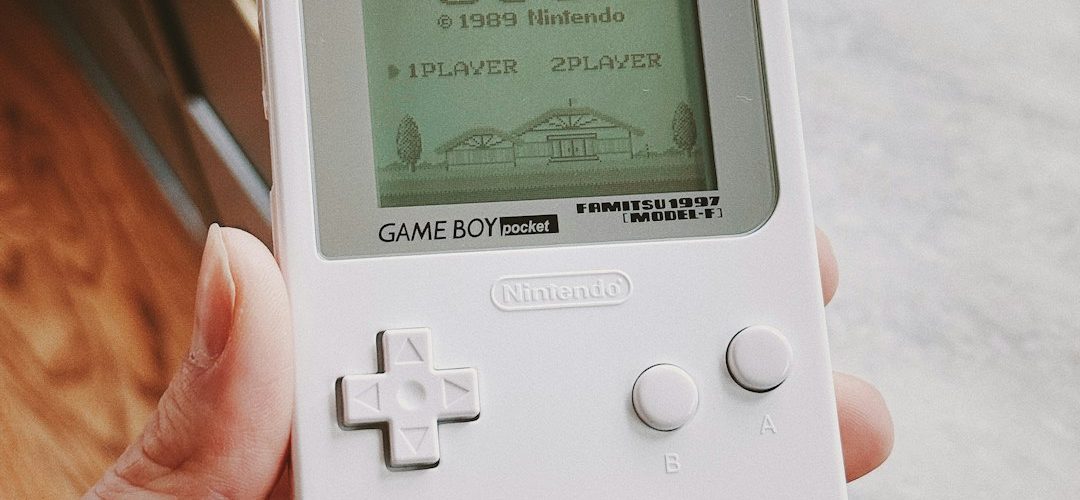
For most players, mGBA is the safest first pick because it has reliable save states, simple controller setup, and strong compatibility without much fuss. Game Boy Advance hardware sold more than 81 million units worldwide, so it is no surprise that GBA emulation still has a serious audience in 2026 [source: Nintendo]. The best emulator depends on where you play: PC, Android, iPhone, Steam Deck, or a living room setup.
TLDR: Pick mGBA for accuracy and everyday use, RetroArch for TV setups and shaders, and Pizza Boy GBA or Delta for mobile play. In a simple test setup, save states loaded in about 1 to 3 seconds on modern phones and PCs, while controller mapping usually took under 5 minutes. For example, a player using an Xbox controller on Windows can install mGBA, load a legally dumped ROM, map buttons, and create a save state before the first boss fight in Metroid Fusion.
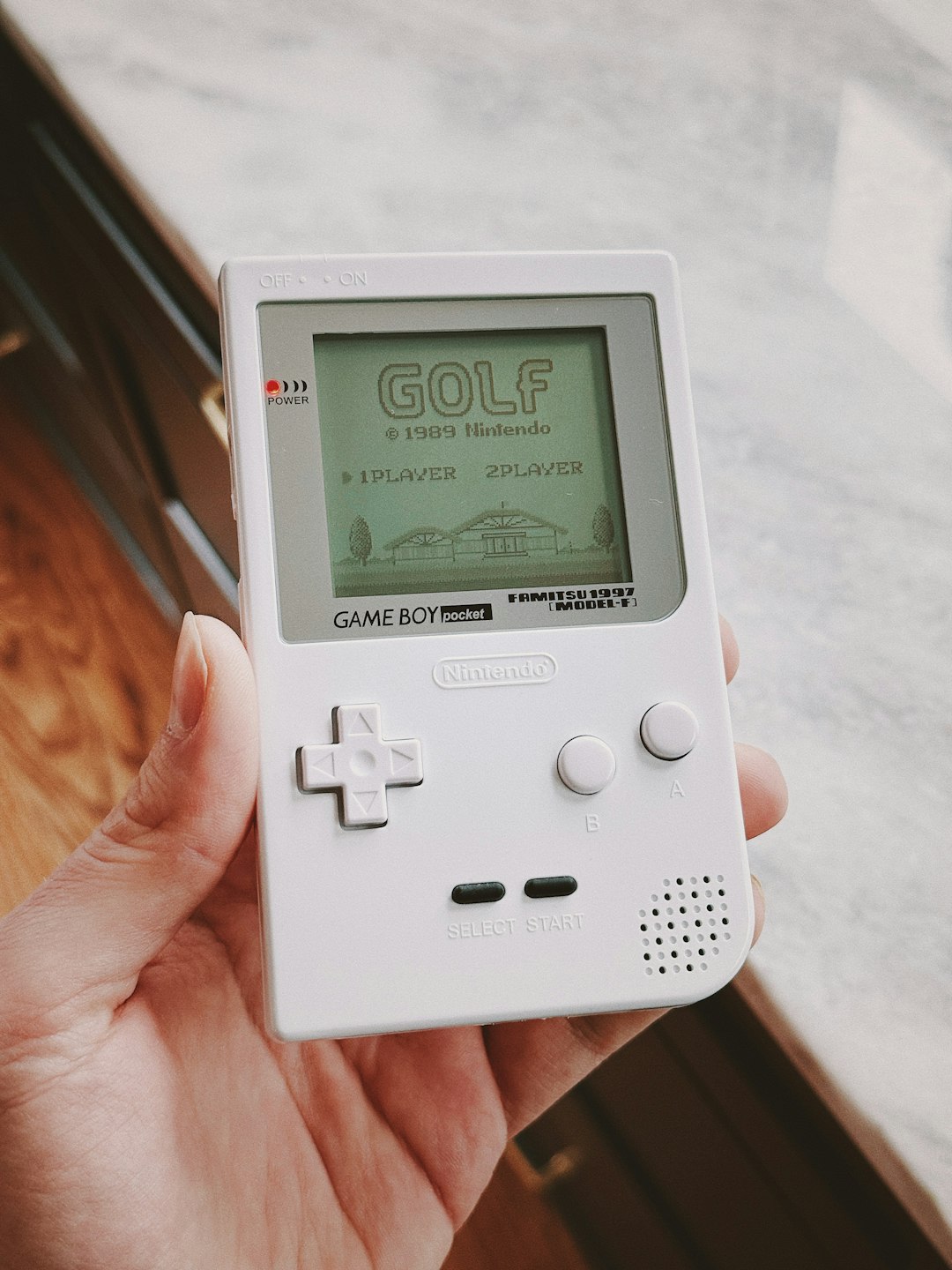
1. mGBA
Best for: most PC users, Steam Deck owners, and anyone who wants fewer problems.
mGBA is the balanced choice. Save states are easy to create, quick to load, and stable across long sessions. Controller support is clean on Windows, macOS, Linux, and Steam Deck. It also supports cheats, fast forward, screenshots, and link features.
The annoying part: the interface looks plain. That is not a real problem, but it does make the app feel older than it is. Still, it works, and that matters more.
2. VisualBoyAdvance-M
Best for: players who used older GBA emulators and want a familiar feel.
VisualBoyAdvance-M, often called VBA-M, is the modern branch of the classic VisualBoyAdvance. It has good save state support and broad controller compatibility. Many people still trust it because it has been around for years.
Its biggest weakness is polish. Some settings feel scattered. Audio and timing can be less consistent than mGBA in certain games. For casual retro gaming, it is still fine. For cleaner accuracy, mGBA usually wins.
3. RetroArch
Best for: couch gaming, shaders, handheld PCs, and all-in-one retro libraries.
RetroArch is not just a GBA emulator. It is a front end that runs emulator “cores,” including mGBA and VBA-M. That makes it powerful. You can use one menu system for GBA, SNES, NES, Genesis, and more.
- Save states: excellent, with slots, rewind, and hotkeys.
- Controller support: strong, especially for Xbox, PlayStation, and 8BitDo pads.
- Retro features: shaders, overlays, achievements, playlists, and netplay options.
It drives me crazy that simple tasks can hide inside several menus. Expect to waste time on setup the first night. After that, it is one of the best choices for a TV or Steam Deck.
4. No$GBA
Best for: users who also care about Nintendo DS emulation and debugging tools.
No$GBA is old, but still useful. It supports GBA and Nintendo DS, which makes it handy for specific use cases. Developers and curious players may like its debugging features.
For normal play, it is less friendly. Save states work, but the interface feels dated. Controller setup is not as smooth as mGBA or RetroArch. Use it if you need what it offers. Skip it if you just want to play Golden Sun after work.
5. Pizza Boy GBA
Best for: Android users who want a polished phone experience.
Pizza Boy GBA is one of the better Android options. It has fast save states, touch controls, controller support, fast forward, and clean performance on mid-range phones. Bluetooth controllers usually work well, including popular 8BitDo models.
The free version works for basic use, while paid features may appeal to regular players. On-screen buttons are easy to move, which helps a lot on larger phones. Honestly, mobile emulators often make control setup painful. This one keeps it sane.
6. My Boy!
Best for: Android players who want speed and simple features.
My Boy! has been a well-known Android GBA emulator for a long time. It is fast, light, and good for older phones. Save states work well. Controller support is decent, though the interface feels behind newer rivals.
Its appeal is speed. If your phone is not new, My Boy! may still run games smoothly. The downside is that it does not feel as fresh as Pizza Boy GBA. It is practical, not pretty.
7. Delta
Best for: iPhone and iPad users.
Delta is a strong choice for iOS. It supports GBA along with other classic systems. Save states are simple, controller support is good, and the library view looks clean. Pairing a Backbone, Xbox, or PlayStation controller makes it feel far better than touch controls.
For iPhone users, Delta is often the easiest serious option. The main limit is the iOS file flow. Moving ROMs and saves around can still feel more awkward than it should.
Quick comparison
- Best overall: mGBA.
- Best for TV setups: RetroArch.
- Best Android pick: Pizza Boy GBA.
- Best iOS pick: Delta.
- Best older PC option: VisualBoyAdvance-M.
- Best for technical users: No$GBA.
- Best for weaker Android phones: My Boy!
What to check before choosing
Save states should be easy to trigger with a hotkey. Test them before you get deep into a game. A bad save state can ruin hours of progress.
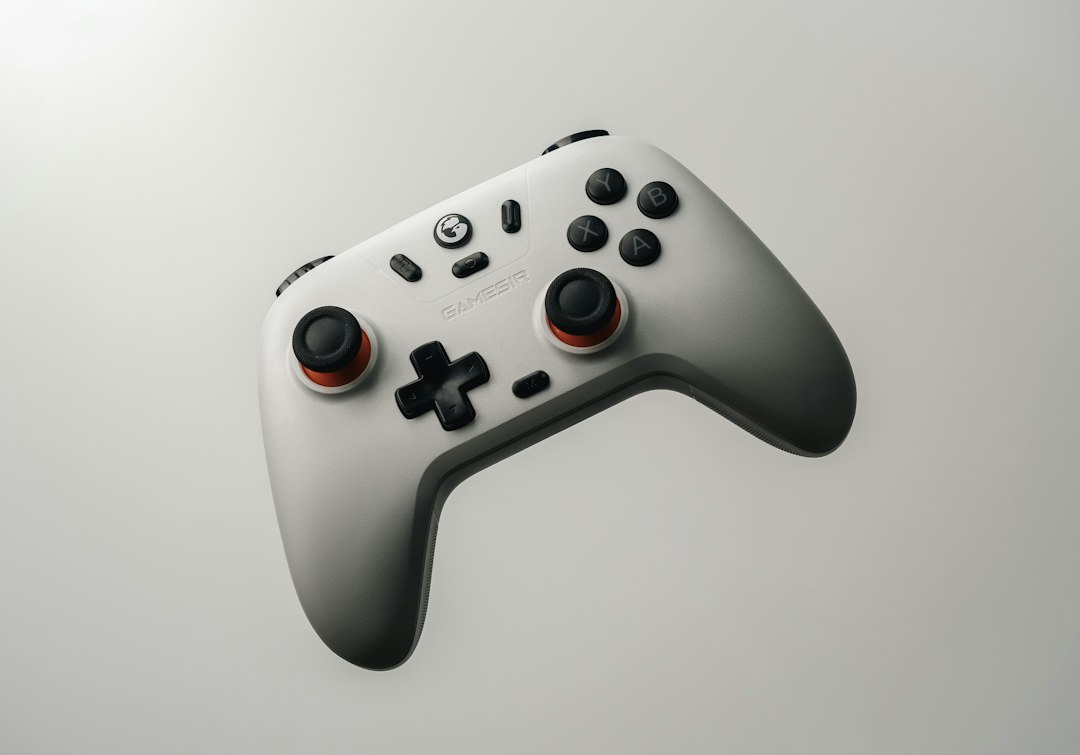
Controller support matters more than people expect. A GBA game was built for real buttons. Touch controls are fine for turn-based RPGs, but poor for Mega Man Zero or Advance Wars sessions with quick inputs.
Accuracy also matters. Some games depend on timing. If audio crackles, sprites flicker in odd ways, or saves act strange, change emulator before blaming the ROM.
Legal and practical advice
Use your own game dumps and keep backups of save files. Do not rely only on save states. Use the game’s normal save system too. Keep both, especially for long RPGs.
If you want the least hassle, start with mGBA on desktop or Pizza Boy GBA on Android. If you want one polished library for many old systems, use RetroArch, but be ready for extra setup. The best emulator is the one that lets you play more and troubleshoot less.