Canceling Crunchyroll can feel like finding the “skip intro” button during a dramatic anime opening. You know it exists. You just want to get there fast. Good news. Canceling your Crunchyroll membership is simple when you know where to click.
TLDR: To cancel Crunchyroll, log in to the place where you started your subscription. If you subscribed on the Crunchyroll website, go to your account settings and cancel from the membership page. If you subscribed through Apple, Google Play, Roku, or another service, cancel through that service instead. Deleting the app does not cancel your membership.
Before You Cancel: A Quick Reality Check
Crunchyroll works like many streaming services. When you cancel, your paid membership usually stays active until the end of your billing period. So if you paid for the month, you can keep watching until that month ends.
That means you do not lose premium access right away in most cases. Your account stays open. Your watchlist stays there. Your history may also stay there. You are just stopping the next payment.
Think of it like telling the ramen shop, “No refill next time.” You still get to finish the bowl you already paid for.
Before you start, make sure you know how you subscribed. This matters a lot. You may have subscribed through:
- The Crunchyroll website
- The Crunchyroll app on iPhone or iPad
- Google Play on Android
- Roku
- A third party bundle or payment provider
If you cancel in the wrong place, nothing may happen. That is annoying. Nobody wants a surprise charge during a peaceful anime night.
Step 1: Find Out Where Your Membership Was Started
First, check where the billing comes from. This is the key step. It is like figuring out which villain is controlling the robot.
Look at your payment statement. Search for words like:
- Crunchyroll
- Apple
- Google Play
- Roku
- PayPal
If your statement says Crunchyroll directly, you likely subscribed on the website. If it says Apple, cancel through your Apple ID. If it says Google, cancel through Google Play. Easy enough.
You can also check inside your Crunchyroll account. Go to your account settings. Look for membership or billing details. If Crunchyroll cannot manage your plan there, it may tell you to cancel through the outside service.
How to Cancel Crunchyroll on the Website
This is the most common method. Use this if you signed up directly through Crunchyroll.com.
- Open your browser.
- Go to the Crunchyroll website.
- Log in to your account.
- Click your profile icon.
- Go to My Account or Account Settings.
- Find the Membership or Premium Membership section.
- Choose Cancel Membership.
- Follow the on-screen steps.
- Confirm the cancellation.
Crunchyroll may ask why you are leaving. This is normal. You can pick a reason or write a short answer. You do not need to give a dramatic monologue. Unless you want to. This is your arc.
After you confirm, look for a cancellation message. You may also get an email. Keep that email. It is your proof. It is the scroll of truth.
How to Cancel Crunchyroll on iPhone or iPad
If you started your Crunchyroll membership through the iOS app, Apple handles the billing. So you must cancel through Apple subscriptions.
Here is how to do it:
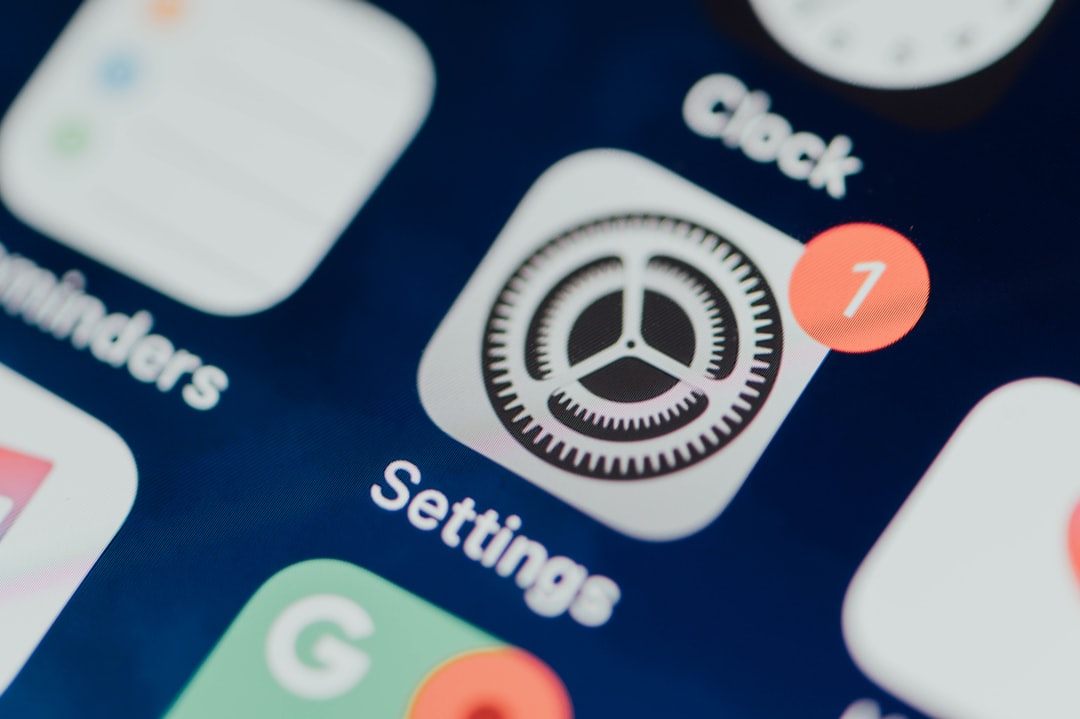
- Open the Settings app on your iPhone or iPad.
- Tap your name at the top.
- Tap Subscriptions.
- Find Crunchyroll.
- Tap it.
- Tap Cancel Subscription.
- Confirm your choice.
If you do not see Crunchyroll there, check that you are signed in with the correct Apple ID. Many people have more than one Apple ID. One for life. One for chaos. Check both if needed.
Also, if the subscription already ended, you may not see a cancel button. That usually means it is no longer active.
How to Cancel Crunchyroll on Android
If you subscribed through the Crunchyroll Android app, your membership may be billed through Google Play. In that case, cancel it in the Google Play Store.
- Open the Google Play Store app.
- Tap your profile icon.
- Tap Payments and subscriptions.
- Tap Subscriptions.
- Choose Crunchyroll.
- Tap Cancel subscription.
- Follow the steps to confirm.
Google may ask why you are canceling. Pick the reason that fits best. Then finish the process. Do not close the app too early. Wait until you see confirmation.
If Crunchyroll is not listed, make sure you are using the right Google account. Tap your profile icon and switch accounts if needed.
How to Cancel Crunchyroll on Roku
Some people subscribe through Roku. If that is you, cancel from your Roku account or device. You can often do it right from your TV.
To cancel on a Roku device:
- Press the Home button on your Roku remote.
- Highlight the Crunchyroll channel.
- Press the Star button on the remote.
- Select Manage subscription.
- Choose Cancel subscription.
- Confirm the cancellation.
You can also cancel through the Roku website:
- Go to your Roku account in a browser.
- Sign in.
- Go to Manage your subscriptions.
- Find Crunchyroll.
- Cancel the subscription.
Again, save the confirmation. Future you will be grateful.
How to Cancel Crunchyroll If You Used PayPal
If you paid directly with PayPal, you may be able to cancel through Crunchyroll first. But it is also smart to check PayPal. Sometimes automatic payments live there like hidden side characters.
To check PayPal:
- Log in to your PayPal account.
- Go to Settings.
- Find Payments.
- Open Automatic Payments or similar settings.
- Look for Crunchyroll.
- Cancel the automatic payment if it is active.
This can help prevent future charges. But only do this after checking your Crunchyroll account too. You want everything clean and complete.
What If You Cannot Find the Cancel Button?
Do not panic. The cancel button may be hiding. It trained in the mountains.
Try these fixes:
- Use a desktop browser instead of the mobile app.
- Clear your browser cache.
- Try a different browser.
- Turn off browser extensions.
- Make sure you are logged into the right account.
- Check Apple, Google Play, Roku, or PayPal billing.
If you still cannot cancel, contact Crunchyroll support. Give them your account email. Include payment details if needed. Do not share your full card number. Just the safe basics, like the last four digits and billing date.

Does Deleting the Crunchyroll App Cancel the Membership?
No. This is very important.
Deleting the app does not cancel your Crunchyroll membership. It only removes the app from your device. Your billing can continue in the background.
That is like throwing away your gym shoes and expecting the gym to stop charging you. Sadly, no. You must cancel the subscription itself.
Will You Lose Access Right Away?
Usually, no. If you cancel a paid membership, you normally keep premium access until the end of the billing period. For example, if your renewal date is the 25th and you cancel on the 10th, you can usually watch until the 25th.
After that, your account may return to a free plan. You may see ads. Some shows or episodes may no longer be available to you. Premium perks may disappear.
Your account is not usually deleted. You can still log in later. You can resubscribe if you miss your shows. No shame. Anime has a strong pull.
Can You Get a Refund?
Refunds depend on how you paid and where you live. Crunchyroll may not always offer refunds for unused time. Apple and Google also have their own refund rules.
If you think you were charged by mistake, act fast. Contact the correct billing provider. Use these paths:
- Crunchyroll website billing: Contact Crunchyroll support.
- Apple billing: Request a refund through Apple.
- Google Play billing: Request a refund through Google Play.
- Roku billing: Contact Roku support or manage it in your Roku account.
Be polite. Be clear. Include dates and the email connected to the account. Support teams are more helpful when they do not have to solve a mystery arc.
How to Confirm Your Crunchyroll Membership Is Canceled
After canceling, do one final check. This step is boring but powerful.
- Check your email for a cancellation notice.
- Look at your account membership page.
- Check your next billing date.
- Make sure it says canceled or ending soon.
- Check Apple, Google, Roku, or PayPal if you used them.
If the page still says your plan will renew, the cancellation may not be complete. Go through the steps again. Make sure you click the final confirmation button.
Some services show several “Are you sure?” pages. They want you to stay. That is normal. Keep going until the final cancel screen appears.
Common Mistakes to Avoid
Canceling is easy, but a few traps can cause trouble. Watch out for these:
- Deleting the app only. This does not stop billing.
- Canceling in the wrong place. Cancel where you subscribed.
- Using the wrong account. Check all emails and login methods.
- Stopping before confirmation. Always finish the full process.
- Waiting until the last minute. Cancel at least a day before renewal.
This last one matters. Some billing systems renew early in the day. Time zones can be sneaky. Cancel early and sleep better.
Can You Pause Crunchyroll Instead?
Crunchyroll may not always offer a simple pause option. If you want a break, canceling is often the easiest move. You can come back later when your favorite show returns.
Before you cancel, you may also consider switching plans if that option is available. A cheaper plan might work better for you. But if you are done for now, canceling is totally fine.
Your watchlist will not judge you. Probably.
Final Thoughts
Canceling Crunchyroll is not hard. The main trick is knowing where your subscription was created. Website subscriptions cancel on Crunchyroll. Apple subscriptions cancel in Apple settings. Google Play subscriptions cancel in the Play Store. Roku subscriptions cancel through Roku.
Take your time. Follow each step. Look for the confirmation. Then enjoy the rest of your billing period without worrying about the next charge.
And remember: canceling does not mean goodbye forever. It just means your anime journey is taking a short filler break.