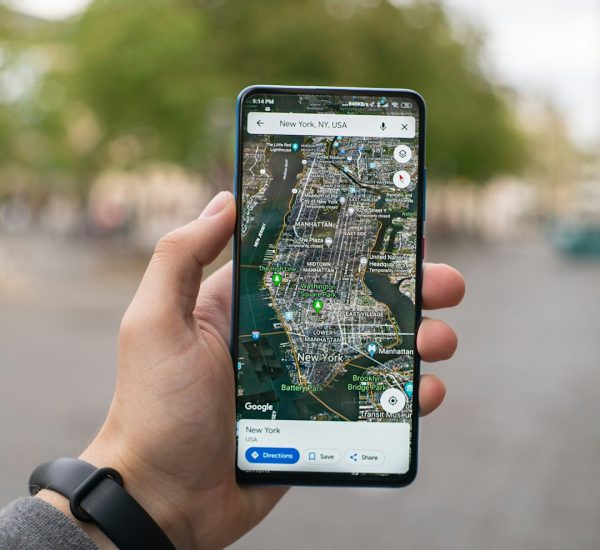
A Verizon outage should be checked in the My Verizon app or on Verizon’s service status tools before anyone starts resetting phones, routers, or SIM cards. Verizon directs customers to sign in and check service status for their line or home internet address [source: Verizon]. If several devices fail at once, the issue is more likely a network problem than a phone problem.
TLDR: A customer should first check Verizon’s outage status, then test another device, restart the affected phone or router, and review account alerts. For example, if a family has 4 Verizon devices and all lose service within the same 5 minutes, the odds point to a local outage rather than four separate device issues. If only one phone fails, the fix may be as simple as toggling airplane mode or resetting network settings. Expect to waste time on support menus if the outage tool is skipped.
How Verizon outages usually show up
Verizon service outages can affect mobile data, calls, texts, 5G Home Internet, LTE Home Internet, or Fios. The symptoms are not always clear. A phone may show full bars but fail to load sites. A home router may have lights on but no real connection. Calls may drop after a few seconds.
Common signs include:
- No signal or “SOS only” on a phone.
- Slow data, even with 4G LTE or 5G showing.
- Text messages stuck as “sending.”
- Calls failing or going straight to voicemail.
- Home internet offline while power and WiFi still work.
Honestly, it feels like the signal bars lie sometimes. A phone can show two bars and still take 20 seconds to load a simple page. That is why status checks matter.
Step 1: Check Verizon network status
The fastest route is the My Verizon app. A signed-in customer can often see alerts tied to the account, line, or service address. This matters because a national outage map may miss a small neighborhood problem.
- Open the My Verizon app.
- Sign in with the main account or affected line.
- Look for service alerts, outage notices, or repair updates.
- Check each affected line if more than one phone is on the account.
For home internet, the customer should check the service address, not only the phone number. Fios, 5G Home, and LTE Home Internet may have different alerts.
Step 2: Compare with other devices
A simple comparison can save a lot of guesswork. If one phone has no data but another Verizon phone nearby works fine, the issue may be the device, SIM, eSIM, settings, or plan. If every Verizon device nearby fails, the problem is likely broader.
The customer should test:
- A second Verizon phone in the same room.
- WiFi versus mobile data.
- Calls, texts, and web browsing separately.
- A different location, such as a few blocks away.
If service returns after moving a short distance, a tower, building material, or local congestion may be involved.
Step 3: Try quick phone fixes
If Verizon does not show an outage, the affected phone should be checked next. The catch is that basic fixes sound too simple, but they often work.
- Turn airplane mode on for 30 seconds, then off.
- Restart the phone.
- Install pending system updates.
- Remove and reinsert the physical SIM, if the phone uses one.
- For eSIM, check that the Verizon line is turned on.
- Reset network settings if other fixes fail.
A network reset may erase saved WiFi networks and Bluetooth pairings. That is annoying, but it can clear bad carrier settings.
Step 4: Troubleshoot Verizon home internet
For Verizon 5G Home, LTE Home, or Fios, the customer should start with the router or gateway. First, check the power light and internet light. Then unplug the equipment for 60 seconds. Plug it back in and wait several minutes.
If WiFi appears but websites do not load, the home network may be active while the internet connection is down. A direct Ethernet test can help, if the customer has a laptop and cable. For Fios, the optical network terminal may also need power.
- Restart the router or gateway.
- Check for loose coax, fiber, or Ethernet cables.
- Test another device on the same WiFi.
- Move a 5G Home gateway near a window, if signal is weak.
Step 5: Check for billing or account issues
Not every service loss is a tower outage. A suspended line, failed payment, plan change, or SIM swap can block service. Customers should check account messages, payment status, and line status in My Verizon.
This is especially useful when only one line on a shared plan stops working. If the outage page is clear and the account shows a warning, support may need to restore the line.
When to contact Verizon support
Verizon support should be contacted when service stays down after status checks and basic resets. A customer should be ready with the ZIP code, device model, error message, time the issue started, and whether other Verizon users nearby are affected.

If there is a confirmed outage, support may not be able to speed it up. Still, reporting it can help Verizon spot a wider issue. If there is no outage, support can check provisioning, SIM status, router signal, and account blocks.
FAQ
- How can a customer check if Verizon is down?
A customer can use the My Verizon app or Verizon’s network status page while signed in. Account alerts are often more useful than general outage reports. - Why does a Verizon phone show bars but no internet?
Signal bars only show radio connection strength. Data may still fail because of congestion, tower issues, account problems, or phone settings. - Should a customer reset network settings?
Only after simpler steps fail. It can fix bad settings, but it may remove saved WiFi and Bluetooth connections. - Can WiFi calling help during a Verizon outage?
Yes, if home internet still works. WiFi calling can allow calls and texts when mobile signal is weak or unavailable. - How long do Verizon outages last?
Some last minutes. Others take hours, especially after storms, fiber cuts, power issues, or damaged equipment.