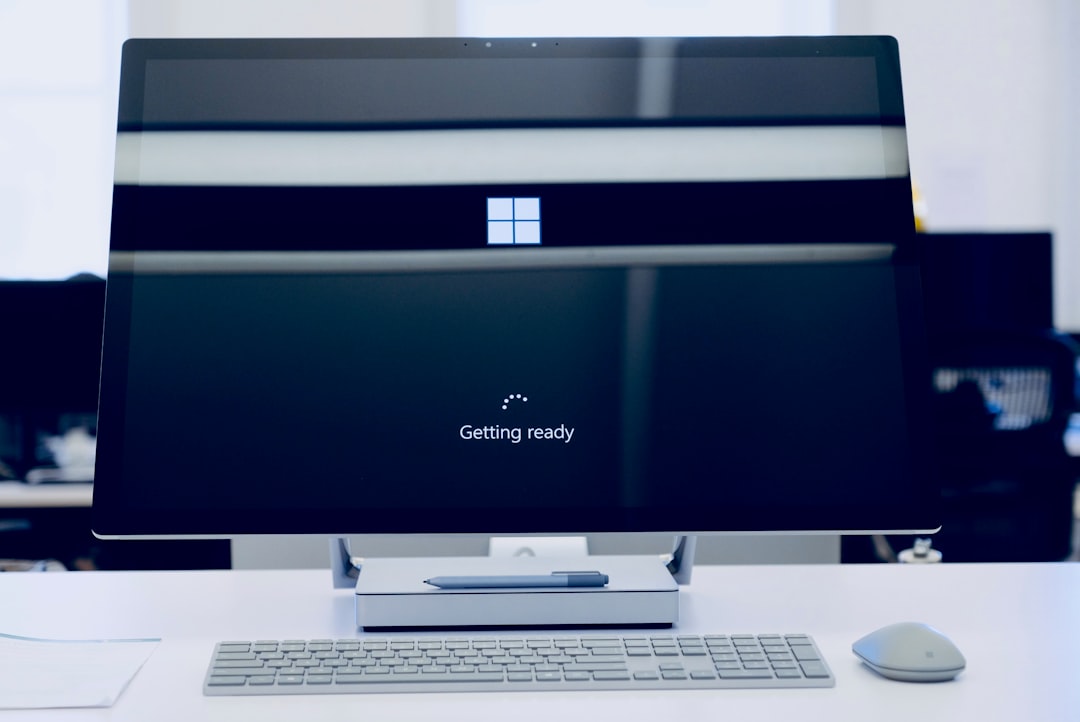
Your PC wants to install Windows 11. You feel ready. Then the installer throws a grumpy message. It says your computer needs TPM 2.0 and Secure Boot. You check the BIOS. One setting is on. The other acts like it is hiding in a sock drawer. Relax. This is fixable.
TLDR: Windows 11 needs TPM 2.0, Secure Boot, and UEFI mode to play nicely together. In most cases, the fix is to enable TPM, switch from Legacy BIOS to UEFI, disable CSM, and then turn on Secure Boot. Back up your data first, especially if BitLocker is enabled. After that, Windows 11 setup should stop yelling at you.
Why TPM 2.0 and Secure Boot Matter
Think of Windows 11 like a fancy nightclub. It has a bouncer. That bouncer checks if your PC is safe enough to enter.
TPM 2.0 is one security guard. It stores security keys. It helps protect your passwords. It helps encryption work better. It can be a physical chip. It can also be built into your CPU firmware.
Secure Boot is another guard. It checks what loads when your PC starts. It helps block sneaky boot malware. It only allows trusted software to start before Windows.
Windows 11 wants both guards at the door. If one is sleeping, setup gets cranky.
Common Windows 11 Error Messages
You may see one of these messages:
- “This PC can’t run Windows 11.”
- “The PC must support TPM 2.0.”
- “The PC must support Secure Boot.”
- “Secure Boot is not enabled.”
- “TPM is not detected.”
These messages are annoying. They are also not always clear. Your PC may support everything. The settings may simply be off. Or they may be set in the wrong order.
The Fun Problem: They Depend on Each Other
Here is the silly part.
Secure Boot usually needs UEFI mode. It does not work correctly in old Legacy BIOS mode. Many PCs also have a setting called CSM. That means Compatibility Support Module. It helps old operating systems boot. But it can get in the way of Secure Boot.
So the chain often looks like this:
- Windows 11 needs Secure Boot.
- Secure Boot needs UEFI.
- UEFI often needs CSM disabled.
- TPM must also be enabled.
If one link breaks, Windows 11 says no. Very dramatic. Very Windows.
Before You Touch the BIOS
Do not rush into the BIOS like a raccoon in a toolbox. Do these things first.
- Back up important files. Use an external drive or cloud storage.
- Save your BitLocker recovery key. This is very important.
- Plug in your laptop. Do not let it die during settings changes.
- Take photos of current BIOS settings. Your phone is useful here.
- Do not change random settings. BIOS menus are not a candy shop.
If BitLocker is enabled and you change TPM or boot settings, Windows may ask for a recovery key. This is normal. It is also scary if you do not have the key. Get it first.
Step 1: Check Your Current Windows Mode
Before the BIOS adventure, check if Windows is using UEFI or Legacy mode.
- Press Windows + R.
- Type msinfo32.
- Press Enter.
- Look for BIOS Mode.
If it says UEFI, good news. You are halfway there.
If it says Legacy, Secure Boot will likely not work yet. You may need to convert the system drive from MBR to GPT. More on that soon.
Also check Secure Boot State. It may say On, Off, or Unsupported. If it says Unsupported, your PC may still support it, but the BIOS settings are wrong.
Step 2: Enter the BIOS or UEFI Menu
Now we visit the secret control room.
Restart your PC. Then press the BIOS key repeatedly. The key depends on the brand.
- Dell: F2 or F12
- HP: Esc or F10
- Lenovo: F1, F2, or Enter
- ASUS: Del or F2
- Acer: F2 or Del
- MSI: Del
- Gigabyte: Del
You can also enter from Windows:
- Open Settings.
- Go to System.
- Click Recovery.
- Choose Advanced startup.
- Click Restart now.
- Go to Troubleshoot.
- Choose Advanced options.
- Select UEFI Firmware Settings.

Step 3: Enable TPM 2.0
TPM may not be called TPM in your BIOS. Because of course it is not. Every brand likes to name things differently.
Look for these names:
- TPM
- Trusted Platform Module
- Intel PTT
- Platform Trust Technology
- AMD fTPM
- Firmware TPM
- Security Device Support
It may be under these menus:
- Security
- Advanced
- Trusted Computing
- CPU Configuration
- Advanced Security
Turn it On or set it to Enabled. If you see a choice between TPM 1.2 and TPM 2.0, choose TPM 2.0.
On Intel systems, enable Intel PTT. On AMD systems, enable AMD fTPM.
Save the setting if needed. But do not exit yet. We still need the Secure Boot dragon.
Step 4: Switch to UEFI Mode
Secure Boot needs UEFI. If your system is already using UEFI, great. Skip ahead.
If your BIOS has Boot Mode, change it from Legacy to UEFI. If there is an option called UEFI only, use that.
But wait. There is a catch.
If Windows was installed in Legacy mode, your drive may use MBR. UEFI usually wants GPT. If you switch without converting, Windows may not boot. That is rude, but expected.
Step 5: Convert MBR to GPT If Needed
If your PC uses Legacy mode, you may need to convert the disk. Windows has a tool for this. It is called MBR2GPT.
First, back up your data. Yes, again. Backups are boring until they save your life.
To check the disk type:
- Right click Start.
- Open Disk Management.
- Right click your system disk.
- Choose Properties.
- Open the Volumes tab.
- Look at Partition style.
If it says GUID Partition Table, that means GPT. You are fine.
If it says Master Boot Record, that means MBR. You may need conversion.
To convert, open Command Prompt as administrator and run:
mbr2gpt /validate /allowFullOSIf validation succeeds, run:
mbr2gpt /convert /allowFullOSAfter conversion, restart and enter BIOS. Then switch boot mode to UEFI.
Important: If you are unsure, ask a technician. Disk conversion is powerful. Powerful tools deserve respect.
Step 6: Disable CSM
CSM is the old compatibility helper. It is useful for ancient things. It is not helpful for Windows 11 Secure Boot.
Find CSM in the BIOS. It may be called:
- Launch CSM
- Compatibility Support Module
- Legacy Support
- Legacy Boot
Set it to Disabled. This often unlocks Secure Boot settings. It is like moving a couch away from a hidden door.
Step 7: Enable Secure Boot
Now find Secure Boot. It is usually under:
- Boot
- Security
- Authentication
- Windows OS Configuration
Set Secure Boot to Enabled.
If it is greyed out, try these fixes:
- Make sure CSM is disabled.
- Set OS Type to Windows UEFI Mode.
- Install or restore default Secure Boot keys.
- Set Secure Boot mode to Standard, not Custom.
Some BIOS menus require Secure Boot keys before Secure Boot works. Look for Install Default Keys, Restore Factory Keys, or Enroll All Factory Default Keys. Choose that option.
Step 8: Save and Restart
Now save your changes. This is usually F10. The BIOS may ask if you want to save and exit. Choose Yes.
Your PC will restart. If everything is good, Windows should boot normally.
If Windows asks for a BitLocker recovery key, enter it. This can happen after TPM changes. It does not mean you broke the world.
Step 9: Check Windows Again
Once Windows loads, check the settings.
For TPM:
- Press Windows + R.
- Type tpm.msc.
- Press Enter.
You should see The TPM is ready for use. The specification version should say 2.0.
For Secure Boot:
- Press Windows + R.
- Type msinfo32.
- Press Enter.
- Check Secure Boot State.
It should say On. BIOS Mode should say UEFI.
If Secure Boot Still Does Not Work
Try these quick fixes:
- Update your BIOS. Get the update from your PC or motherboard maker.
- Reset BIOS to defaults. Then enable TPM, UEFI, and Secure Boot again.
- Unplug old boot drives. Extra drives can confuse boot order.
- Check your graphics card. Very old GPUs may not support UEFI GOP.
- Use the official PC Health Check app. It can confirm what is missing.
If your PC is very old, it may not support TPM 2.0. Some older machines only support TPM 1.2. Windows 11 will not accept that for a normal install.
Best BIOS Order for Windows 11
Use this simple order. It works for most PCs:
- Back up files and BitLocker key.
- Check BIOS Mode in Windows.
- Convert MBR to GPT if needed.
- Enter BIOS.
- Enable TPM 2.0, Intel PTT, or AMD fTPM.
- Set boot mode to UEFI.
- Disable CSM or Legacy Boot.
- Install default Secure Boot keys.
- Enable Secure Boot.
- Save and restart.
Final Thoughts
TPM 2.0 and Secure Boot are not enemies. They are teammates. They just need the right field, the right shoes, and a coach who knows where the BIOS menu is.
Most Windows 11 installation errors come from one simple problem. The PC supports the security features, but they are not enabled correctly. Turn on TPM. Use UEFI. Disable CSM. Enable Secure Boot. Then Windows 11 should finally stop being dramatic.
And if it still complains, take a breath. Check each setting one by one. The BIOS may look scary, but it is just a settings menu wearing a serious costume.