Things 3 is one of those apps that makes boring life admin feel a little bit fancy. It is clean. It is calm. It is very Apple. If your brain has too many tabs open, this app wants to close a few of them.
TLDR: Things 3 is a beautiful task manager for Mac, iPhone, iPad, and Apple Watch. It is simple enough for daily chores, but strong enough for big projects. It has no team features and no web app, so it is not for everyone. But for solo Apple users, it may be the best to do app around.
What is Things 3?
Things 3 is a task manager made by Cultured Code. It helps you collect tasks, sort them, schedule them, and finish them. That sounds very serious. But the app itself feels light and friendly.
You can use it for work. You can use it for home. You can use it to remember milk, taxes, gym days, or that one email you have avoided for three weeks. We all have one.
The app works on macOS, iPhone, iPad, and Apple Watch. It also syncs through Things Cloud. The sync is fast. It feels almost magic. Add a task on your phone. Blink. It is on your Mac.
The first thing you notice
The design is lovely. That is the big hook.
Things 3 does not shout at you. It does not cover the screen with buttons. It does not look like a spreadsheet got lost in a calendar factory. It is smooth, white, neat, and calm.
The layout is easy to understand. On the left, you have areas and projects. In the middle, you have tasks. At the top, you have simple views like Today, Upcoming, Anytime, and Someday.
These names are plain. That is good. You do not need a training course. You can open the app and start using it in minutes.
How Things 3 is organized
Things 3 uses a simple system. It has to dos, projects, and areas.
- To dos are single tasks. For example, “Buy coffee.” Very important.
- Projects are groups of tasks with an end goal. For example, “Plan vacation.”
- Areas are ongoing parts of life. For example, “Work,” “Home,” or “Health.”
This structure is very helpful. A project ends. An area does not. Your “Kitchen remodel” project will end one day. Maybe. Your “Home” area will keep going forever, like laundry.
You can also add headings inside projects. This is great for big plans. For a vacation project, you might have headings like “Flights,” “Hotel,” “Packing,” and “Fun stuff.” Then you add tasks under each one.
The Today view is the star
The Today view is where Things 3 shines. It shows what you plan to do today. Not everything in your life. Just today.
This matters. Many task apps show you a mountain. Things 3 shows you a plate. You can eat what is on the plate. The mountain can wait.
You can schedule tasks for today. You can drag them into a better order. You can separate them with headings. For example, you can create sections like “Morning,” “Afternoon,” and “Evening.”
There is also a nice feature called This Evening. It lets you move tasks out of your main day list and into a later section. This is perfect for things like “Call Dad,” “Water plants,” or “Watch one episode and definitely not six.”
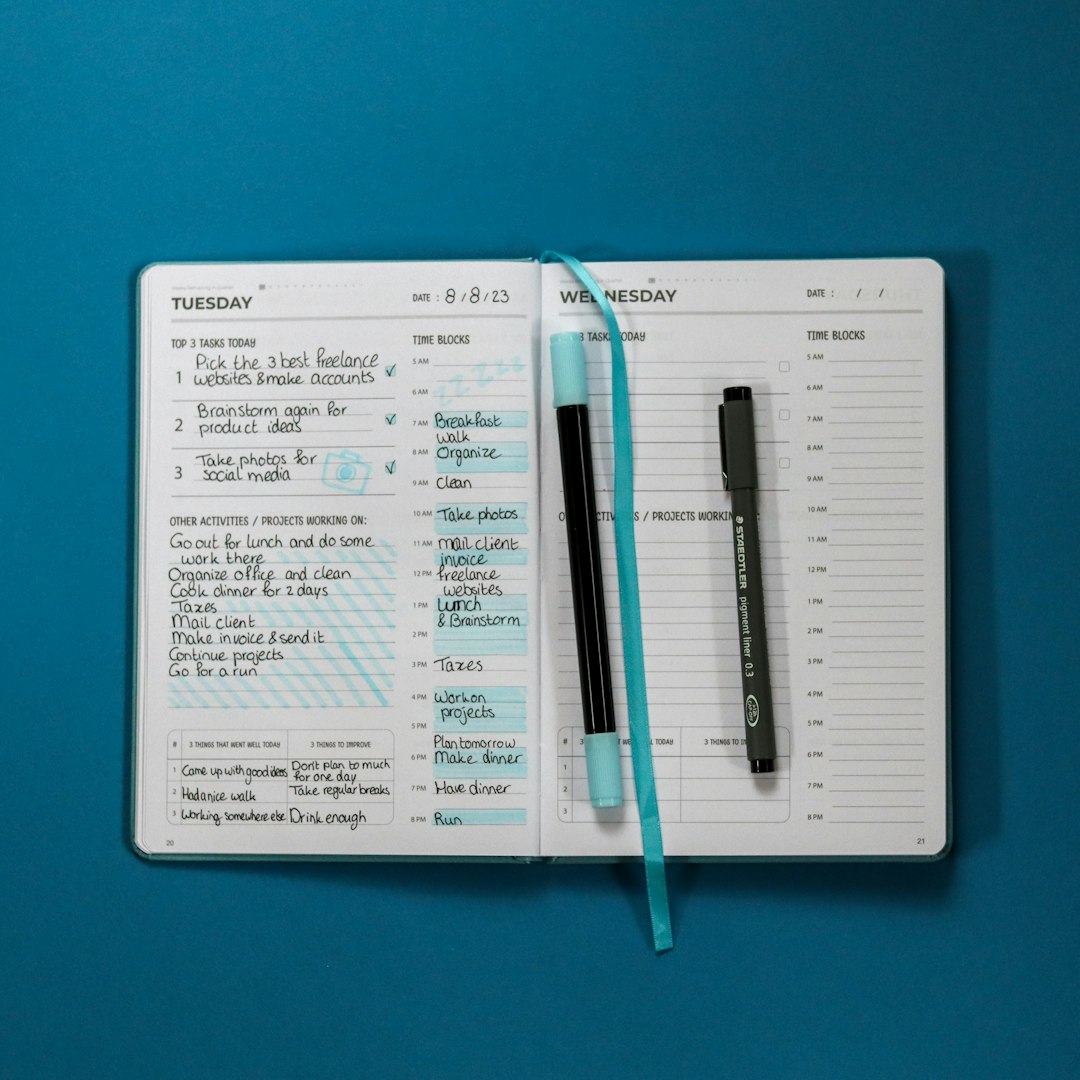
Adding tasks is fast
A task manager lives or dies by capture speed. If adding a task is slow, you stop using it. Your brain goes back to sticky notes and panic.
Things 3 makes capture easy. On Mac, you can use a quick entry window. On iPhone, you tap the plus button. You can add notes, tags, dates, deadlines, and checklists.
Checklists are very useful. They let you break one task into smaller steps. A task like “Pack for trip” can include:
- Passport
- Charger
- Socks
- Snacks
- That tiny shampoo bottle you never trust
Tasks can also have deadlines. This is different from scheduling. Scheduling says, “I plan to do this on Tuesday.” A deadline says, “This must be done by Friday.” That split is smart. It keeps your plan and your panic date separate.
Upcoming is simple and useful
The Upcoming view shows your days ahead. It mixes tasks with calendar events if you allow calendar access. This makes planning easier.
You can see that Tuesday is packed. So maybe you do not add “Rebuild entire garage” to Tuesday. Great choice.
The calendar integration is clean. Events are shown, but they are not turned into tasks. This keeps things tidy. Your calendar stays your calendar. Your tasks stay your tasks.
Tags are there, but not annoying
Things 3 has tags. You can use them for context, energy, people, or locations. For example:
- Errands
- Low Energy
- Waiting
- Mom
Tags are powerful, but the app does not force them on you. You can ignore them completely. That is nice. Some apps make you feel like you need a PhD in tagging. Things 3 is more relaxed.
If you like the Getting Things Done method, also known as GTD, Things 3 can fit that style well. You can collect tasks in the Inbox. Then you sort them into projects, areas, and dates. Simple.
Apple magic is everywhere
Things 3 feels made for Apple users because it is. The Mac app feels like a proper Mac app. The iPhone app feels fast and smooth. The iPad app is excellent. It supports keyboard shortcuts and works well with a bigger screen.
There are widgets too. You can place your Today list on your Home Screen. You can check things off without digging around. It feels very satisfying. Tap. Done. Tiny digital fireworks in your soul.
Things 3 also supports shortcuts and automation. If you like building Apple Shortcuts, you can create workflows. For example, you can make a shortcut that adds a packing list, a weekly review, or a morning routine.
It also works with Apple Watch. This is not the main event, but it is handy. You can glance at tasks and check off small items from your wrist.
What about collaboration?
Here comes the big catch. Things 3 is not made for teams.
You cannot assign tasks to another person. You cannot comment on tasks. You cannot share a project with coworkers. If you need team planning, Things 3 is not your best choice.
This is a solo productivity app. It is for your tasks. Your plans. Your little cloud of responsibility.
For many people, that is fine. In fact, it may be better. Team apps can get noisy. Things 3 stays quiet.
What about Windows and the web?
Here is the other catch. There is no Windows app. There is no Android app. There is no web app.
If you live fully inside the Apple world, this is not a problem. If you use a Windows work computer, it is a problem. A big one.
Things 3 is best for people who use Apple devices every day. If your laptop is a Mac, your phone is an iPhone, and your tablet is an iPad, you are in the sweet spot.
Pricing
Things 3 is a paid app. It is not a subscription. That is refreshing. You buy it once for each platform.
The Mac, iPhone, and iPad versions are sold separately. This can feel a bit pricey at first. But many users like the one time payment. No monthly bill. No yearly reminder. No “please upgrade to unlock breathing” nonsense.
There is also a free trial for Mac. That is useful. Try it before you buy it. See if the style fits your brain.
What I love
- It is beautiful. The design makes planning feel less heavy.
- It is fast. Adding tasks is quick and smooth.
- It is simple. You can understand it without a manual.
- It is flexible. It works for small chores and big projects.
- It has great Apple support. The apps feel native and polished.
- No subscription. Many people will cheer for that.
What I do not love
- No sharing. It is not good for team projects.
- No web app. You need Apple devices.
- No attachments. You cannot add files in the same way as some rivals.
- Separate purchases. Buying each version can cost more upfront.
- Limited power features. Some task nerds may want more filters and custom views.
Who should use Things 3?
Things 3 is great for solo users who want a calm, polished task manager. It is ideal for students, freelancers, writers, designers, parents, managers, and anyone who wants to stop using their brain as a storage locker.
It is also great if you like neat lists. If you enjoy checking boxes, you may become dangerously happy.
You should try Things 3 if you:
- Use Apple devices most of the time.
- Want a simple but powerful task app.
- Prefer one time purchases over subscriptions.
- Plan your day from a Today list.
- Do not need team collaboration.
You should skip it if you:
- Need Windows or Android support.
- Work mostly in a team task system.
- Need comments, shared boards, or file attachments.
- Want a free app.
Best alternatives
Things 3 is excellent, but it is not the only option. If it does not fit you, try one of these:
- Todoist: Better for cross platform use and collaboration.
- TickTick: Great value with calendar, habits, and timers.
- Apple Reminders: Free, simple, and much better than it used to be.
- OmniFocus: Very powerful, but more complex.
Compared with these, Things 3 is the elegant middle path. It is not the most powerful. It is not the cheapest. But it may be the nicest to use.
Final verdict
So, is Things 3 the best task manager for Apple users?
For many people, yes.
It is beautiful. It is fast. It respects your attention. It helps you plan without making planning feel like another full time job. That is rare.
Things 3 is not perfect. The lack of collaboration will rule it out for teams. The lack of web and Windows apps will rule it out for mixed device users. But if you are a solo Apple user, it is hard to beat.
In the end, Things 3 feels like a clean desk. Not a boring desk. A nice desk. A desk with good light, a fresh coffee, and a list that says, “Relax. We know what to do next.”
Rating: 9 out of 10 for Apple users. Calm, classy, and very good at getting things done.