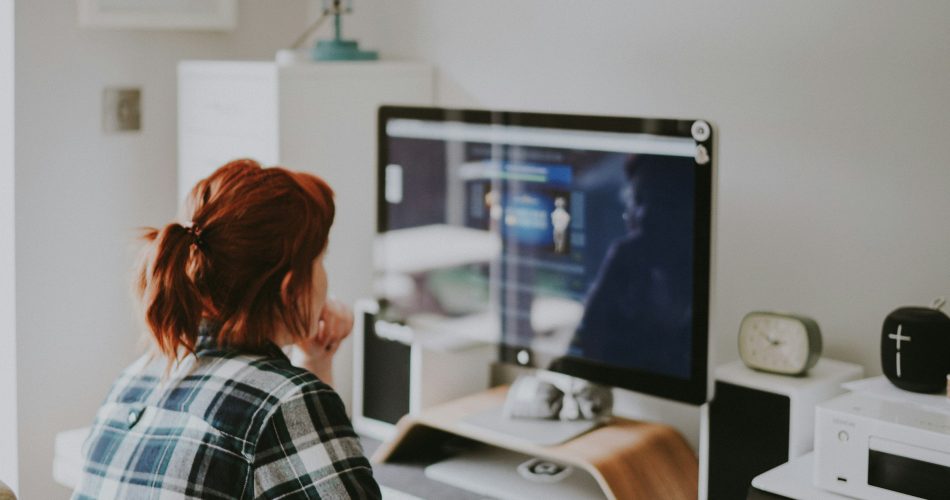
It’s no secret that your workspace can influence your creativity, productivity, and overall job satisfaction. For creative professionals, having a digital workspace that inspires innovation and efficiency is crucial. Whether you’re a designer, writer, artist, or any other creative role, the right environment can help spark those all-important moments of inspiration. For instance, using Jacksons Art discount vouchers can help you access the tools you need without breaking the bank.
The Importance of an Inspiring Digital Workspace
Creative work isn’t just about talent. It’s also about friction—or the lack of it. Your digital workspace is where ideas get captured, shaped, revised, and shipped.
- When that space feels chaotic, slow, or visually draining, you burn mental energy on everything except the work.
- When it’s clean, intentional, and aligned with how you create, you enter flow faster—and stay there longer.
Why Your Setup Affects Creativity
An inspiring digital workspace matters because creativity is fragile. It needs momentum.
If every session starts with:
- hunting for files
- reopening the same apps
- digging through ten browser tabs
- fighting notifications
…your brain learns to associate “starting” with “annoying.”
What That Leads To
The result is often:
- procrastination disguised as “research”
- half-finished drafts
- a constant low-grade sense of being behind
A well-tuned workspace removes tiny roadblocks so your attention stays on the creative problem in front of you.

Reduce Cognitive Load (and Stress)
There’s also the mood factor. The screen you stare at all day becomes a kind of psychological weather.
Subtle Sources of Overload
A cluttered digital environment can quietly raise stress:
- a messy desktop
- an inconsistent folder structure
- random visual noise
What “Calm” Looks Like
A workspace that feels calmer tends to include:
- consistent naming conventions
- predictable folder organization
- a small set of tools you trust
- a wallpaper/theme that doesn’t scream
That’s not fluff—it’s cognitive load management. Less mental juggling equals more space for original thinking.
Make It Easier to Show Up (and Go Deeper)
Creative professionals do better work when they want to sit down and make something.
A tailored workspace can act like a starting ritual:
- the right layout
- shortcuts that match your workflow
- saved templates that remove setup time
It creates a “studio” vibe—even if you’re working from a laptop at a kitchen table.
Why That Matters
When your tools are ready and your environment feels like yours, you’re more likely to:
- experiment
- take risks
- push past the first obvious idea (where most mediocre work stops)
The Bottom Line
An inspiring digital workspace isn’t a luxury. It’s infrastructure.
It:
- supports focus
- protects energy
- makes consistency easier
And consistency is where creativity actually has a chance to compound.
Essential Elements of a Creative Digital Workspace
A good digital workspace isn’t just “a laptop and a desk.” It’s a system:
- Physical comfort
- Clean inputs
- Tools that don’t fight you
- A vibe that makes you want to sit down and make stuff
Below are the core pieces that matter.
1) Ergonomics: Comfort Is a Creative Advantage
If your neck hurts or your wrists are on fire, you don’t create—you endure.
Key setup basics
- Chair + desk height
- Feet flat on the floor
- Hips slightly above knees
- Elbows around 90°
- Monitor placement
- Top of the screen roughly at eye level
- About an arm’s length away
- Laptop users: a cheap stand + external keyboard/mouse is often the best upgrade
- Input tools that fit your work
- Designers/illustrators: consider a pen tablet
- Writers: prioritize a keyboard that feels good for long sessions
This is the foundation. Everything else stacks on top.
2) The Right Digital Tools (and Fewer of Them)
Creative pros collect apps like souvenirs. The goal isn’t “more tools.” The goal is the few tools that keep you in flow.
Your core software categories
- Creation tools
- Your primary software (Adobe, Affinity, Procreate, Figma, Scrivener, etc.)
- Keep it:
- Easy to launch
- Updated
- Set up with templates/presets you actually use
- Capture tools
- A dead-simple place for ideas, such as:
- Notes
- Voice memos
- A “dump” document
- A screenshot folder
- Inspiration is fast; your system should be faster.
- Task + project management
- Keep it lightweight: one place for
- Deadlines
- Next actions
- Client notes
- If it takes longer to manage than to do, it’s wrong.
A quick rule
If an app doesn’t reduce friction, it’s clutter with branding.
3) Lighting and Screen Comfort (An Underrated Productivity Hack)
Lighting affects mood, energy, and eye strain—especially if you’re staring at a screen all day.
Practical lighting upgrades
- Use natural light if possible
- Avoid glare directly behind you or on the monitor
- Add a warm desk lamp
- Especially for evening work
- Harsh overhead lighting kills ambiance and focus
Screen settings that matter
- Tune your:
- Brightness
- Font sizes
- Night mode (later hours)
Small changes, big difference in how long you can work without frying your brain.
If your workspace looks great but feels like a migraine, it’s not inspiring—it’s decorative.
4) Organization: Visual Calm, Faster Decisions
Creative work is already mentally “messy.” Your setup shouldn’t add chaos.
Keep your system easy to maintain
- Desktop hygiene
- Keep a short list of active files on the desktop and archive the rest
- Better: use one “Inbox” folder you clean weekly
- Consistent naming + folders
- Example: Client_Project_YYYY-MM-DD_v01
- Future-you is a client too.
- Browser sanity
- Use profiles (work/personal)
- Bookmark only what you truly use
- Close tabs like you mean it
Organization isn’t about being neat. It’s about finding what you need in under 10 seconds.
5) Personalized Aesthetics: Make It Yours (Without Making It a Distraction)
Personal touches aren’t fluff—they’re cues. They tell your brain: this is the place where I make good things.
Add personality with intention
- Wallpaper, color palette, and layout
- Choose visuals that match the vibe you want:
- Calm
- Energetic
- Minimal
- Playful
- A few meaningful objects
- A print you love
- A small plant
- A sketchbook within reach
- Not a pile of “someday” supplies
- Inspiration that’s specific
- Instead of generic quotes, use:
- A mood board folder
- A swipe file
- A rotating set of reference images tied to your current project
The sweet spot: enough personality to feel inviting, not so much visual noise that you start reorganizing instead of creating.
Bringing It All Together
Put together, these elements create a workspace that:
- Supports your body
- Protects your attention
- Makes starting easier
That’s the real measure of “inspiring.”

Utilizing Technology to Enhance Creativity
Your creativity doesn’t just “happen.” It’s usually the result of a good system: the right tools, fewer bottlenecks, and a workflow that doesn’t fight you. Tech can’t replace taste, but it can remove friction—so you spend more time making and less time hunting, exporting, or redoing.
Software and tools that actually move the needle
1) Your core creation suite (pick one, commit, customize).
Whether you’re in Adobe CC, Affinity, Procreate, Figma, Blender, Clip Studio, Scrivener, or a DAW like Ableton—make it feel like your studio. A few upgrades that pay off fast:
- Templates and presets: file structures, artboards, export settings, LUTs, type styles, project briefs. Less setup, more flow.
- Keyboard shortcuts + macro tools: a shortcut habit is basically free time. Apps like Keyboard Maestro (Mac) or AutoHotkey (Windows) can automate repetitive sequences.
- A clean plugin diet: only keep plugins that save time or raise quality. Too many options = decision fatigue.
2) Idea capture that doesn’t interrupt momentum.
Inspiration shows up at the worst possible time—mid-walk, mid-shower, mid-client call. Use something lightweight so ideas don’t evaporate:
- Notes apps: Apple Notes, Notion, Obsidian, Evernote—whatever you’ll actually open.
- Voice-to-text: quick memos for writers, tagline ideas, scene notes, melody fragments.
- Swipe file systems: a folder (or database) for references—typography, palettes, UI patterns, compositions, headlines, anything you want to “steal like an artist” later.
3) Focus and time tools (because attention is the real budget).
Creative work needs deep time. Use tech to protect it:
- Distraction blockers: Freedom, Cold Turkey, Focus modes.
- Pomodoro / timers: not glamorous, but effective when you’re stuck or procrastinating.
- Task managers for creatives: Trello for visual planning, Things/Todoist for clean lists, Notion/ClickUp for everything-in-one (if you can keep it simple).
The rule: if a tool creates more upkeep than output, it’s not a tool—it’s a hobby.
Cloud storage and collaboration tools for a smoother workflow
Even solo creators collaborate: with clients, editors, printers, developers, or your future self. Cloud tools keep your work accessible, backed up, and easier to hand off without chaos.
1) Cloud storage that prevents “final_final_REALfinal_v7.”
Pick a primary home for working files and systematize it:
- Google Drive / Dropbox / OneDrive / iCloud Drive for general storage and sharing.
- Creative-friendly versioning: Dropbox and Drive help, but for true version control (especially in teams), look at tools built into platforms like Figma or Git-based approaches for certain file types.
- Naming conventions: dates and clear versions beat vibes. Example: Client_Project_YYMMDD_v03.
2) Seamless collaboration and feedback loops.
Feedback is where projects either sharpen—or slowly die. Use tools that reduce ambiguity:
- Figma for design collaboration, comments, and handoff.
- Frame.io (or similar) for video review with timestamped notes.
- Google Docs for writing/editing with clean suggesting mode and comment threads.
- Loom for quick screen-record explanations (faster than a 12-message Slack thread).
3) Real-time communication without the constant interrupt.
Slack, Teams, Discord—use them deliberately:
- Set quiet hours and notification rules.
- Create channels per project so details don’t vanish in general chat.
- When possible: prefer async updates (short written recaps) over meetings.
4) Backup like a professional (because you are one).
Cloud sync isn’t the same as a backup. Do both.
- Follow a simple 3-2-1 approach: 3 copies, 2 different types of storage, 1 offsite.
- Use an external drive + a backup service (Backblaze, Time Machine + cloud, etc.).
- Automate it so it happens even when you’re busy.
An inspiring digital workspace isn’t about having the most apps. It’s about building a setup where your ideas can move from brain to screen to finished work—with less drag, less mess, and fewer “where did I put that file?” moments.
Organization and Decluttering: A Path to Clarity
Clutter is loud. Not just the pile of sketchbooks on your desk—your desktop clutter, your chaotic downloads folder, the 47 half-named versions of the same project. Every extra thing is a tiny decision waiting to happen. And tiny decisions add up fast, especially when your actual job is to make big creative ones.
A cleaner workspace (digital and physical) doesn’t make you more “disciplined.” It makes you less interrupted.
Start with the physical: clear the friction
You don’t need a minimalist shrine. You need fewer obstacles between you and your work.
- Reset your surface: keep only what you use daily within arm’s reach (tablet, notebook, pen, headphones). Everything else earns a drawer or shelf.
- Create “zones”: one area for making (drafting, sketching), one for admin (invoices, planning), one for storage (materials, cables). If everything lives everywhere, your brain never fully switches into “create” mode.
- Kill cable chaos: one power strip, a couple of clips/ties, and labels. It’s boring, but it’s instant calm.
Then tackle digital clutter: build a system you’ll actually use
The goal isn’t perfection—it’s retrieval. You should be able to find a file in under 30 seconds without sweating.
1) Use a simple folder structure
Pick a structure that matches how you think. Two common options:
- By client/project
- Clients > ClientName > ProjectName > 01_Admin / 02_Working / 03_Exports / 04_Archive
- By content type (if you’re a solo creator)
- Content > 2026 > 08_August > ProjectName > Working / Exports
Keep it boring. Boring is searchable.
2) Name files like you mean it
Avoid: final_final2_reallyFINAL.psd
Use: Client_Project_Description_v03_2026-08-09.psd
A clean naming pattern:
- Client/Brand
- Project
- Asset/Deliverable
- Version
- Date (optional, but helpful)
3) Control versions without losing your mind
- Use v01, v02, v03 (not “final”).
- When something is approved, mark it clearly: …_APPROVED.
- Archive old versions monthly or per milestone so they’re not cluttering your working folder.
4) Keep your desktop empty on purpose
Your desktop is not storage—it’s a landing pad.
Try this:
- One folder on the desktop called INBOX.
- Everything temporary goes there.
- Once per day or once per week, sort it into the right place.
5) Declutter your apps and browser too
Creative flow dies in notification soup.
- Close tabs ruthlessly; bookmark what matters.
- Uninstall tools you don’t use.
- Turn off non-essential notifications during deep work (email, Slack, social, anything that pings).
A quick reset routine (10 minutes, no drama)
If you want something you can repeat weekly:
- Clear desk surface (2 minutes)
- Desktop → move loose files into INBOX (2 minutes)
- Downloads → delete junk, file the rest (3 minutes)
- Rename any “mystery files” you touched this week (2 minutes)
- Backup/sync check (1 minute)
That’s it. Organization isn’t a personality trait—it’s a maintenance habit. And when your space is quieter, your ideas get louder.
Customize to Reflect Your Style and Needs
A “perfect” digital workspace doesn’t exist. There’s only yours—the one that fits how you think, create, and stay sane on deadline. Customization isn’t decoration for decoration’s sake; it’s friction removal. The goal is to make your tools feel familiar, fast, and motivating.
Build a visual vibe that supports the work
Start with what you stare at all day: your screen.
- Pick a color scheme on purpose. Calm neutrals if you need focus. Brighter accents if you need energy. Keep it consistent across your wallpaper, browser theme, and app UI (dark mode included).
- Use one “anchor” image. A background that makes you feel something—your own artwork, a texture photo, a movie still, a mood-board crop. If it distracts you, simplify it.
- Type matters. Set a readable system font and increase sizes slightly. Eye strain kills momentum.
Make your workspace look like your work
Your environment should remind you what you’re building and why it matters.
- Curate inspiration, don’t hoard it. One rotating folder/board of references you actually use beats 600 screenshots you never open.
- Display a few meaningful pieces. A small strip of art on the wall behind your monitor, a print you love, a postcard from a past project—anything that signals “this is a creative zone.”
- Add one short line you believe. An inspirational quote is fine, but make it functional. More like: “Make it clear, then make it clever,” or “Done is a design choice.”
Customize your tools for your brain
Aesthetic upgrades are nice, but workflow personalization is where the magic is.
- Create templates you reuse. Writing doc templates, design file starter kits, project folders, naming conventions. Less setup, more creating.
- Set shortcuts and hotkeys. If you do it every day, automate it. Your future self will thank you quietly.
- Design one “launchpad.” A single home base: a pinned browser tab set, a Notion dashboard, a Finder/Explorer favorites list—whatever gets you into work mode in under 30 seconds.
Add personality without adding chaos
Personal doesn’t have to mean cluttered.
- Keep one or two statement items (a desk mat, a lamp, a bold wallpaper), then let everything else stay clean.
- If you share your screen often, consider a “client-safe” desktop setup: minimal icons, neutral background, separate user profile if needed.
Bottom line: your workspace should feel like a studio, not a storage unit. Tailor it until opening your laptop feels like stepping into the version of yourself that actually ships creative work.
Maintaining Work-Life Balance
A digital workspace should do two things at once:
- Help you make great work
- Help you stop working
If you’re remote (or hybrid), that second part is harder than it sounds—because your studio, your laptop, and your downtime all live in the same square footage. The goal isn’t perfect separation. It’s clear, repeatable boundaries you can actually stick to.
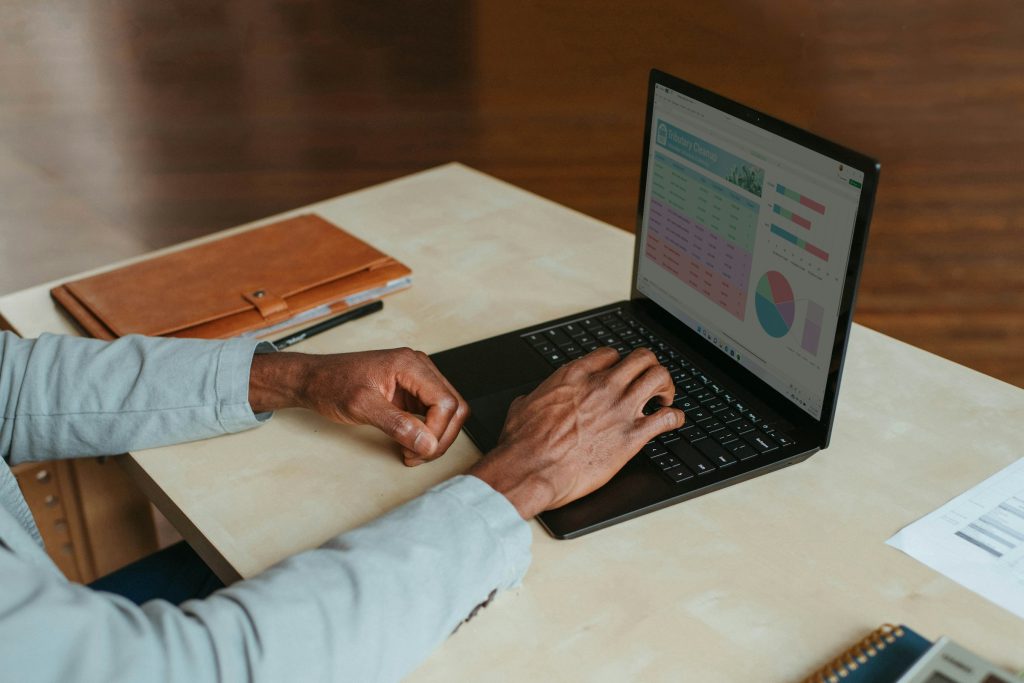
Use Your Workspace to “Clock In” and “Clock Out”
Creativity loves freedom, but your brain needs cues. Build a start/stop ritual that signals what mode you’re in.
Create distinct “modes”
- Separate profiles or desktops: One for work, one for personal. Use different:
- wallpaper
- dock/taskbar layouts
- browser profiles
- Notifications: off by default:
- Disable non-essential pings during work blocks.
- Then turn off work pings after hours. Equal-opportunity silence.
Build a simple start/stop ritual
- One app to begin, one app to end:
- Start with your task manager or calendar.
- End by writing tomorrow’s first task, then closing everything. That’s your shutdown.
Set Boundaries Inside a Home Office (Even If It’s a Corner)
You don’t need a dedicated room. You need a line.
Physical boundaries
- A work-only surface: A desk that’s only for work—or even one side of a table. When you leave it, you’re done.
Visual boundaries
Use something that clearly marks “work zone” vs. “life zone,” such as:
- a folding screen
- a plant wall
- headphones on a hook
Time boundaries
- Hard stop times: Put them on your calendar like meetings.
- If you regularly “just finish one more thing,” you’re training yourself to never finish.
Protect Your Attention Like It’s Part of the Job
Creative work drains you in weird ways—not always in volume, more in depth. Balance comes from managing energy, not just hours.
Control the shallow-work creep
- Batch shallow tasks: Email, admin, and messages go in set windows (e.g., 11:30 and 4:30).
- Don’t let them drip-feed all day.
Use focus tools on purpose
- Focus modes:
- full-screen apps
- website blockers
- “Do Not Disturb”
- Not forever—just long enough to build real momentum.
End with a clean slate
Before you stop, do a quick reset:
- close unused tabs
- file the project
- dump loose notes into one trusted place
Future-you shouldn’t have to excavate.
Make “After Work” Easier Than “Back to Work”
If your leisure time requires effort—setting up, cleaning up, deciding—you’ll drift back to work because it’s already open.
Lower the friction of downtime
- Keep a post-work default: A playlist, a walk route, a book, a game—something frictionless.
Reduce late-night re-entry
- Charge devices away from the desk: Especially if you’re prone to “quick checks.”
Create closure you can trust
- Leave a next-step note: When you stop, leave yourself a breadcrumb like:
- “Next: draft intro paragraph”
- “Export v3 and send to client”
Closure reduces anxiety—which reduces late-night logging back in.
The Bigger Point
An inspiring digital workspace isn’t just aesthetic. It’s structural. When it supports deep work and a clean exit, you get more creative output—and more of your actual life back.
Quick Steps to Revitalize Your Digital Space
You don’t need a full “new system” to feel refreshed. You need a few quick wins that remove friction and make your workspace feel like yours again.
- Do a 10-minute desktop reset
- Close everything you’re not using.
- Screenshot anything “important for later,” then delete the actual clutter.
- Keep only 3–5 items on your desktop: current project, inbox shortcut, shortcuts folder, and maybe one inspiration folder.
- Pick a single “home base” for each type of thing
- Files live in one place (cloud drive or local—choose one default).
- Tasks live in one app.
- Notes live in one app.
- Inspiration lives in one place (Pinterest board, Milanote, a folder, whatever).
The goal: fewer “where did I put that?” moments. - Rename your active folders so they’re impossible to ignore
- Use a simple prefix system:
- 00_INBOX (stuff to sort)
- 01_ACTIVE (current work)
- 99_ARCHIVE (done)
This is fast, boring, and wildly effective. - Build one reusable template
- Make a project folder template: Brief / Assets / Working / Exports / Feedback.
- Copy-paste it for every new job.
Consistency = speed. Speed = more mental space for ideas. - Tidy your browser like it’s part of your studio (because it is)
- Bookmark the top tools you actually use.
- Create a “Work” bookmark folder and pin only essentials.
- Kill tab hoarding with a “Read Later” list (or get ruthless and close them).
- Create a “start ritual” shortcut
- A saved workspace that opens what you need: calendar, task list, current project, reference board.
- If you’re on Mac/Windows, use automation (Shortcuts, PowerToys, Raycast/Alfred) to launch the set in one click.
- Make your screen pleasant to look at for hours
- Update wallpaper to something calm or inspiring (not busy).
- Switch to a clean icon set or simplify your dock/taskbar.
- Turn on Night Shift/f.lux and set a comfortable brightness.
Small changes, big mood shift. - Do a weekly 15-minute “creative admin” sweep
- Clear downloads.
- Move files from 00_INBOX.
- Archive finished projects.
- Write next week’s top 3 priorities.
This prevents your workspace from slowly turning into a junk drawer.
Tom Church, Co-Founder of LatestDeals.co.uk, the discount code platform, says: “The best systems are the ones you’ll actually stick with—small, repeatable habits that save time every day.”
If you do only three things today: clear your desktop, create 00_INBOX / 01_ACTIVE / 99_ARCHIVE, and set up a basic project template. You’ll feel the difference immediately—and your brain will stop spending creative energy on maintenance.