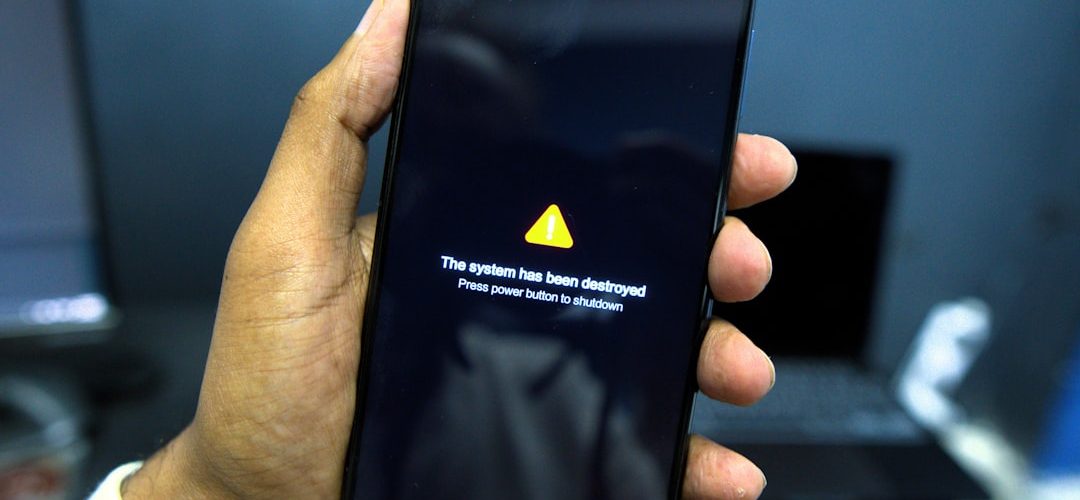
Your Android phone says it has 45%, 60%, or even 80% battery left—then suddenly the screen goes black. You press the power button, maybe plug it in, and it comes back claiming the battery is low or still partly charged. Random shutdowns at a high battery percentage are frustrating because they make your phone feel unreliable, even when the battery indicator looks perfectly fine.
TLDR: If your Android phone randomly shuts down while showing a high battery percentage, the most common cause is a weak or aging battery that can no longer deliver stable voltage. Software bugs, overheating, corrupted battery calibration data, faulty apps, and hardware issues can also trigger shutdowns. Start by checking battery health, updating your phone, testing in Safe Mode, and recalibrating the battery; if the problem continues, the battery or power hardware may need professional replacement.
Why a Phone Can Shut Down Even When the Battery Looks Full
The battery percentage on your Android phone is not a direct measurement of how much energy is physically sitting inside the battery. Instead, it is an estimate calculated by software using voltage readings, usage patterns, charging history, temperature, and battery behavior over time. When everything is working correctly, that estimate feels accurate. But when the battery ages or the system misreads its condition, the percentage can become misleading.
A lithium ion battery must maintain a certain voltage to keep the phone running. If voltage suddenly drops under load—for example, when opening the camera, gaming, using GPS, or switching to 5G—the phone may shut down to protect internal components. This can happen even if the battery meter still shows plenty of charge.
Common Causes of Random Shutdowns at High Battery Percentage
1. Battery Aging and Voltage Drop
The most common reason is a worn battery. Android phones typically use lithium ion or lithium polymer batteries, which degrade with every charge cycle. After hundreds of cycles, the battery may still charge to “100%,” but it cannot hold or deliver power as reliably as it once did.
This is why a phone may work fine while browsing messages, then die instantly when you open a power hungry app. The battery percentage looks high, but the voltage collapses under pressure. Cold environments can make this worse, because low temperatures temporarily reduce battery performance.
2. Incorrect Battery Calibration
Battery calibration refers to how well Android understands the battery’s real charge level. If calibration data becomes inaccurate, your phone may report 50% when the actual usable charge is much lower. This does not mean the battery is “confused” in a simple sense; rather, the system’s estimate no longer matches the battery’s real behavior.
Calibration problems often appear after major software updates, battery replacement, long periods of irregular charging, or repeated shutdowns. A calibration issue alone is usually less serious than battery damage, but it can hide a bigger problem.
3. Software Bugs or System Updates
Android updates are meant to improve performance and security, but occasionally a new update may introduce battery drain, power management glitches, or compatibility issues. Some users notice random shutdowns soon after installing a major Android version or manufacturer skin update.
Software bugs can affect how the phone manages background processes, CPU performance, battery reporting, and thermal protection. If the shutdown started immediately after an update, software should be high on your troubleshooting list.
4. Overheating and Thermal Protection
Phones are designed to shut down when temperatures become unsafe. If your device gets hot while charging, gaming, recording video, navigating, or sitting in direct sunlight, it may power off even with a high battery percentage.
Overheating can be caused by heavy apps, poor signal strength, a damaged battery, a faulty charger, or blocked heat dissipation from thick cases. If shutdowns happen mostly when the phone feels hot, temperature is likely part of the problem.
5. Faulty Apps Running in the Background
Some apps behave badly. A poorly optimized app may overload the processor, wake the phone constantly, drain power rapidly, or create system instability. Apps that control VPNs, launchers, automation, battery savers, device cleaners, or performance boosters can sometimes interfere with normal Android power management.
If shutdowns began after installing a new app, game, wallpaper app, or system utility, the app may be involved.
6. Hardware Problems Beyond the Battery
Although the battery is the top suspect, other hardware can cause random shutdowns. Possible issues include a damaged power button, failing charging port, loose battery connector, defective motherboard component, or impact damage from a drop.
Water exposure can also create delayed problems. A phone may work normally for days or weeks after moisture contact, then begin shutting down unpredictably as corrosion develops inside.
How to Check Battery Health on Android
Battery health tools vary depending on the brand. Some Android phones provide built in diagnostics, while others require hidden menus or third party apps. The goal is to look for signs that the battery capacity has declined or that voltage behavior is unstable.
Check Built In Battery Settings
Start with the basics:
- Open Settings.
- Go to Battery or Battery and device care.
- Review battery usage, screen on time, and app drain.
- Look for warnings such as battery capacity reduced, service recommended, or unusual background usage.
Samsung, Google Pixel, OnePlus, Xiaomi, Motorola, and other brands organize these menus differently, but most provide at least basic battery usage information.
Use Manufacturer Diagnostic Tools
Some brands include diagnostic apps. Samsung users, for example, can use Samsung Members to run battery and device checks. Pixel phones may display battery information through system settings and diagnostics, depending on region and Android version.
Manufacturer diagnostics are useful because they can identify whether the battery is considered healthy by the device’s own hardware and firmware.
Try a Reputable Battery Monitoring App
Apps such as battery monitors can estimate capacity, charging speed, temperature, and discharge behavior. These apps are not perfect, especially after only one charge cycle, but they can reveal patterns over several days.
Look for:
- Estimated capacity much lower than the original design capacity.
- Sudden percentage drops, such as 55% to 10% within minutes.
- High battery temperature during normal use.
- Unusual drain when the screen is off.
If several tools indicate poor health, the battery is likely near the end of its useful life.
Fixes to Try Before Replacing the Battery
1. Restart and Update Your Phone
It sounds simple, but a restart can clear temporary system bugs. After restarting, check for updates:
- Go to Settings.
- Open System or Software update.
- Install available Android and security updates.
- Update apps through the Google Play Store.
If a known battery bug exists, an update may fix it. Also update Google Play system components if your phone offers that option.
2. Boot into Safe Mode
Safe Mode starts Android with third party apps disabled. If your phone stops shutting down in Safe Mode, an installed app is probably causing instability.
On many Android phones, you can enter Safe Mode by holding the power button, then long pressing Power off until the Safe Mode prompt appears. The exact method varies by brand.
Use the phone in Safe Mode for a while. If it remains stable, uninstall recently installed or suspicious apps, especially cleaners, battery savers, launchers, and apps downloaded outside the Play Store.
3. Check for Overheating
If your phone often feels hot before shutting down, reduce heat stress:
- Remove thick cases during gaming or charging.
- Avoid charging in direct sunlight or under pillows.
- Use the original charger or a certified replacement.
- Close demanding apps when not needed.
- Turn off hotspot, GPS, or 5G temporarily if they are causing heat.
If the phone shuts down only when hot, and especially if the battery area feels swollen or unusually warm, stop using it and have it inspected.
4. Recalibrate the Battery Meter
Battery recalibration can help when the displayed percentage is inaccurate. It will not repair a physically degraded battery, but it may improve reporting.
Try this process:
- Use the phone until it shuts down by itself.
- Leave it off for about 30 minutes.
- Charge it uninterrupted to 100% using a reliable charger.
- Keep it plugged in for another 30 to 60 minutes after reaching 100%.
- Restart the phone and use it normally.
Do not do deep discharge cycles frequently. Fully draining lithium batteries too often can increase wear. This method is best used occasionally for troubleshooting.
5. Clear Cache or Reset Problem Settings
Some Android phones allow you to wipe the system cache partition from recovery mode. This can help after major updates, though newer devices handle cache differently. You can also reset app preferences or network settings if shutdowns are connected to connectivity problems.
If the issue started after a major update and nothing else works, back up your data and consider a factory reset. This should be a last software step because it erases your apps, accounts, and local files.
When Battery Replacement Is the Real Fix
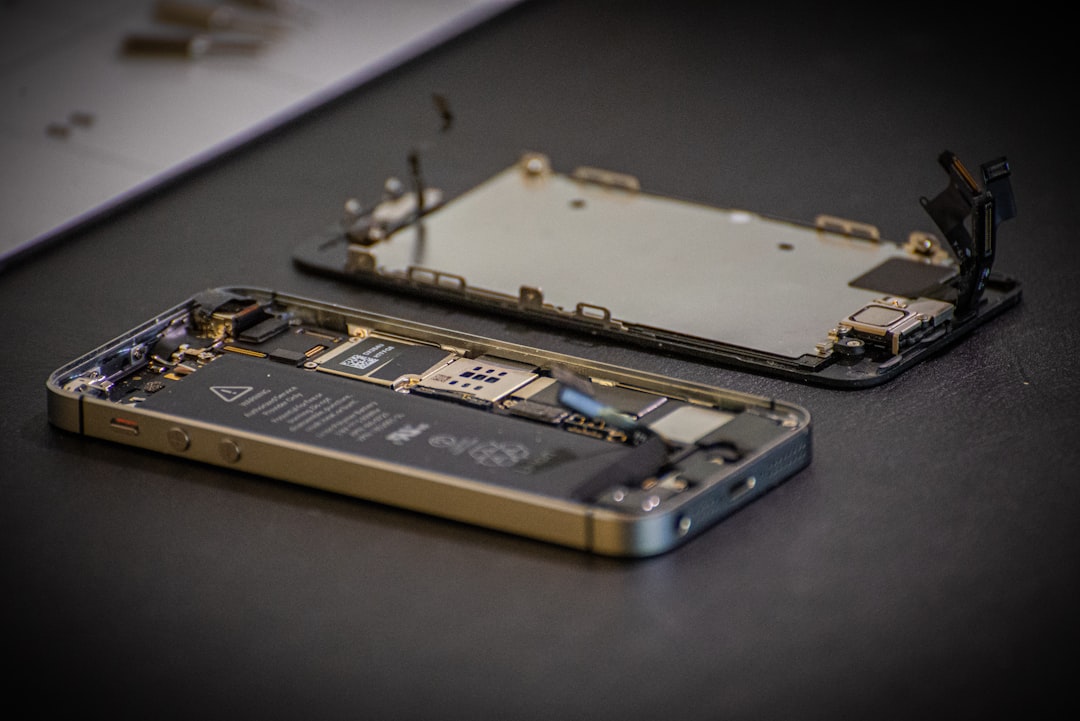
If your phone is more than two or three years old, shuts down under load, drops percentages suddenly, or only powers on after being plugged in, the battery is probably worn out. Replacing it is often the most effective fix.
Signs you should replace the battery include:
- The phone shuts down at 20%, 40%, or higher.
- Battery percentage jumps after rebooting.
- The phone works normally while plugged in but dies on battery power.
- The back cover is lifting or the battery appears swollen.
- Charging is unusually slow, inconsistent, or hot.
A swollen battery is a safety issue. Do not press the back cover down, puncture the battery, or continue charging it. Take the phone to an authorized repair provider or reputable technician.
How to Prevent Future Shutdowns
Good charging habits can slow battery aging. You do not need to obsess over every percentage point, but a few habits help:
- Keep the battery between 20% and 80% when convenient.
- Avoid leaving the phone in hot cars or direct sun.
- Use quality chargers and cables.
- Do not ignore repeated overheating.
- Uninstall apps that constantly drain power in the background.
- Enable adaptive battery or optimized charging if available.
Modern Android phones are smarter about charging than older devices, but heat remains the biggest enemy of battery longevity. Fast charging is convenient, yet it can generate more warmth, especially with heavy use during charging.
Final Thoughts
An Android phone that randomly shuts down at a high battery percentage is usually telling you that the displayed charge and the battery’s real power delivery no longer match. Sometimes the fix is software related: an update, Safe Mode test, app removal, recalibration, or reset. But if the phone is older, heats up, drops percentages suddenly, or dies under heavy use, the battery is the most likely culprit.
The best approach is to troubleshoot in order: check battery usage, update software, test Safe Mode, watch for heat, recalibrate once, and then consider repair. If the battery is failing, replacing it can make the phone feel dependable again—and may be far cheaper than buying a new device.