Few things are more frustrating than realizing your iPhone isn’t receiving text messages—especially when you’re waiting for an important update, verification code, or message from a loved one. Whether the issue affects iMessages, SMS texts, or both, message failures can disrupt your communication and leave you feeling disconnected. The good news? In most cases, the fix is simpler than you think.
TLDR: If your iPhone isn’t receiving texts, the issue is usually tied to network settings, iMessage configuration, blocked contacts, or outdated software. Start by checking your signal, toggling Airplane Mode, and restarting your device. Then review iMessage settings, carrier updates, and storage space. In most cases, one of these eight solutions will restore your messages quickly.
Let’s explore eight proven ways to get your iPhone receiving texts again.
1. Check Your Network Connection
Text messaging depends heavily on your network connection. SMS messages require a cellular signal, while iMessages require either Wi-Fi or mobile data.
Start with these quick checks:
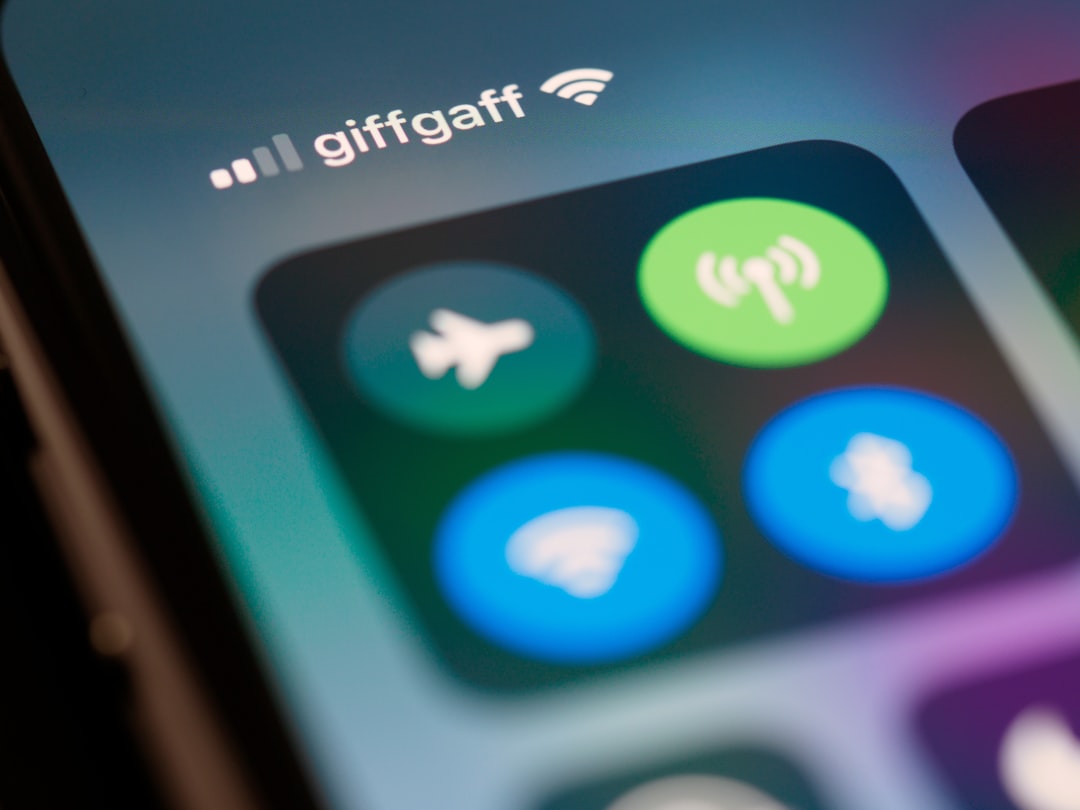
- Look at the signal bars in the top-right corner of your screen.
- Ensure Wi-Fi or Mobile Data is enabled.
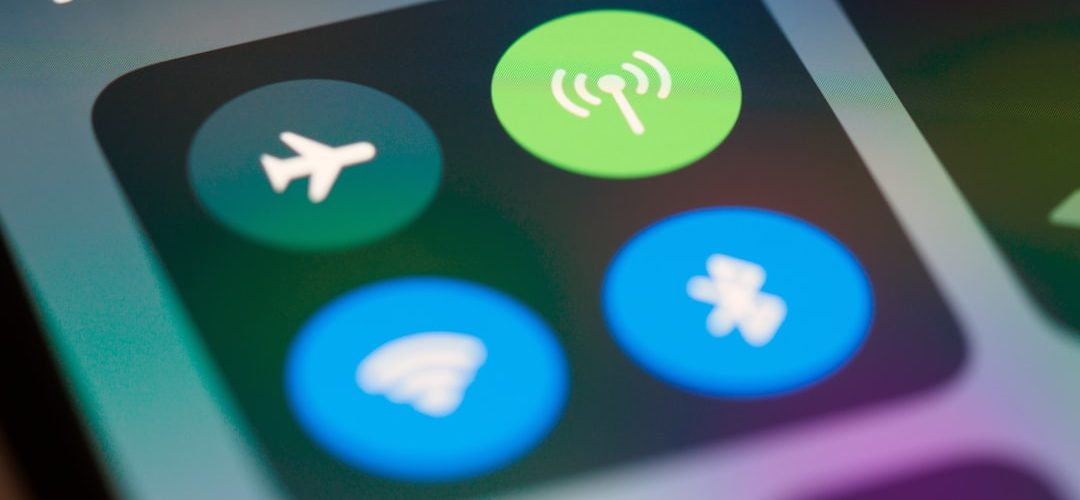
- Toggle Airplane Mode on and off to refresh connections.
- Move to an area with stronger coverage if signal is weak.
Pro tip: If you’re traveling internationally, verify that roaming is enabled under Settings > Cellular > Cellular Data Options.
2. Restart Your iPhone
It sounds simple, but restarting your iPhone can resolve numerous temporary software glitches. If your messaging app or background system process froze, a reboot often clears it up.
To restart:
- Face ID models: Press and hold the side button + volume button until the slider appears.
- Touch ID models: Press and hold the side or top button.
Slide to power off, wait 30 seconds, and turn the phone back on.
This quick reset refreshes your network registration and messaging services.
3. Make Sure iMessage Is Enabled
If you’re not receiving messages from other Apple users, iMessage may be turned off or improperly configured.
Check your settings:
- Go to Settings.
- Tap Messages.
- Ensure iMessage is toggled on.
If it’s already enabled, try turning it off, waiting 10 seconds, and turning it back on.
Next, tap Send & Receive and confirm your phone number and Apple ID email are selected. If your Apple ID isn’t signed in, log in again.
Important: If you recently switched from Android to iPhone and didn’t deregister your number from iMessage, texts from iPhone users may not come through properly.
4. Check for Blocked Contacts
It’s possible you’ve accidentally blocked someone. When a contact is blocked, you won’t receive their calls, texts, or FaceTime requests.
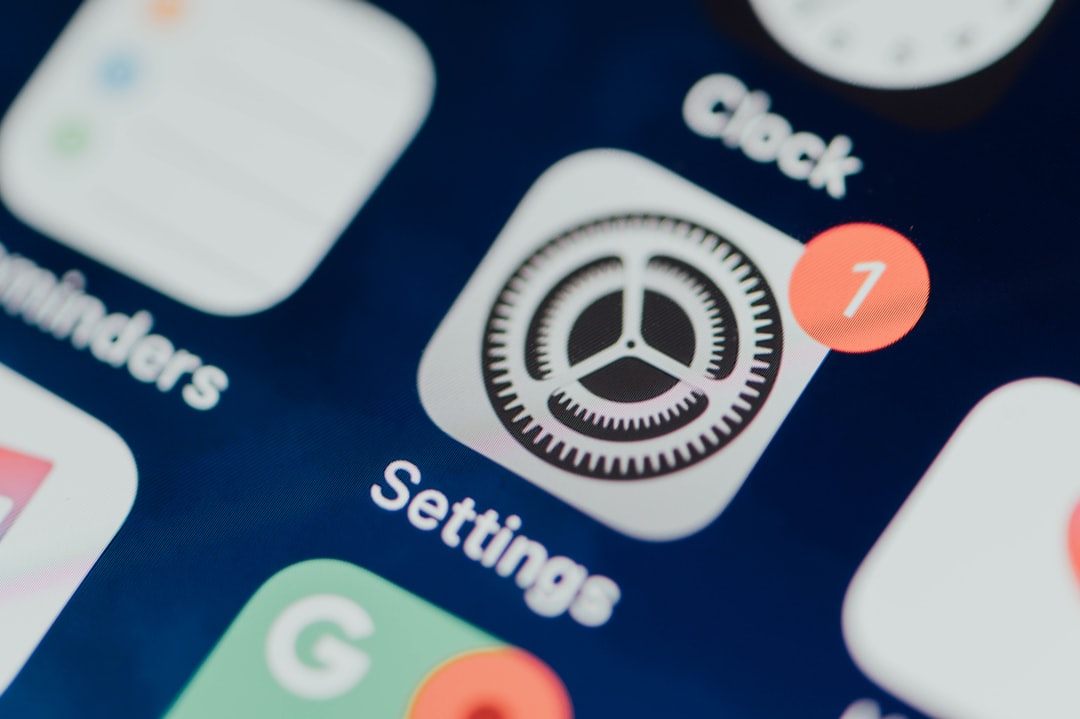
To review blocked contacts:
- Open Settings.
- Tap Messages.
- Select Blocked Contacts.
If you see the contact listed, swipe left and tap Unblock.
This is especially common if you’ve previously silenced spam numbers or accidentally blocked someone during a flood of messages.
5. Update iOS and Carrier Settings
Outdated software can cause unexpected messaging issues. Apple frequently releases updates to patch bugs and improve performance.
To update iOS:
- Go to Settings > General > Software Update.
- Download and install if an update is available.
Carrier settings updates are just as important. These updates optimize your phone’s ability to connect with your mobile network.
To check for a carrier update:
- Go to Settings > General > About.
- If prompted, install the update.
Why this works: Carrier configuration updates directly affect SMS and MMS routing, which could be the root cause of your issue.
6. Reset Network Settings
If your network configuration becomes corrupted, resetting network settings often restores normal functionality.
To reset:
- Open Settings.
- Go to General.
- Scroll to Transfer or Reset iPhone.
- Tap Reset.
- Select Reset Network Settings.
Keep in mind this will:
- Erase saved Wi-Fi passwords
- Remove paired Bluetooth devices
- Reset VPN configurations
However, it does not delete your data or apps.
Once your phone restarts, reconnect to Wi-Fi and test incoming messages.
7. Check Storage Space
Did you know your iPhone won’t receive new messages if storage is completely full? When there’s no room left to save data, texts may stop appearing entirely.
To check storage:
- Open Settings.
- Tap General.
- Select iPhone Storage.
If your storage bar is nearly full:
- Delete unused apps.
- Remove old videos and screenshots.
- Clear large message threads.
- Enable Optimize iPhone Storage for photos.
Freeing even a few gigabytes can immediately restore messaging functionality.
8. Contact Your Carrier
If none of the above steps work, the issue may be with your carrier rather than your phone.
Possible carrier-related causes include:
- Suspended or expired service plan
- SMS service outage
- SIM card activation problems
- Improper number porting after switching providers
Remove and reinsert your SIM card if you use a physical SIM. If you have an eSIM, your carrier may need to re-provision it.
Pro tip: Ask your carrier to confirm that SMS and MMS features are fully enabled on your account.
Bonus Fixes to Consider
If you’re still troubleshooting, here are a few additional checks:
- Disable Focus Mode or Do Not Disturb.
- Check if messages are filtering into Unknown Senders inbox.
- Make sure Date & Time are set automatically.
- Sign out of iMessage and sign back in.
Sometimes a small settings mismatch can quietly block new messages from appearing where you expect them.
When It’s Time for Apple Support
If you’ve tried every step and still aren’t receiving texts, there could be a deeper software or hardware issue. Contact Apple Support or visit an Apple Store if:
- Your SIM works in another phone but not yours.
- You notice persistent network dropouts.
- Your iPhone recently suffered physical damage.
- The Messages app crashes repeatedly.
Technicians can run diagnostics to detect internal issues you can’t access from settings.
Final Thoughts
Missing text messages can feel alarming, but in most cases the solution is straightforward. From checking signal strength and storage space to resetting network settings or updating your software, each step addresses a common cause behind message delivery failures.
The key is to work methodically. Start with the quickest fixes—like checking your connection and restarting—before moving into deeper settings adjustments. With a little troubleshooting, your iPhone should be buzzing with incoming messages again in no time.
And next time texts suddenly stop? You’ll know exactly what to do.