Homestead email is often used by small businesses, freelancers, and website owners who want a professional address connected to their domain, such as name@yourbusiness.com. Whether you check messages daily or only when customer inquiries arrive, knowing how to log in, reset your password, and fix common access problems can save time and prevent missed opportunities.
TLDR: To access Homestead email, go to the correct webmail or account login page, enter your full email address and password, and confirm your browser or email app settings are up to date. If you forget your password, use the account recovery option or reset it through your Homestead account dashboard. For example, a small shop receiving 30 customer emails per week could miss 10% of inquiries during a two-day login issue, so quick troubleshooting matters. Most problems are caused by incorrect passwords, outdated saved logins, browser cache, or mail client configuration errors.
Understanding Homestead Email Access
Homestead email is typically connected to a website or domain account, meaning your inbox is part of a broader business setup. This is useful because it gives customers a more trustworthy contact point than a generic free email address. A branded email like support@yourdomain.com can make even a small operation look more polished and reliable.
There are usually two main ways to access your Homestead email:
- Webmail access: You sign in through a browser to read, send, and manage messages.
- Email app access: You connect your mailbox to software such as Outlook, Apple Mail, or a mobile mail app.
For quick access, webmail is usually the simplest choice. It does not require server settings, and it works from most computers or mobile browsers as long as you have the correct login details.
How to Log In to Your Homestead Email
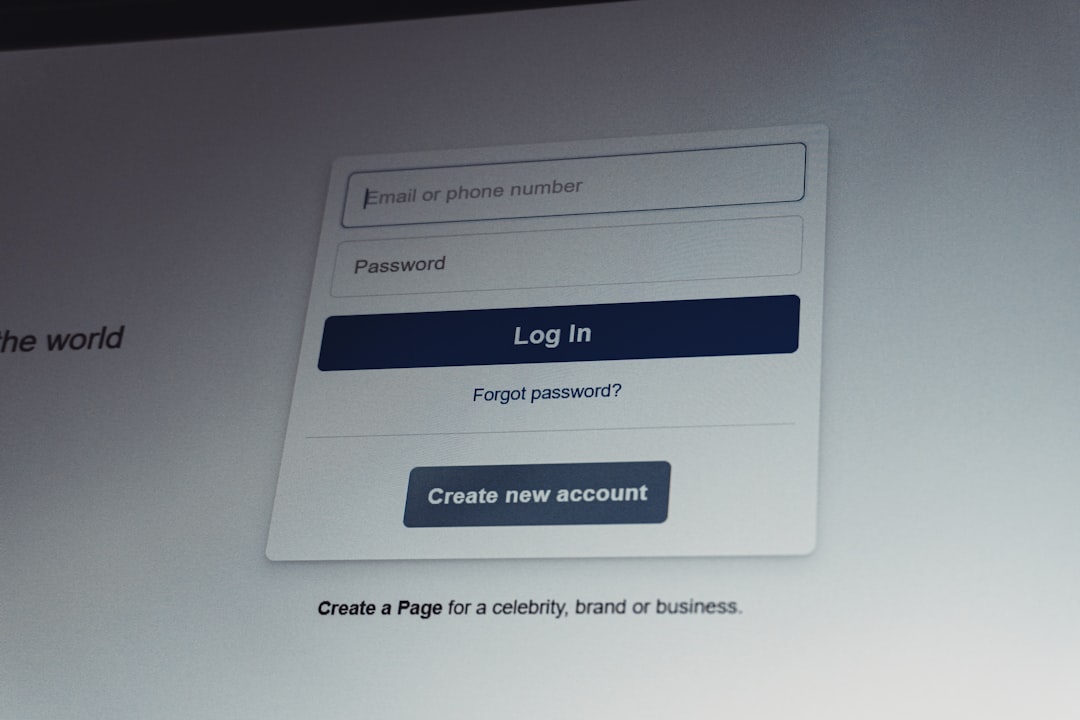
To sign in, open your browser and go to the Homestead webmail or account login page associated with your service. Enter your full email address, not just the username. For example, use alex@greenvalleycafe.com instead of simply alex.
Follow these general steps:
- Open the Homestead email login page in a trusted browser.
- Type your complete email address.
- Enter your password carefully, checking for uppercase letters, numbers, and special characters.
- Select the sign-in or login button.
- If prompted, choose whether to stay signed in only on a private, trusted device.
If you are logging in from a shared computer, avoid saving your password in the browser. Always sign out when finished, especially if the account handles customer orders, invoices, or private business conversations.
Logging In Through an Email App
Many users prefer to manage Homestead email through an email client because it keeps all messages in one place. If you are adding the account to Outlook, Gmail app, Apple Mail, or another client, you may need incoming and outgoing server settings. These can vary depending on your hosting or email package, so it is best to confirm the current settings inside your Homestead account or support documentation.
When setting up an email app, pay close attention to:
- Email address: Use the full address exactly as created.
- Password: Use the mailbox password, not necessarily your main Homestead account password.
- Incoming mail server: This handles received messages.
- Outgoing mail server: This handles sent messages.
- Security settings: SSL, TLS, and port numbers must match the recommended configuration.
If messages arrive but do not send, the outgoing server settings are often the problem. If messages send but do not appear in your inbox, check the incoming server configuration or spam filters.
How to Reset Your Homestead Email Password
Password problems are among the most common login issues. If you cannot remember your password, first determine whether you need to reset the email mailbox password or the main Homestead account password. These may be different, especially if an administrator created several email addresses for employees.
To reset access, try the following:
- Go to the Homestead login page.
- Look for a Forgot Password or account recovery link.
- Enter the requested account email or username.
- Check your recovery email for instructions.
- Create a new password that is strong and unique.
If you manage email accounts through a Homestead dashboard, log in as the account owner and locate the email management section. From there, you may be able to select the mailbox and assign a new password. This is helpful when an employee leaves the company or when a team member loses access.
A strong password should include at least 12 characters, a mix of uppercase and lowercase letters, numbers, and symbols. Avoid using your business name, domain name, birthday, or simple patterns like Password123.
Common Login Problems and Quick Fixes
Even when your credentials are correct, small technical issues can block access. The good news is that many problems can be solved in just a few minutes.
- Incorrect username: Make sure you are using the full email address, including the domain.
- Wrong password: Check Caps Lock and verify that your browser has not autofilled an old password.
- Browser cache issue: Clear cache and cookies, then restart the browser.
- Outdated browser: Try updating your browser or using another one.
- Account lockout: Too many failed attempts may temporarily block access. Wait before trying again or reset the password.
- Service interruption: If nothing works, there may be a temporary mail service issue.
One useful trick is to open a private or incognito browser window and attempt to log in there. If it works, your original browser may be storing outdated cookies or login data.
Troubleshooting Email App Problems
If webmail works but your email app does not, the issue is probably local to the device or application. Start by confirming that your internet connection is stable. Then check whether the app is asking for a password repeatedly, failing to sync, or showing server errors.
Try these steps:
- Re-enter your password manually instead of using saved credentials.
- Confirm incoming and outgoing server names.
- Check that SSL or TLS security settings are enabled if required.
- Remove and re-add the account if syncing remains broken.
- Update the mail app or operating system.
If you recently changed your password through webmail or the Homestead dashboard, remember to update that password on every connected device. A phone, tablet, and desktop app may each continue trying the old password, which can sometimes trigger account security blocks.
Security Tips for Homestead Email Users
Your business email can contain contracts, billing details, customer questions, and private login notifications. Protecting it should be a priority, not an afterthought.
- Use unique passwords: Never reuse your email password on shopping, social media, or banking sites.
- Review recovery details: Keep your backup email and phone number current.
- Watch for phishing: Be cautious with messages asking you to “verify” your login urgently.
- Sign out on shared devices: Do not rely only on closing the browser window.
- Limit admin access: Only trusted users should manage mailbox settings.

When to Contact Support
If you have tried password reset, browser cleanup, and device troubleshooting but still cannot get in, it may be time to contact Homestead support. Before reaching out, gather useful details such as your domain name, affected email address, error message, browser type, and whether webmail or only an email app is failing.
Providing specific information can reduce back-and-forth and help support identify the issue faster. Instead of saying, “My email is broken,” say, “I can log in to webmail, but Outlook shows an outgoing server error when I send messages.” That single detail points the support team in a clearer direction.
Final Thoughts
Homestead email login problems can feel stressful, especially when customers are waiting for replies, but most issues have straightforward solutions. Start with the basics: confirm the full email address, reset the password if needed, clear browser data, and verify mail app settings. With good password habits and a clear troubleshooting process, you can keep your business inbox accessible, secure, and ready for every important message.