Use Awesome Design.md when you want wide UI inspiration fast, and use Figma resources when you want editable design files you can copy, study, and remix.
TLDR: Awesome Design.md is like a clean treasure map for design links. Figma resources are like a toy box full of real buttons, screens, kits, and templates. For example, a junior designer building a pricing page might find 20 strong reference links in 15 minutes with Awesome Design.md, then grab a Figma pricing table kit and finish a mockup 35% faster. The best workflow is simple: start broad with Awesome Design.md, then build inside Figma.
What Is Awesome Design.md?
Awesome Design.md is usually a curated Markdown list of design resources. Think of it as a neat list made by designers for other designers.
It may include links to:
- UI galleries
- UX articles
- Design systems
- Icon libraries
- Color tools
- Typography tools
- Portfolio inspiration
- Accessibility guides
The “.md” part means it is written in Markdown. That makes it simple. No shiny dashboard. No popups asking you to sign up. No weird loading spinner that spins like it has a personal problem.
It is plain. That is the charm.
You scroll. You click. You find things.

What Are Figma Resources?
Figma resources are files, templates, plugins, UI kits, and components made for Figma. Many live in the Figma Community. Others are shared by design teams, creators, and product companies.
You can find things like:
- Mobile app templates
- Landing page kits
- Dashboard layouts
- Wireframe kits
- Design system files
- Icons
- Charts
- Prototype examples
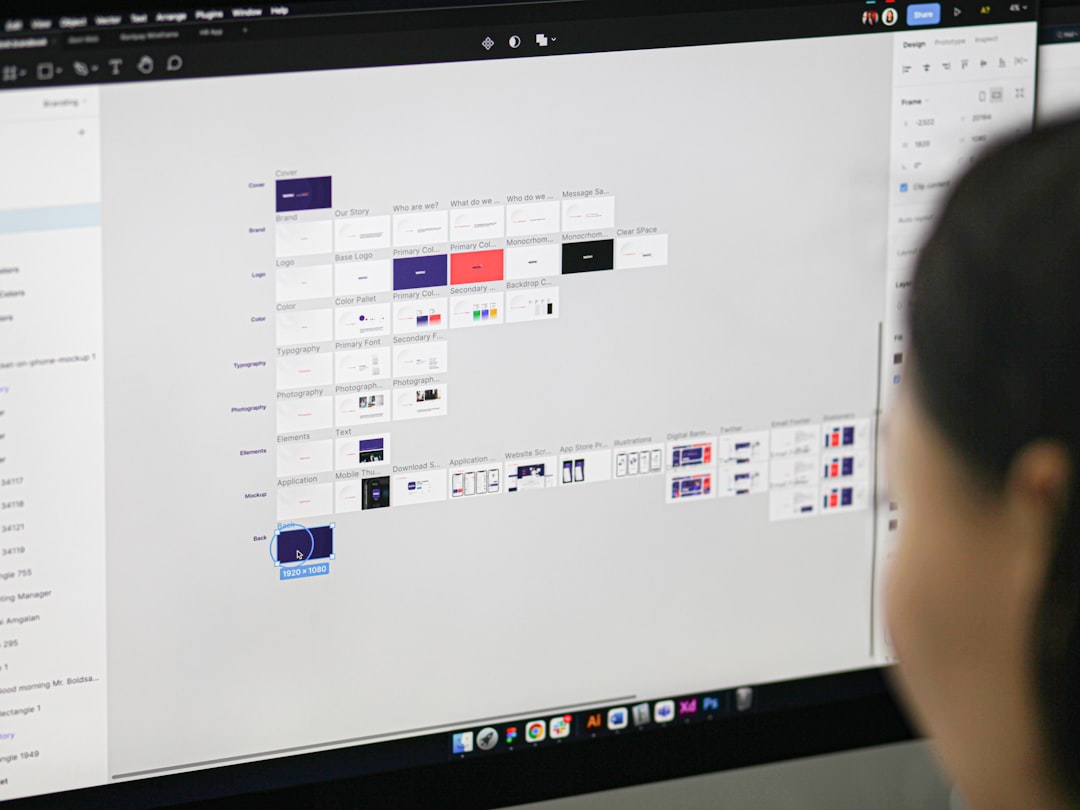
The big win is this: you do not just look. You can open the file. You can inspect spacing. You can copy components. You can see how frames are named, or not named, depending on how chaotic the creator was feeling that day.
Honestly, it feels like some free Figma files were built at 2:13 a.m. with one hand on coffee. Layers called “Rectangle 393” still haunt many designers.
The Main Difference
Awesome Design.md helps you find sources. Figma resources help you make screens.
That is the clearest split.
Awesome Design.md is better for research. It helps you open your mind. It sends you to galleries, blogs, tools, and visual ideas.
Figma resources are better for execution. They help you build faster. They give you pieces you can drag, edit, and test.
One is a map. One is a toolbox.
When Awesome Design.md Wins
Awesome Design.md is great when you feel stuck. You know the feeling. Blank canvas. Empty frame. Cursor blinking. Client asking for “something modern but warm.” Very helpful. Thanks, client.
In that moment, a curated list saves time.
It gives you many paths:
- Need color ideas? Open color tools.
- Need layout ideas? Open UI galleries.
- Need better forms? Search for UX patterns.
- Need icons? Jump to icon libraries.
- Need design system examples? Open real team docs.
It is also nice for beginners. There is less pressure. You can browse without feeling like you must download, duplicate, or edit anything.
Another bonus: Markdown lists are often fast. A normal resource page may take 4 or 5 seconds to load. A clean Markdown page often feels instant. Small thing. Big mood.
When Figma Resources Win
Figma resources win when the deadline is loud.
If you need a checkout screen by 3 p.m., you probably do not want to read six articles on shopping cart psychology. You need structure. You need fields. You need buttons. You need a decent layout right now.
That is where Figma shines.
You can search for “checkout UI kit,” duplicate a file, and start editing. You can test spacing. You can swap colors. You can turn a rough idea into a clickable prototype.
Figma resources are also useful for learning. Open a polished file and study it. Ask simple questions:
- How much space is between sections?
- How are buttons grouped?
- What font sizes are used?
- How many colors appear on one screen?
- How are empty states designed?
This is practical learning. Not theory. Real pixels.
The Annoying Parts
Awesome Design.md has one clear flaw. Some links get old. A tool may shut down. A page may move. A resource may feel very 2018. Expect to waste time on a few dead ends.
Search can also be weak. If the list is long, you may use your browser’s find tool. That works, but it is not fancy.
Figma resources have different problems. Some files are huge. They take longer to open. Some are messy. Some look amazing in preview, then open like a junk drawer with gradients.
The catch is that popularity does not always mean quality. A file with 50,000 duplicates may still have poor layer names, missing styles, and odd spacing.
So yes, free is nice. Free plus messy is less nice.
Which One Is Better for UI Inspiration?
For pure inspiration, Awesome Design.md often wins.
Why? Because it sends you to many kinds of sources. You are not trapped inside one tool. You can see websites, apps, systems, portfolios, articles, and pattern libraries.
That range matters.
If you only browse Figma files, your ideas may start to look like other Figma files. Same cards. Same hero sections. Same rounded buttons. Same soft shadow that refuses to retire.
For turning inspiration into a layout, Figma resources win.
You get a head start. You can copy a grid. You can reuse a nav bar. You can test ideas fast.
So the real answer is not “one is better.” The smart answer is use both at the right time.
A Simple Workflow That Works
Try this four-step process:
- Start with Awesome Design.md. Pick 5 to 8 links related to your project.
- Save screenshots. Focus on layout, spacing, type, and states.
- Open Figma resources. Search for a kit close to your goal.
- Build your own version. Do not copy blindly. Mix, edit, and simplify.
This keeps you out of the copycat zone. It also keeps you moving.
Here is a quick example. Say you are designing a fitness app onboarding flow. First, use Awesome Design.md to find mobile UI galleries and onboarding pattern posts. Save 12 good screens. Then open Figma and search for mobile onboarding kits. Pick one file with clean components. In one hour, you can create a rough flow with welcome, goals, permissions, and plan selection screens.
Without that workflow, the same task may eat half a day. And yes, somehow half of that time will be spent choosing between two nearly identical shades of blue.
Best Use Cases
Use Awesome Design.md for:
- Early research
- Mood boards
- Finding design blogs
- Learning UI basics
- Collecting visual references
- Finding tools beyond Figma
Use Figma resources for:
- Quick mockups
- Wireframes
- Design systems
- Clickable prototypes
- Component practice
- Real file inspection
How Beginners Should Choose
If you are new to UI design, start with Awesome Design.md for 20 minutes. Do not stay there all day. Inspiration can turn into scrolling soup.
Pick a small goal. For example: “I need three ideas for a sign-up page.” Then stop browsing.
Next, open Figma resources. Find one simple sign-up template. Rebuild it from scratch. Do not just change the logo and call it skill. Rebuilding teaches your eye.
Pay attention to boring things. Boring things make good UI:
- Alignment
- Spacing
- Contrast
- Font size
- Button states
- Error messages
Great design is often quiet. It works. It does not scream for attention.
Final Verdict
Awesome Design.md is best for finding inspiration across the web. Figma resources are best for turning that inspiration into usable design work.
If you want ideas, start with Awesome Design.md. If you want editable screens, open Figma. If you want the strongest result, use both.
The simple rule is this: research wide, then build focused. Your designs will feel fresher. Your process will feel faster. And your blank canvas will look a little less smug.